
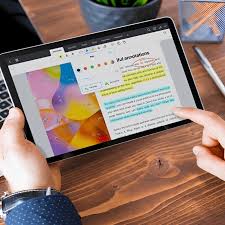
How to Modify a File Pdf With Ipad: A Step-by-step Guide
Are you tired of struggling to modify files in PDF format on your iPad? Look no further! In this article, we will guide you through the process of modifying a file PDF with your iPad using various apps and tools.
Introduction
Modifying PDFs can be a tedious task, especially when done manually. However, with the right tools and apps, it becomes much easier and efficient. In this article, we will explore different ways to modify files in PDF format on your iPad.
Method 1: Using The Files App
The first method is using the built-in Files app on your iPad. This app allows you to view and edit PDFs directly on your device.
- Open the Files app and select the PDF file you want to modify.
- Tap on the three dots at the top right corner of the screen and select “Edit”.
- You can now add text, signatures, or other annotations to the PDF using various tools and options available in the app.
- Once you’re done editing, tap on the “Save” button to save your changes.
Method 2: Using Adobe Acrobat Reader
If the Files app doesn’t offer the level of detail you need, you can use Adobe Acrobat Reader. This app offers advanced features for modifying PDFs, including tools for annotations, redaction, and more.
- Download and install Adobe Acrobat Reader from the App Store.
- Open the app and select the PDF file you want to modify.
- Tap on the “Edit” button at the top right corner of the screen to start editing your PDF.
- Use various tools and options available in the app to add text, signatures, or other annotations to the PDF.
Method 3: Using Pdf Expert
PDF Expert is another powerful app for modifying PDFs on your iPad. It offers a range of features, including tools for annotations, redaction, and more.
- Download and install PDF Expert from the App Store.
- Open the app and select the PDF file you want to modify.
- Tap on the “Edit” button at the top right corner of the screen to start editing your PDF.
- Use various tools and options available in the app to add text, signatures, or other annotations to the PDF.
Method 4: Using Other Apps
There are several other apps available for modifying PDFs on your iPad. Some popular options include:
- Xodo PDF
- Foxit PDF
- Notability
These apps offer a range of features and tools for editing PDFs, including text annotation, signature creation, and more.
Conclusion
Modifying files in PDF format on your iPad can be a breeze with the right tools and apps. Whether you choose to use the Files app, Adobe Acrobat Reader, or other third-party apps like PDF Expert, there are many options available to suit your needs.
Frequently Asked Questions
- What is The Best App For Modifying Pdfs on my Ipad?
The best app for modifying PDFs on your iPad depends on your specific needs and preferences. Some popular options include Adobe Acrobat Reader, PDF Expert, and Xodo PDF. - Can I Modify a Pdf File Without Downloading Any Apps?
Yes, you can modify a PDF file using the Files app or other built-in features on your iPad. However, for more advanced editing capabilities, you may need to download a third-party app. - How do I Add Text Annotations to a Pdf File?
To add text annotations to a PDF file, open the file in the Files app or Adobe Acrobat Reader and select the “Edit” button. Then, tap on the “+” icon at the top right corner of the screen to add text. - Can I Create Signatures Using Any of These Apps?
Yes, all the apps mentioned above allow you to create signatures for your PDF files.


