
Sharing Apps on Android And Ios
In today’s digital age, sharing apps has become a common practice among friends, family members, and colleagues. Here’s how to share an app on both Android and iOS devices.
Sharing Apps on Android
- Open the Google Play Store app.
- Tap on the menu icon (three horizontal lines).
- Select “Manage apps & device”.
- Choose the app you want to share.
- Tap on the three vertical dots.
- Select “Share” (Condividi).
- Choose a sharing method, such as Bluetooth or Wi-Fi.
Sharing Apps in Family Mode on Android
- Open the Google Play Store app.
- Tap on the profile icon.
- Select “Settings”.
- Choose “Family”.
- Create a family cluster by selecting “Recordate il cluster” (Record the cluster).
Sharing Apps on Ios
- Open the Apple App Store app.
- Tap on the search icon.
- Search for the app you want to share.
- Select the app from the search results list.
- Tap on the share icon (three horizontal lines).
- Choose a sharing method, such as WhatsApp or Telegram.
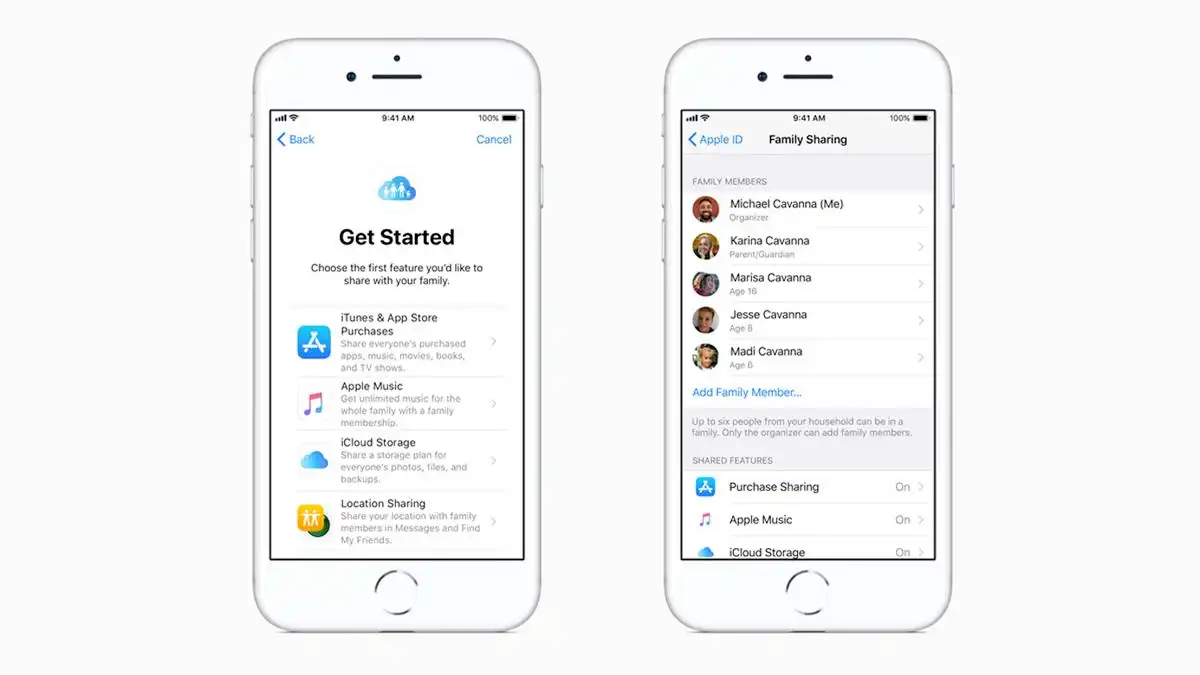
Creating a Family Cluster on Ios
- Open the Apple Settings app.
- Tap on “Settings”.
- Choose “Family”.
- Create a family cluster by selecting “Crea un account per tutti” (Create an account for everyone).
Faqs
-
How do I share an app on Android?
Answer: Follow steps 1-7 above. -
How do I create a family cluster on Android?
Answer: Follow steps 1-5 above. -
How do I share an app on iOS?
Answer: Follow steps 1-6 above. -
How do I create a family cluster on iOS?
Answer: Follow steps 1-4 above. -
Can I share apps with my friends using Bluetooth?
Answer: Yes, but only on Android devices. -
How do I know if an app can be shared in Family mode?
Answer: Look for the icon with a heart and a box in the app’s page on the Play Store. -
Can I share apps with my family members using WhatsApp?
Answer: Yes, on both Android and iOS devices. -
How do I install an app on my device if it was shared by another user?
Answer: Tap on the link to open the App Store or Play Store, then tap on the “Install” button.


