
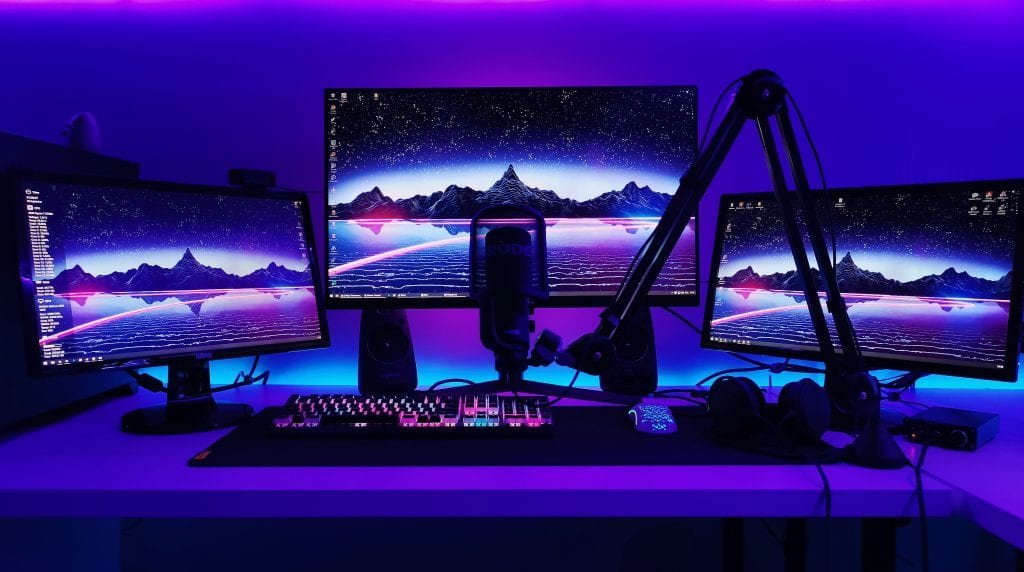
Streamming With 2 Pcs: A Beginner’s Guide
Are you ready to take your streaming game to the next level? With two PCs, you can create a more engaging and interactive experience for your viewers. In this guide, we will walk you through the process of streamming with 2 PCs using OBS (Open Broadcasting Software).
What You Need
- Two computers with internet connection
- OBS software installed on both computers
- A good quality HDMI cable to connect the two computers
- A splitter to split the HDMI signal to multiple monitors
Why Stream With 2 Pcs?
Streaming with two PCs allows you to create a more immersive experience for your viewers. You can use one PC to stream gameplay, and another PC to display additional content such as live chat, polls, or even a webcam feed.
Hardware Requirements
- For the primary computer (the one that will be used for streaming):
- A good quality graphics card
- A decent processor
- At least 8 GB of RAM
- For the secondary computer (the one that will be used to display additional content):
- A mid-range processor
- 4 GB of RAM
Software Requirements
- OBS software installed on both computers
- NDI plugin for OBS (optional)
Step 1: Set up Obs on Both Computers
First, you need to set up OBS on both computers. You can download the software from the official website.
Step 2: Connect The Two Computers With Hdmi Cable
Next, connect the two computers using an HDMI cable. Make sure that the HDMI cable is good quality and can handle 4K resolution.
Step 3: Configure Obs on Both Computers
Configure OBS on both computers to use the same settings. On the primary computer, go to Settings > Video and set the resolution to 1080p or 4K depending on your graphics card capabilities.
On the secondary computer, go to Settings > Video and set the resolution to match the primary computer’s resolution.
Step 4: Add The Secondary Computer as a Source
On the primary computer, add the secondary computer as a source in OBS. Go to Sources > + (Add new source) and select “NDI” as the source type.
Enter the name of the secondary computer and click OK.
Step 5: Configure The Ndi Plugin (Optional)
If you want to use the NDI plugin, download it from the official website and install it on both computers.
On the primary computer, go to Settings > Video > NDI Output Settings and configure the plugin according to your needs.
Step 6: Start Streaming
Finally, start streaming by clicking on the “Start Streaming” button in OBS.
Tips And Tricks
- Make sure that both computers are connected to a stable internet connection.
- Use a good quality HDMI cable to ensure smooth video transmission.
- Configure the NDI plugin according to your needs for optimal performance.
Common Issues And Solutions
- Hdmi Signal Not Being Transmitted: Check that the HDMI cable is properly connected and that the primary computer’s graphics card can handle 4K resolution.
- Secondary Computer Not Displaying Content: Check that the secondary computer is properly configured as a source in OBS and that the NDI plugin is installed correctly.
Conclusion
Streaming with two PCs can create a more engaging experience for your viewers. By following these steps, you can set up OBS on both computers and configure the NDI plugin to stream high-quality content.
Remember to troubleshoot any issues that may arise during streaming and adjust your settings accordingly.
Frequently Asked Questions (FAQs)
Q: What is The Minimum System Requirement For Streaming With 2 Pcs?
A: The minimum system requirement for streaming with 2 PCs is a good quality graphics card, a decent processor, and at least 8 GB of RAM on the primary computer, and a mid-range processor and 4 GB of RAM on the secondary computer.
Q: Can I Use Any Hdmi Cable to Connect The Two Computers?
A: No, it’s recommended to use a high-quality HDMI cable that can handle 4K resolution for smooth video transmission.
Q: What is The Ndi Plugin And do I Need It?
A: The NDI plugin is an optional software that allows you to stream content from one computer to another. You may not need it, but if you want to use it, download and install it on both computers.
Q: Can I Use Any Video Resolution For Streaming With 2 Pcs?
A: No, it’s recommended to use a standard resolution such as 1080p or 4K depending on your graphics card capabilities.
Q: How do I Troubleshoot Common Issues During Streaming With 2 Pcs?
A: Check that the HDMI cable is properly connected and that the primary computer’s graphics card can handle 4K resolution. Configure the NDI plugin according to your needs for optimal performance.
Q: Can I Use Any Software For Streaming With 2 Pcs?
A: Yes, you can use any software that supports video streaming, but OBS is recommended due to its high-quality features and user-friendly interface.
Q: How do I Configure Obs on Both Computers?
A: Configure OBS on both computers to use the same settings. On the primary computer, go to Settings > Video and set the resolution to 1080p or 4K depending on your graphics card capabilities. On the secondary computer, go to Settings > Video and set the resolution to match the primary computer’s resolution.
Q: Can I Add Multiple Sources in Obs?
A: Yes, you can add multiple sources in OBS by going to Sources > + (Add new source) and selecting the type of source you want to add.
Q: How do I Start Streaming With 2 Pcs?
A: Start streaming by clicking on the “Start Streaming” button in OBS.


