
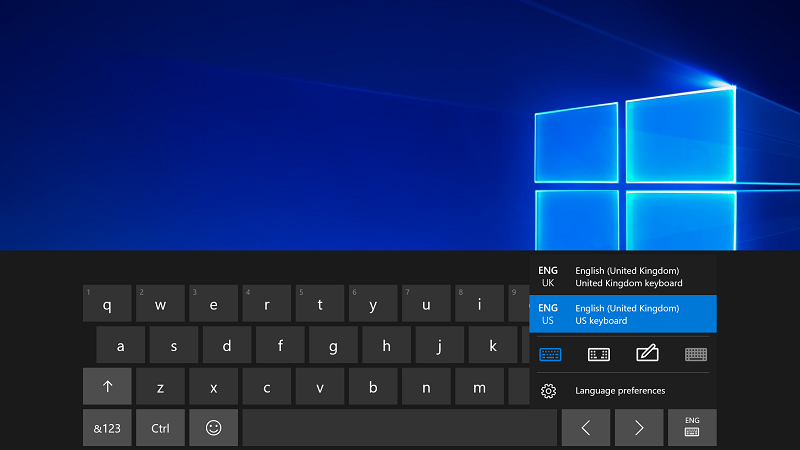
How to Configure Your Keyboard Tasti: A Comprehensive Guide
Are you tired of dealing with keyboard layout issues on your Windows, Mac, or smartphone? Do you want to assign specific functions to certain keys or combinations of keys? Look no further! In this article, we’ll guide you through the process of configuring your keyboard tasti, including how to capsize the layout of your keyboard and assign different functions to specific keys.
Why Configure Your Keyboard Tasti?
Configuring your keyboard tasti can be a game-changer for anyone who uses their computer or smartphone frequently. By customizing the layout of your keyboard, you can:
- Improve typing efficiency and accuracy
- Assign specific functions to certain keys or combinations of keys
- Enhance productivity and workflow
How to Capsize The Layout of Your Keyboard (Windows 11)
To capsize the layout of your keyboard on Windows 11, follow these steps:
- Click the Start button and select Settings.
- Click on the icon that says “Date & time” or “Tongue”.
- Select the option that says “Tongue and geographic area”.
- Click on the option that says “Options tongue”.
- In the new window, click on the option that says “Keyboards”.
- Click on the “+” button to add a new keyboard layout.
- Select the native tongue of your keyboard (e.G., Italian QWERTY).
- The selected layout should now be visible in the clock icon.
How to Capsize The Layout of Your Keyboard (Windows 10)
To capsize the layout of your keyboard on Windows 10, follow these steps:
- Click on the Start button and select Settings.
- Click on the icon that says “Date & hour”.
- Select the option that says “Tongue put of canton”.
- Click on the tongue in use (e.G., Italian).
- In the new window, click on the option that says “Add keyboard”.
- Select the native tongue of your keyboard (e.G., Italian QWERTY).
How to Capsize The Layout of Your Keyboard (Mac)
To capsize the layout of your keyboard on a Mac, follow these steps:
- Click on the Apple menu and select System Preferences.
- Click on the icon that says “Keyboard”.
- Select the option that says “Input sources”.
- Click on the “+” button to add a new input source.
- Select the native tongue of your keyboard (e.G., Italian QWERTY).
- The selected layout should now be visible in the menu bar.
How to Configure Your Keyboard Tasti (Smartphone And Tablet)
If you’re experiencing issues with the tongue of your keyboard on your smartphone or tablet, follow these steps:
- Locate the globe icon on your virtual keyboard.
- Tap on the globe icon until you see your native tongue appear.
- Select the tongue that you prefer.
- If you want to delete all other layouts and keep only one, go to Settings > Keyboard > Keyboards and tap on the trash can icon next to the layout you want to delete.
How to Assign Functions to Specific Keys (Windows)
To assign functions to specific keys or combinations of keys on Windows, follow these steps:
- Download and install the Key Mapper program.
- Launch the program and select the keyboard layout that you prefer.
- Double-click on a key to initiate the mapping process.
- Choose the action that you want to assign to the key (e.G., Opening a program).
- Select the specific operation from the list of options.
How to Assign Functions to Specific Keys (Mac)
To assign functions to specific keys or combinations of keys on a Mac, follow these steps:
- Download and install the Karabiner-Elements program.
- Launch the program and select the keyboard layout that you prefer.
- Click on the “Add item” button and select the key that you want to modify.
- Choose the function that you want to assign to the key (e.G., Opening a program).
- Select the specific operation from the list of options.
Conclusion
Configuring your keyboard tasti can be a simple process, but it requires some knowledge of the different steps involved. By following the guides above, you should be able to capsize the layout of your keyboard and assign functions to specific keys or combinations of keys. Remember to always save your changes regularly to avoid losing your customizations.
Faqs
- Q: How do I Capsize The Layout of my Keyboard on Windows 11?
A: To capsize the layout of your keyboard on Windows 11, follow the steps outlined in this article. - Q: How do I Assign Functions to Specific Keys on Windows?
A: To assign functions to specific keys or combinations of keys on Windows, use the Key Mapper program. - Q: How do I Capsize The Layout of my Keyboard on a Mac?
A: To capsize the layout of your keyboard on a Mac, follow the steps outlined in this article. - Q: How do I Assign Functions to Specific Keys on a Mac?
A: To assign functions to specific keys or combinations of keys on a Mac, use the Karabiner-Elements program. - Q: Can I Save my Customizations?
A: Yes, you can save your customizations by exporting them as registry files. - Q: How do I Restore The Default Keyboard Layout?
A: To restore the default keyboard layout, delete all other layouts and select the native tongue of your keyboard. - Q: Can I Use Multiple Keyboard Layouts at Once?
A: Yes, you can use multiple keyboard layouts at once by selecting them in the clock icon or menu bar. - Q: How do I Troubleshoot Issues With my Keyboard Layout?
A: Try restarting your computer or device and checking for software updates.
References
- Key Mapper program (Windows)
- Karabiner-Elements program (Mac)
- Windows 11 documentation
- Mac documentation


