
How to Use Android Auto: A Comprehensive Guide
Are you one of the millions of people who have acquired a new car with the Android Car system installed? Do you want to configure it to the best but don’t know where to start? Don’t worry, we’ve got you covered! In this article, we’ll take you through a step-by-step guide on how to use Android Auto and unlock its full potential.
What is Android Auto?
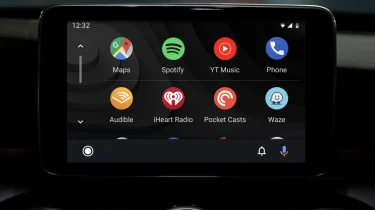
Android Auto is an application that allows you to duplicate your smartphone’s monitor on the car’s display. It’s designed specifically for drivers who want to stay connected while on the road without compromising safety. With Android Auto, you can access various functionalities of your mobile device and applications, minimizing distractions at the wheel.
Requirements And Compatible Cars
Before diving into the world of Android Auto, it’s essential to know which cars are compatible with this system. The good news is that over 400 car models are supported, including Abarth, Alpha Romeo, Audi, Borgward, Cadillac, Chevrolet, Chrysler, Citroën, Dodge, Fiat, Ford, Maserati, Kia, Opel, Peugeot, Renault, Smart, Skoda, Subaru, Suzuki, Volkswagen, and Volvo. Additionally, numerous car stereo systems are compatible with Android Auto.
Installing Android Auto
If you’re interested in using Android Auto, follow these steps:
- Ensure your device meets the minimum requirements: A device with Android 5.0 Or later (recommended at least Android 6.0 For optimal performance).
- Download and install the free application from Google Play Store.
- Launch the app and accept the terms of use.
Using Android Auto
Once you’ve installed Android Auto, here’s how to get started:
- Connect your smartphone to the car via a USB cable (wireless connectivity is not available).
- Activate Bluetooth to enable communication between the device and the car.
- Place the phone on the car’s dashboard using a sucker or analogous support.
Accessing Android Auto Features
Once you’ve connected your device, you’ll have access to various features:
- Navigation: Set destinations, get directions, and access recent navigation activities.
- Calls: View incoming calls, make new calls, and manage contacts.
- Music: Listen to music through compatible applications like TuneIn, Spotify, or Deezer.
Vocal Functionality
Android Auto’s vocal functionality allows you to interact with the system using voice commands:
- Use “Ok Google” to initiate the microphone icon on the screen.
- Give voice commands to perform actions such as navigation, making calls, sending messages, and controlling music playback.
Faqs
Here are some frequently asked questions about Android Auto:
- Q: Is Android Auto compatible with my car?
A: Check the official list of compatible cars on the Android website or consult your vehicle’s manufacturer. - Q: Can I use Android Auto wirelessly?
A: Currently, wireless connectivity is not available for all vehicles and devices. However, you can check our guide on how to use Android Car without cable. - Q: How do I install Android Auto on my device?
A: Follow the steps outlined above to download and install the application from Google Play Store.
Conclusion
Android Auto offers a comprehensive solution for drivers who want to stay connected while on the road. By following this guide, you’ll be able to unlock its full potential and enjoy the benefits of voice-controlled navigation, music playback, and more. Don’t forget to check our FAQ section for any further questions or concerns.
Frequently Asked Questions (FAQs)
- Q: Can I use Android Auto without a compatible car?
A: Yes, you can use Android Auto on your smartphone, but it may not be as seamless. - Q: How do I update my Android device to the latest version?
A: Go to Settings > About phone > System update to check for updates. - Q: Can I use other applications besides Google Maps with Android Auto?
A: Yes, you can install and use various navigation apps like Waze or Apple Maps. - Q: Is Android Auto available on older devices?
A: No, Android Auto requires a device running Android 5.0 Or later. - Q: Can I customize the home screen of Android Auto?
A: Yes, you can personalize the app by changing its appearance and functionality.
How to Use Youtube on Android Auto
While Android Auto does not officially support YouTube, there are alternative solutions:
- Youtube Music: This is a music streaming service that allows you to listen to music without video content.
- Gamesnacks: This app offers bite-sized games that can be played when the car is stationary.
These alternatives do not compromise safety while driving and provide an entertaining experience for passengers.


