
How to Delete Registration Calendar on Iphone: A Step-by-step Guide
Are you tired of having unwanted calendars cluttering your iPhone’s calendar app? Do you want to delete registration calendar on iPhone but don’t know where to start? Look no further! In this article, we’ll guide you through the process of deleting a registration calendar on your iPhone, as well as provide tips on how to avoid adding unnecessary calendars in the future.
Why Delete Unwanted Calendars?
Before we dive into the steps, let’s talk about why it’s essential to delete unwanted calendars. Having too many calendars can lead to confusion and clutter in your calendar app. It’s like having multiple email accounts with similar names; it gets confusing! By deleting unnecessary calendars, you’ll make it easier to find and manage the important ones.
How to Delete Registration Calendar on Iphone
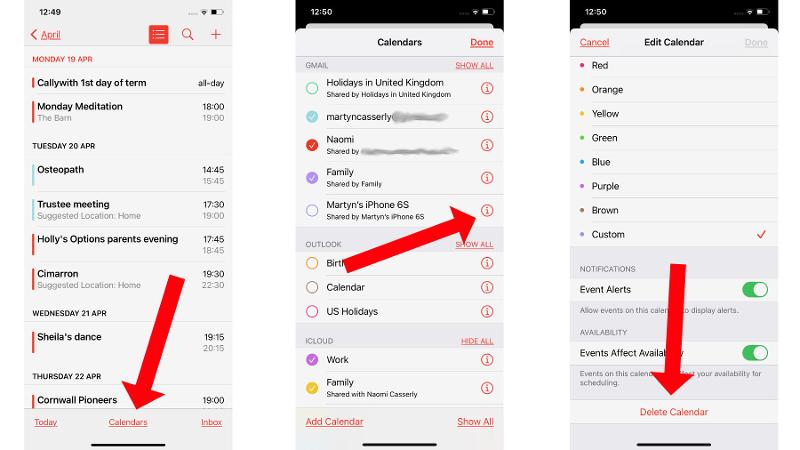
To delete a registration calendar on your iPhone, follow these steps:
Open The Calendar App
The first step is to open the Calendar app on your iPhone. You can do this by tapping on the Calendar icon, which looks like a little calendar.
Tap on Calendars
Once you’re in the Calendar app, tap on “Calendars” at the bottom of the screen. This will take you to a list of all the calendars on your device.
Find The Calendar You Want to Delete
Scroll through the list and find the calendar that you want to delete. It might be a calendar that was added by someone else, or it could be one that you created but no longer need.
Tap on The Edit Button
Once you’ve found the calendar you want to delete, tap on the “Edit” button at the top right corner of the screen. This will give you access to a range of options for editing and deleting calendars.
Tap on Delete Calendar
From the edit menu, select “Delete Calendar.” You’ll get a confirmation prompt asking if you’re sure you want to delete the calendar. Tap “Delete” again to confirm.
And That’s It!
You’ve successfully deleted a registration calendar on your iPhone!
How to Remove Registration Calendar From Computer
If you want to remove a registration calendar from your computer, follow these steps:
Open Icloud Settings
First, open the iCloud settings on your computer. You can do this by searching for “iCloud” in the Start menu (Windows) or Spotlight search (Mac).
Click on Calendars
Once you’re in the iCloud settings, click on the “Calendars” tab.
Select The Calendar to Delete
From the list of calendars, select the one that you want to delete. You can do this by clicking on the calendar’s name.
Click on Edit And Then Delete
Once you’ve selected the calendar, click on “Edit” at the top right corner of the screen. From here, you’ll see a menu with options for editing and deleting calendars. Click on “Delete” to remove the calendar from your iCloud account.
How to Remove Calendars From Google Calendar
If you’re using Google Calendar, follow these steps to delete unwanted calendars:
Open Google Calendar
First, open the Google Calendar app or website.
Click on Settings
Once you’re in the Google Calendar interface, click on the gear icon at the top right corner of the screen. This will take you to a menu with settings options for your calendar.
Select Calendars
From the settings menu, select “Calendars.”
Find And Delete The Calendar You Want to Remove
Scroll through the list of calendars and find the one that you want to delete. Click on it to select it, then click on the three dots at the top right corner of the screen. Select “Delete” from the menu.
Tips For Avoiding Unwanted Calendars in The Future
To avoid adding unnecessary calendars in the future, follow these tips:
- Be Cautious When Accepting Invitations: When someone invites you to a calendar event, make sure it’s something you want to add before accepting.
- Check Your Calendar Regularly: Regularly check your calendar for unwanted events and delete them as needed.
- Use a Single Calendar Account: Try to use a single calendar account across all your devices. This will make it easier to manage your calendars.
Conclusion
Deleting registration calendar on iPhone is a simple process that can help declutter your calendar app and make it easier to find important events. By following the steps outlined in this article, you’ll be able to delete unwanted calendars from your iPhone, computer, or Google Calendar account. Remember to be cautious when accepting invitations and regularly check your calendar for unwanted events.
Frequently Asked Questions
Q: What happens if I delete a calendar that’s shared with others?
A: If you delete a calendar that’s shared with others, the other users will no longer have access to it. However, they may still be able to view past events and reminders.
Q: Can I restore deleted calendars?
A: Yes, in most cases, you can restore deleted calendars from your iCloud or Google Calendar account settings.


