
How to See The Frequency of Ram on Pc, Mac, Android, And Iphone
Are you curious about the frequency of your computer’s RAM? Do you want to know how to check it on different operating systems? Look no further! In this article, we’ll guide you through the process of seeing the frequency of RAM on various devices.
What is Ram Frequency?
Before we dive into the instructions, let’s quickly explain what RAM frequency means. RAM (Random Access Memory) is a type of computer memory that temporarily stores data and applications while they’re being processed. The frequency of RAM refers to how fast the memory can access and transfer data. It’s measured in MHz (Megahertz), with higher frequencies indicating faster performance.
How to See Ram Frequency on PC
Checking RAM frequency on a PC is relatively easy. Here are the steps:
On Windows 10/8:
- Press the Windows key + R to open the Run dialog box.
- Type
cmdand press Enter to open the Command Prompt. - Type
wmic memorychip get speedand press Enter. - The frequency of your RAM will be displayed in MHz.
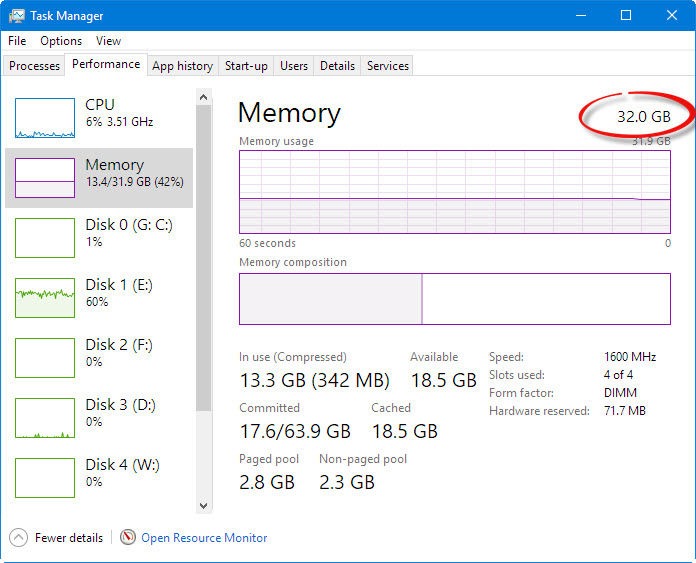
On Windows 10/8 Using Task Manager:
- Press Ctrl + Shift + Esc to open the Task Manager.
- Click on the “Performance” tab.
- Click on the “Memory” section.
- Look for the “Speed” column, which displays the RAM frequency in MHz.
On Windows 10/8 Using Cpu-z:
- Download and install CPU-Z from the official website.
- Launch CPU-Z and click on the “Memory” tab.
- The RAM frequency will be displayed in MHz.
How to See Ram Frequency on Mac
Checking RAM frequency on a Mac is also straightforward:
On Macos:
- Click on the Apple logo in the top left corner of the screen.
- Select “About This Mac.”
- Click on the “System Report” button.
- In the System Information window, click on the “Hardware” tab.
- Click on the “Memory” section.
- The RAM frequency will be displayed in MHz.
How to See Ram Frequency on Android
Checking RAM frequency on an Android device is easy:
On Android (Using Devcheck):
- Download and install DevCheck from the Google Play Store.
- Launch DevCheck and click on the “RAM” tab.
- The RAM frequency will be displayed in MHz.
How to See Ram Frequency on Iphone/ipad
Unfortunately, there isn’t a direct way to check RAM frequency on an iPhone or iPad. However, you can use a third-party app like Lirum Device Info Lite to get some information about your device’s hardware, including the RAM:
On Ios (Using Lirum Device Info Lite):
- Download and install Lirum Device Info Lite from the App Store.
- Launch Lirum Device Info Lite and click on the “This Device” tab.
- Click on the “System” section.
- The RAM information will be displayed, including the frequency.
Conclusion
In conclusion, checking RAM frequency is a simple process that can be done on various devices, including PCs, Macs, Android smartphones, and iPhones/iPads. By following these steps, you’ll be able to see the frequency of your device’s RAM and make informed decisions about upgrading or optimizing its performance.
Frequently Asked Questions (FAQs)
- What is Ram Frequency, And Why is it Important?
RAM frequency refers to how fast the memory can access and transfer data. Higher frequencies indicate faster performance. - How Often Should I Check my Ram Frequency?
You should check your RAM frequency periodically to ensure optimal system performance. - Can I Change my Ram Frequency?
In most cases, no. The RAM frequency is determined by the device’s hardware and cannot be changed manually. - Does Upgrading my Ram Frequency Improve Performance?
Upgrading your RAM can improve system performance, but it depends on various factors, including the type of tasks you perform and the other system specifications. - What Are Some Common Ram Frequencies?
Common RAM frequencies include 1600 MHz, 2133 MHz, 2400 MHz, 3000 MHz, and others.
Additional Tips
- Always check your device’s manual or online documentation for specific instructions on how to check RAM frequency.
- Be cautious when upgrading your RAM, as incorrect installation can damage the device.
- Consider consulting a professional if you’re unsure about any aspect of upgrading or optimizing your system’s performance.


