
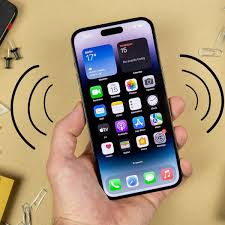
How to Actuate Vibration on Iphone: A Step-by-step Guide
Are you tired of having a silent iPhone experience? Do you want to know how to make your phone vibrate for calls, messages, and other notifications? Look no further! In this article, we will guide you through the process of actuating vibration on your iPhone.
Why Actuate Vibration on Iphone?
Actuating vibration on your iPhone can be a game-changer. Not only does it make your phone more engaging and fun to use, but it also helps you stay informed about important notifications without having to constantly check your screen.
How to Contact Vibration on Iphone
To contact vibration on your iPhone, follow these simple steps:
- Access The Settings App: Tap on the Settings app icon on your Home screen.
- Select Sounds And Feedback: Scroll down and tap on “Sounds and Haptics” (on iOS 14 or later) or “Sounds and Vibration Patterns” (on earlier versions).
- Turn On Vibration: Tap on the switch next to “Vibration” to turn it on.
- Choose a Vibration Pattern: Select one of the pre-set vibration patterns, such as “Synchronized,” “Accent,” or “Notice.”
- Save Your Changes: Tap on the “Save” button to save your changes.
How to Contact Silent With Vibration on Iphone
If you prefer to actuate silent mode with vibration on your iPhone, follow these steps:
- Access The Settings App: Tap on the Settings app icon on your Home screen.
- Select Sounds And Feedback: Scroll down and tap on “Sounds and Haptics” (on iOS 14 or later) or “Sounds and Vibration Patterns” (on earlier versions).
- Turn Off Ring Mode: Tap on the switch next to “Ring Mode” to turn it off.
- Choose a Vibration Pattern: Select one of the pre-set vibration patterns, such as “Synchronized,” “Accent,” or “Notice.”
- Save Your Changes: Tap on the “Save” button to save your changes.
How to Contact Silent Without Vibration on Iphone
If you want to contact silent mode without vibration on your iPhone, follow these steps:
- Access The Settings App: Tap on the Settings app icon on your Home screen.
- Select Sounds And Feedback: Scroll down and tap on “Sounds and Haptics” (on iOS 14 or later) or “Sounds and Vibration Patterns” (on earlier versions).
- Turn Off Ring Mode: Tap on the switch next to “Ring Mode” to turn it off.
- Disable Vibration: Tap on the switch next to “Vibration” to disable it.
- Save Your Changes: Tap on the “Save” button to save your changes.
How to Contact Awake With Vibration on Iphone
If you want to wake up to a vibrating alarm on your iPhone, follow these steps:
- Open The Clock App: Tap on the Clock app icon on your Home screen.
- Select Alarm: Tap on the “Alarm” tab at the bottom of the screen.
- Add an Alarm: Tap on the “+” button in the top-right corner to add a new alarm.
- Choose a Vibration Pattern: Select one of the pre-set vibration patterns, such as “Synchronized,” “Accent,” or “Notice.”
- Save Your Changes: Tap on the “Save” button to save your changes.
How to Contact Vibration Keyboard on Iphone
If you want to enable vibration for keyboard typing on your iPhone, follow these steps:
- Access The Settings App: Tap on the Settings app icon on your Home screen.
- Select Accessibility: Scroll down and tap on “Accessibility.”
- Select Touch: Tap on the “Touch” tab at the top of the screen.
- Enable Vibration Feedback: Tap on the switch next to “Vibration Feedback” to enable it.
Conclusion
Actuating vibration on your iPhone can be a simple yet effective way to enhance your phone experience. By following these step-by-step guides, you can enable vibration for calls, messages, alarms, and keyboard typing. Remember to adjust the settings according to your preferences and needs.
Frequently Asked Questions
- Q: Can I customize my vibration pattern?
A: Yes, you can select from a variety of pre-set vibration patterns or create your own custom vibration. - Q: Will vibration affect my iPhone’s battery life?
A: Yes, enabling vibration may slightly reduce your iPhone’s battery life. However, the impact is usually minimal.
References
- Apple Support: “How to Enable Vibration on Your iPhone”
- Apple Support: “How to Set Up an Alarm on Your iPhone”


