
How to Join Documents Pdf: A Step-by-step Guide
Are you tired of dealing with multiple documents in PDF format? Do you want to combine them into a single file? Look no further! In this article, we will guide you on how to join documents PDF using various software and online services.
Why Join Documents Pdf?
Joining documents PDF can save you time and effort by reducing the number of files you need to manage. It’s also useful when you want to share a collection of documents with others or store them in a single file for easy access.
Software Options
There are several software options available that can help you join documents PDF. Here are some popular ones:
Adobe Acrobat (Windows/MacOS)
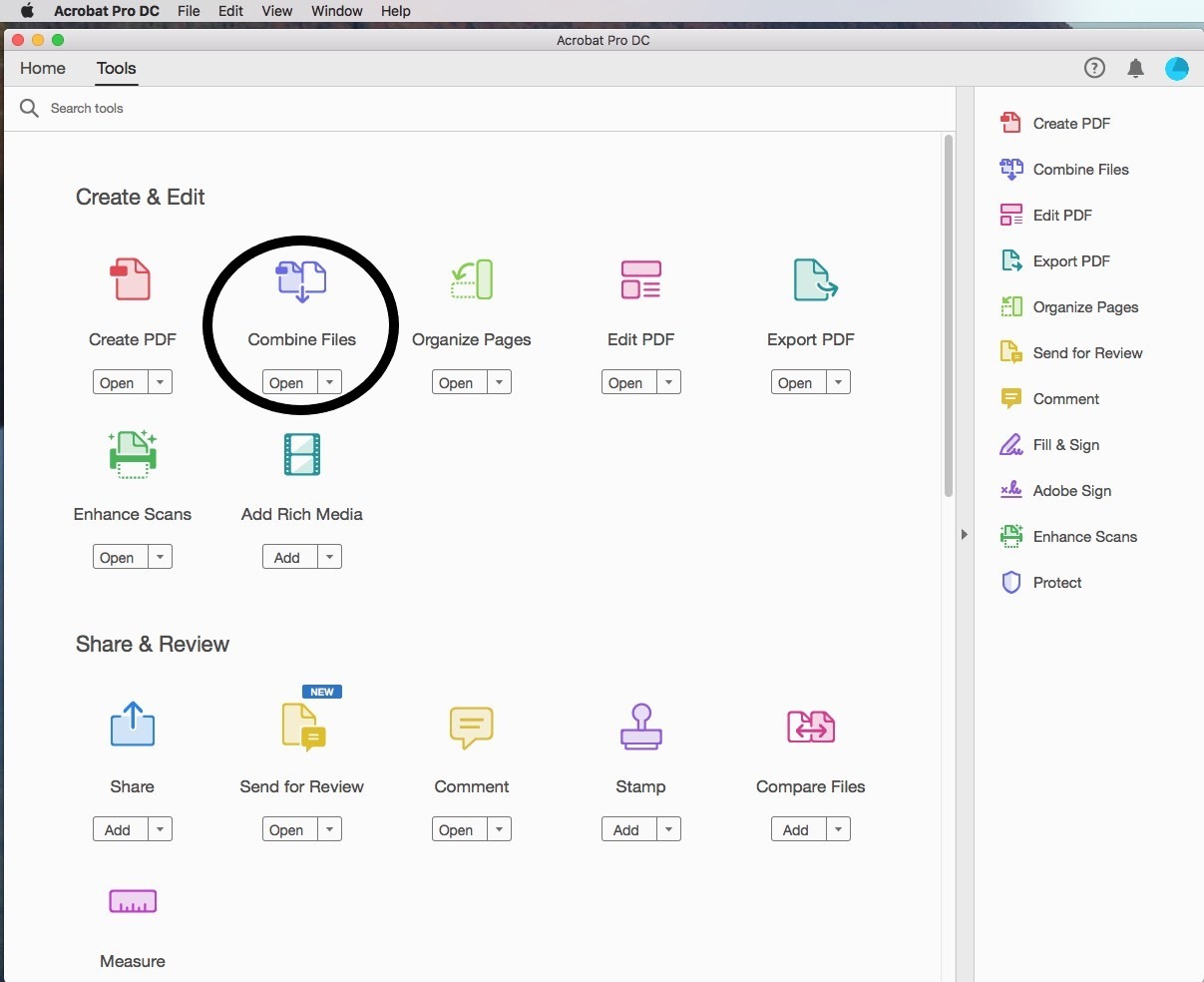
Adobe Acrobat is the first choice for many users when it comes to joining PDF documents. It’s a powerful tool that allows you to merge, split, and edit PDF files with ease.
To use Adobe Acrobat, follow these steps:
- Download and install Adobe Acrobat on your computer.
- Launch Adobe Acrobat and click on the “File” menu.
- Select “Combine Files” from the drop-down menu.
- Add the PDF documents you want to join by clicking on the “Add” button.
- Arrange the documents in the order you want them to appear.
- Click on the “Save” button to save the merged document.
Pdfill Pdf Tools (Windows)
PDFill PDF Tools is another popular software that can help you join PDF documents. It’s a free tool that allows you to merge, split, and edit PDF files.
To use PDFill PDF Tools, follow these steps:
- Download and install PDFill PDF Tools on your computer.
- Launch PDFill PDF Tools and click on the “Merge” button.
- Add the PDF documents you want to join by clicking on the “Add” button.
- Arrange the documents in the order you want them to appear.
- Click on the “Save” button to save the merged document.
Trailer (MacOS)
If you’re using a Mac, you can use Trailer to join PDF documents. It’s a free app that comes pre-installed with MacOS.
To use Trailer, follow these steps:
- Launch Trailer and click on the “File” menu.
- Select “Open With” from the drop-down menu.
- Choose Trailer as the application to open the PDF file.
- Add the other PDF documents you want to join by clicking on the “Add” button.
- Arrange the documents in the order you want them to appear.
- Click on the “Save” button to save the merged document.
Online Services
If you don’t want to download and install software, there are several online services that can help you join PDF documents. Here are some popular ones:
Ilovepdf
ILovePDF is a free online service that allows you to merge PDF documents. It’s easy to use and doesn’t require any registration.
To use iLovePDF, follow these steps:
- Go to the iLovePDF website.
- Click on the “Select PDF files” button.
- Add the PDF documents you want to join by clicking on the “Add file” button.
- Arrange the documents in the order you want them to appear.
- Click on the “Merge” button to save the merged document.
Pdfcandy
PDFCandy is another online service that allows you to merge PDF documents. It’s free and easy to use, but it does require registration.
To use PDFCandy, follow these steps:
- Go to the PDFCandy website.
- Click on the “Select PDF files” button.
- Add the PDF documents you want to join by clicking on the “Add file” button.
- Arrange the documents in the order you want them to appear.
- Click on the “Merge” button to save the merged document.
Mobile Apps
If you’re using a mobile device, there are several apps available that can help you join PDF documents. Here are some popular ones:
Pdf Merge (Android/iOS/iPadOS)
PDF Merge is a free app for Android and iOS devices that allows you to merge PDF documents. It’s easy to use and doesn’t require any registration.
To use PDF Merge, follow these steps:
- Download and install the PDF Merge app on your device.
- Launch the app and click on the “+” button.
- Add the PDF documents you want to join by clicking on the “Add file” button.
- Arrange the documents in the order you want them to appear.
- Click on the “Merge” button to save the merged document.
Conclusion
Joining documents PDF can be a time-saving and efficient way to manage your digital files. Whether you use software, online services, or mobile apps, there are plenty of options available to help you merge your PDF documents. By following the steps outlined in this article, you should be able to join your documents with ease.
Faqs
- What is The Best Software For Joining Pdf Documents?
The best software for joining PDF documents depends on your operating system and personal preferences. Adobe Acrobat and PDFill PDF Tools are popular options for Windows and MacOS users. - Can I Use Online Services to Join Pdf Documents?
Yes, you can use online services like iLovePDF, PDFCandy, and Online2PDF to join PDF documents. - Are There Mobile Apps Available That Can Help me Join Pdf Documents?
Yes, there are several mobile apps available for Android and iOS devices that can help you join PDF documents, including PDF Merge and iLovePDF. - Do I Need to Register or Pay a Fee to Use These Services?
Some online services and mobile apps may require registration or payment of a fee to use their services. - Can I Merge Multiple Pdf Files at Once?
Yes, most software and online services allow you to merge multiple PDF files at once.


