
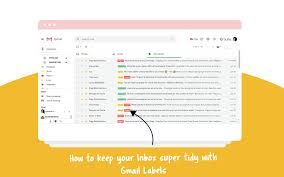
How to Create Labels on Gmail: A Step-by-step Guide
Are you tired of searching through your crowded inbox to find a specific email? Do you wish there was an easier way to organize your emails and labels? Look no further! In this article, we will guide you through the process of creating labels on Gmail, both on computer and smartphone/tablet.
Why Create Labels on Gmail?
Before we dive into the step-by-step guide, let’s talk about why creating labels on Gmail is a good idea. Labels are like folders for your emails. They help you categorize and organize your messages, making it easier to find what you’re looking for. With labels, you can also add more detail to your emails, such as color-coding or customizing the label name.
Creating Labels on Gmail: Computer Version
To create a label on Gmail using a computer, follow these steps:
- Access Your Account: First, make sure you are logged into your Gmail account.
- Click on Another Tab: Click on the “Another” tab located in the top left corner of the page.
- Select Create New Label: From the drop-down menu, select “Create new label”.
- Enter Label Name: In the box that appears, enter the name you want to give your label.
- Click Create: Click on the “Create” button.
Creating Labels on Gmail: Smartphone/tablet Version
If you’re using a smartphone or tablet, creating labels on Gmail is still easy. Here’s how:
- Access Your Account: Make sure you are logged into your Gmail account.
- Open Gmail Desktop Site: Tap on the three horizontal lines in the top right corner and select “Desktop”.
- Select Modify Labels: Select “Modify labels” from the menu.
- Enter Label Name: Enter the name you want to give your label in the box that appears.
- Click Create: Click on the “Create” button.
How to Add a Label to an Email
Once you’ve created a label, you can add it to an email by:
- Opening The Email: Open the email you want to add the label to.
- Selecting Label Option: Tap or click on the three vertical dots next to the email and select “Label”.
- Choosing Label: Choose the label you created earlier from the menu.
Modifying or Deleting a Label
If you need to modify or delete a label, follow these steps:
- Access Your Account: Make sure you are logged into your Gmail account.
- Click on Another Tab: Click on the “Another” tab located in the top left corner of the page.
- Select Modify Labels: From the drop-down menu, select “Modify labels”.
- Edit Label Name: If you want to modify the label name, click on the three vertical dots next to the label and select “Rename”.
- Delete Label: If you want to delete a label, click on the three vertical dots next to the label and select “Delete”.
Why Use Labels on Gmail?
Using labels on Gmail is an effective way to organize your emails, making it easier to find what you’re looking for. With labels, you can also add more detail to your emails, such as color-coding or customizing the label name.
Conclusion
Creating labels on Gmail is a simple process that helps you organize and categorize your emails. Whether you’re using a computer or smartphone/tablet, the steps are easy to follow. By using labels, you can save time searching through your inbox and make your email experience more efficient.
Frequently Asked Questions (FAQs)
- Q: How Many Labels Can I Create on Gmail?
A: You can create as many labels as you need on Gmail. - Q: Can I Use Colors For my Labels?
A: Yes, you can choose from a variety of colors to customize your labels. - Q: How do I Add a Label to an Email?
A: To add a label to an email, tap or click on the three vertical dots next to the email and select “Label”. - Q: Can I Modify or Delete a Label?
A: Yes, you can modify or delete a label by accessing your Gmail account and following the steps outlined in this article. - Q: Why Use Labels on Gmail?
A: Using labels on Gmail helps you organize and categorize your emails, making it easier to find what you’re looking for. - Q: Can I Use Labels on my Smartphone or Tablet?
A: Yes, you can create and use labels on your smartphone or tablet using the Gmail app. - Q: How do I Access The Desktop Version of Gmail on my Phone/tablet?
A: To access the desktop version of Gmail on your phone/tablet, tap on the three horizontal lines in the top right corner and select “Desktop”.
I hope this article has been helpful in guiding you through the process of creating labels on Gmail. If you have any further questions or concerns, feel free to ask!


