
How to Reopen Tiktok: A Step-by-step Guide
Are you tired of experiencing problems with TikTok, such as videos not loading or contents not visualizing? Don’t worry, we’ve got you covered! In this article, we’ll guide you through the process of reopening TikTok on your Android or iOS device.
Why Do I Need to Reopen Tiktok?
There could be several reasons why TikTok is not functioning properly. It might be due to a software glitch, an update issue, or even a problem with your internet connection. Whatever the reason, we’ll walk you through the steps to resolve the issue and get back to enjoying your favorite app.
Reopening Tiktok on Android
If you’re using an Android device, follow these simple steps:
- Close The App: Press and hold on the TikTok icon until it starts shaking.
- Delete The App: Click on the “X” mark that appears next to the icon.
- Reopen The App: Go to your app drawer and find the TikTok app. Tap on it to reopen.
Alternative Method: Force Close
If the above method doesn’t work, try force closing the app:
- Go to Settings: Open the Settings app on your Android device.
- Find Applications: Scroll down and click on “Applications” (or “App & notifications” or “App”).
- Select Tiktok: Find the TikTok app in the list of installed apps.
- Force Close: Click on the “Force Stop” button to close the app.
Reopening Tiktok on Ios
If you’re using an iOS device, follow these steps:
- Swipe Up: Swipe up from the bottom of your screen and hold to access the multitasking menu.
- Find Tiktok: Locate the TikTok icon in the list of open apps.
- Drag to Close: Drag the TikTok icon upwards to close it.
- Reopen The App: Tap on the TikTok icon again to reopen.
Alternative Method: Force Quit
If the above method doesn’t work, try force quitting the app:
- Go to Settings: Open the Settings app on your iOS device.
- Find General: Scroll down and click on “General”.
- Find Iphone/ipad Storage: Tap on “iPhone/iPad Storage” (or “Storage & iCloud Usage”).
- Select Tiktok: Find the TikTok app in the list of stored data.
- Delete Data: Click on the “Delete App” button to remove all data associated with TikTok.
Resetting Tiktok
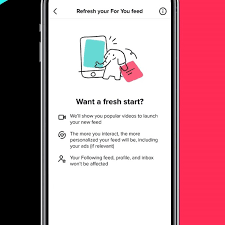
If you’re experiencing problems with your TikTok algorithm, try resetting it:
- Open The App: Open the TikTok app on your device.
- Go to Profile: Tap on the profile icon in the bottom right corner of the screen.
- Settings And Privacy: Tap on “Settings and privacy”.
- Preferences: Tap on “Preferences” and then on “Update For You”.
- Reset Algorithm: Follow the prompts to reset your algorithm.
Resolving Issues With Tiktok Web
If you’re experiencing problems with the TikTok web version, try:
- Clearing Cache: Press Ctrl+Shift+R (Windows) or Command+Shift+R (Mac) to clear cache.
- Logging Out And Logging Back In: Log out of your account and log back in.
Conclusion
We hope this guide has helped you resolve any issues with TikTok on your Android or iOS device. Remember, if the problem persists, it’s always a good idea to contact TikTok support directly for further assistance. Happy scrolling!


