
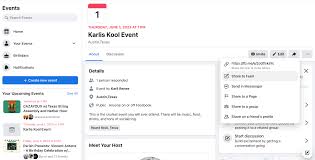
Creating Events on Facebook: A Step-by-step Guide
Are you ready to throw a party and invite all your friends? Or perhaps you want to organize an event and share it with a wider audience? Creating an event on Facebook is easier than you think! In this article, we’ll take you through the process of creating events on Facebook using your smartphone, tablet, or computer.
Why Create Events on Facebook?
Creating events on Facebook allows you to invite friends, family, and acquaintances to join in on the fun. It’s a great way to share your interests, hobbies, or passions with others who might be interested. Plus, it’s a fantastic tool for organizing events, parties, or meetups.
How to Create an Event on Facebook From Your Smartphone
To create an event on Facebook from your smartphone, follow these steps:
- Access The Facebook App: Open the Facebook app on your smartphone.
- Tap on The Menu Icon: Tap on the menu icon (three horizontal lines) in the top-right corner of the screen.
- Select “Events”: Choose “Events” from the dropdown menu.
- Tap on The “+” Button: Tap on the “+” button to create a new event.
- Fill Out The Event Details: Fill out the event details, including the name, date, time, and location.
- Add Photos And Co-organizers (Optional): Add photos and co-organizers if desired.
- Tap “Create Event”: Tap “Create Event” to confirm your creation.
How to Create an Event on Facebook From Your Computer
To create an event on Facebook from your computer, follow these steps:
- Access The Facebook Website: Open the Facebook website in a web browser.
- Click on The Events Tab: Click on the events tab on the left-hand side of the screen.
- Click “Create Event”: Click “Create Event” to create a new event.
- Fill Out The Event Details: Fill out the event details, including the name, date, time, and location.
- Add Photos And Co-organizers (Optional): Add photos and co-organizers if desired.
- Click “Create Event”: Click “Create Event” to confirm your creation.
How to Create a Recurring Event on Facebook
To create a recurring event on Facebook, follow these steps:
- Access The Facebook Website: Open the Facebook website in a web browser.
- Click on The Events Tab: Click on the events tab on the left-hand side of the screen.
- Click “Create Event”: Click “Create Event” to create a new event.
- Fill Out The Event Details: Fill out the event details, including the name, date, time, and location.
- Select “Repeat Event”: Select “Repeat Event” from the dropdown menu.
- Choose The Frequency of Repetition: Choose the frequency of repetition (e.G., Daily, weekly).
- Click “Create Event”: Click “Create Event” to confirm your creation.
How to Invite Friends to an Event on Facebook
To invite friends to an event on Facebook, follow these steps:
- Access The Event Details: Access the event details by clicking on the event name.
- Click on The “Invite” Button: Click on the “Invite” button to invite friends.
- Select Friends to Invite: Select friends to invite from your Facebook friend list.
- Send Invitations: Send invitations to selected friends.
Tips And Tricks
- You can also create events on Facebook using the Facebook app for iOS or Android devices.
- Make sure to fill out all event details, including the name, date, time, and location.
- Consider adding photos and co-organizers to enhance your event’s visibility.
- Use Facebook’s built-in features, such as RSVPs and comments, to engage with attendees.
Conclusion
Creating events on Facebook is a straightforward process that allows you to share your interests, hobbies, or passions with others. By following the steps outlined in this article, you can create events on Facebook using your smartphone, tablet, or computer. Don’t forget to invite friends and use Facebook’s built-in features to enhance your event’s visibility!
Frequently Asked Questions
- Q: Can I Create Events on Facebook Without a Facebook Account?
A: No, creating events on Facebook requires a Facebook account. - Q: How do I Edit an Existing Event on Facebook?
A: To edit an existing event on Facebook, access the event details and click on the “Edit” button. - Q: Can I Cancel an Event on Facebook?
A: Yes, you can cancel an event on Facebook by accessing the event details and clicking on the “Cancel Event” button.


