
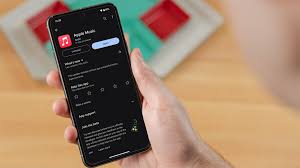
How to Delete a Payment App: A Step-by-step Guide
Are you tired of unwanted payment apps taking up space on your device? Do you want to cancel subscriptions that are no longer useful? Look no further! In this article, we will guide you through the process of deleting a payment app on various devices, including Android, iPhone, iPad, computer, PC, and Mac.
Why Delete a Payment App?
Before we dive into the instructions, let’s talk about why you might want to delete a payment app. Perhaps you’ve signed up for a free trial or a promotional offer that has now expired. Maybe you’re trying to declutter your device and get rid of unnecessary apps. Whatever the reason, deleting a payment app can help you save storage space, reduce clutter, and prevent unwanted charges.
Deleting a Payment App on Android
If you have an Android device, follow these steps to delete a payment app:
- Disactivate Subscription: Go to the Google Play Store or your account Google page and disactivate any automatic subscriptions associated with the app.
- Cancel Subscription: Tap on the three dots at the top right corner of the app’s icon in the drawer and select “Uninstall.”
- Uninstall App: Confirm your decision by tapping on the “OK” button.
Deleting a Payment App on Iphone
If you have an iPhone or iPad, follow these steps to delete a payment app:
- Disactivate Subscription: Go to Settings > [your name] > Subscriptions and tap on the name of the service associated with the app.
- Cancel Subscription: Tap on the “Cancel” button and confirm your decision by tapping on “Confirm.”
- Uninstall App: Tap on the app’s icon in the Home screen or the Bookshelf app, hold down on it until it starts to jiggle, and tap on the “X” icon to delete it.
Deleting a Payment App on Computer
If you have a computer running Windows 10 or Windows 11, follow these steps to delete a payment app:
- Disactivate Subscription: Go to Microsoft Store > Account > Subscriptions and cancel any automatic subscriptions associated with the app.
- Uninstall App: Click on the three dots at the top right corner of the app’s icon in the taskbar and select “Uninstall.”
Deleting a Payment App on PC
If you have a PC running Windows 10 or Windows 11, follow these steps to delete a payment app:
- Disactivate Subscription: Go to Microsoft Store > Account > Subscriptions and cancel any automatic subscriptions associated with the app.
- Uninstall App: Click on the three dots at the top right corner of the app’s icon in the taskbar and select “Uninstall.”
Deleting a Payment App on Mac
If you have a Mac, follow these steps to delete a payment app:
- Disactivate Subscription: Go to App Store > Account > Subscriptions and cancel any automatic subscriptions associated with the app.
- Uninstall App: Click on the three dots at the top right corner of the app’s icon in the dock or the Launchpad and select “Delete.”
Tips And Variations
- If you’re having trouble finding the subscription to delete, try searching for the name of the service associated with the app.
- In some cases, you may need to contact the customer support team of the app or service provider to cancel a subscription.
- Be careful when deleting apps that have automatic subscriptions, as this can affect your account and payment details.
Conclusion
Deleting a payment app can be a simple process once you know how. Remember to disactivate any automatic subscriptions associated with the app before uninstalling it. By following these step-by-step guides, you can free up space on your device, prevent unwanted charges, and maintain control over your digital life.
Frequently Asked Questions (FAQs)
- What Happens if I Delete a Payment App?
If you delete a payment app, any automatic subscriptions associated with the app will also be canceled. - How do I Cancel a Subscription?
To cancel a subscription, go to the app store or account page associated with the app and follow the instructions to disactivate any automatic subscriptions. - Can I Still Use an App After Deleting It?
Once you delete an app, you can no longer access its features and services. - How do I Prevent Unwanted Charges?
To prevent unwanted charges, make sure to cancel any automatic subscriptions associated with an app before uninstalling it. - What if I’m Having Trouble Finding The Subscription to Delete?
Try searching for the name of the service associated with the app or contact the customer support team for assistance. - Can I Still Access my Account Information After Deleting a Payment App?
Yes, you can still access your account information and manage your subscriptions through the app store or account page associated with the app. - How do I Know if an App Has Automatic Subscriptions?
Check the app’s terms of service or contact the customer support team to confirm whether the app has automatic subscriptions.
I hope this article has been helpful in guiding you through the process of deleting a payment app on various devices. If you have any further questions or concerns, feel free to ask!


