
Installing Google Chrome: A Step-by-step Guide
Are you tired of using a slow and outdated browser? Look no further than Google Chrome! In this article, we’ll guide you through the process of installing Google Chrome on various devices, including Android, iPhone, PC, Mac, Linux, and Fire TV Stick.
Why Choose Google Chrome?
Before we dive into the installation process, let’s talk about why Google Chrome is a great choice. With over 1 billion active users worldwide, Chrome is one of the most popular browsers out there. It’s fast, secure, and packed with features that make browsing a pleasure.
System Requirements
Before you start installing Google Chrome, make sure your device meets the following requirements:
- Android: Android 4.0 Or later
- IPhone/iPad: IOS 9.0 Or later
- PC: Windows 7 or later (32-bit and 64-bit)
- Mac: MacOS 10.9 Or later
- Linux: Ubuntu 12.04 Or later
Installing Google Chrome on Android
If you’re an Android user, installing Google Chrome is a breeze. Here’s how:
- Open the Play Store app.
- Search for “Chrome” in the search bar.
- Tap on the Chrome icon to open it.
- Tap the Install button.
- Wait for the installation process to complete.
Installing Google Chrome on Iphone/ipad
If you’re an iPhone or iPad user, installing Google Chrome is just as easy:
- Open the App Store app.
- Search for “Chrome” in the search bar.
- Select the Chrome icon from the search results.
- Tap the Get button.
- Wait for the installation process to complete.
Installing Google Chrome on PC
If you’re a Windows user, installing Google Chrome is a straightforward process:
- Go to the Google Chrome website (www.Google.Com/chrome).
- Click on the Download Chrome button.
- Select the version of Chrome that suits your system architecture (32-bit or 64-bit).
- Click on the Accept and Install button.
- Wait for the installation process to complete.
Installing Google Chrome on Mac
If you’re a Mac user, installing Google Chrome is just as simple:
- Go to the Google Chrome website (www.Google.Com/chrome).
- Click on the Download Chrome button.
- Select the version of Chrome that suits your system architecture (32-bit or 64-bit).
- Click on the Accept and Install button.
- Wait for the installation process to complete.
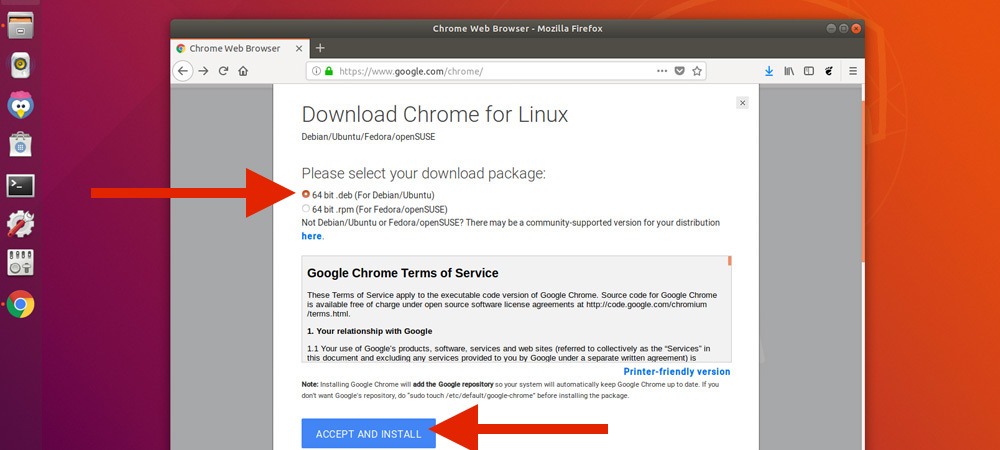
Installing Google Chrome on Linux
If you’re a Linux user, installing Google Chrome is a bit more involved:
- Open a terminal window.
- Type “sudo apt-get install google-chrome-stable” (for Ubuntu-based distributions) or “sudo yum install google-chrome-stable” (for RPM-based distributions).
- Press Enter to execute the command.
Installing Google Chrome on Fire TV Stick
Unfortunately, installing Google Chrome on a Fire TV Stick is not currently possible due to Amazon’s restrictions on app installation. However, you can still access Chrome on your Fire TV by casting it from your Android device.
Conclusion
Installing Google Chrome is a simple and straightforward process that can be completed in just a few minutes. Whether you’re an Android, iPhone, PC, Mac, or Linux user, we’ve got you covered with step-by-step instructions for each platform.
Frequently Asked Questions (FAQs)
- Q: Is Google Chrome Free to Install?
A: Yes, Google Chrome is completely free to download and install. - Q: What Are The System Requirements For Google Chrome?
A: Google Chrome requires Android 4.0 Or later, iOS 9.0 Or later, Windows 7 or later (32-bit and 64-bit), macOS 10.9 Or later, or Ubuntu 12.04 Or later. - Q: How do I Update Google Chrome?
A: To update Google Chrome, simply launch the browser and click on the three vertical dots in the upper-right corner. From there, select Help > About Google Chrome to check for updates. - Q: Can I Install Multiple Versions of Google Chrome on my Device?
A: Yes, you can install multiple versions of Google Chrome on your device, but we recommend using only one version at a time to avoid conflicts and inconsistencies.
Conclusion
We hope this article has helped you successfully install Google Chrome on your device. If you have any further questions or concerns, feel free to ask in the comments below!


