
How to Download Files on Iphone: A Step-by-step Guide
Are you struggling to download files on your iPhone? Do you find yourself facing difficulties when trying to access certain types of files, such as PDFs or MP3s? Look no further! In this comprehensive guide, we will walk you through the process of downloading various types of files on your iPhone.
Downloading Files With Iphone
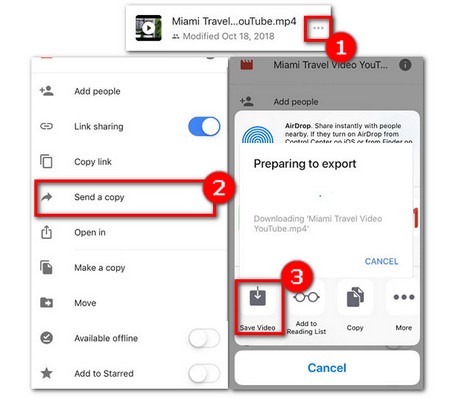
Before we dive into the specifics, let’s cover the general procedure for downloading files on an iPhone. This process is straightforward and involves a few simple steps:
- Connect to a Wi-fi Network: Make sure your iPhone is connected to a stable Wi-Fi network.
- Open Safari: Launch the Safari browser app on your iPhone.
- Visit The Website: Navigate to the website containing the file you want to download.
- Tap on The File: Select the file you wish to download by tapping on it.
- Tap The “Download” Button: You’ll see a “Download” button; tap on it to initiate the download process.
Downloading Pdf Files
Now that we’ve covered the general procedure, let’s focus on downloading PDF files specifically. This is one of the most common types of files people want to download:
- Open Safari: Launch Safari and navigate to the website containing the PDF file.
- Tap on The Pdf File: Select the PDF file by tapping on it.
- Tap The “Download” Button: Tap the “Download” button to initiate the download process.
- Save The File: Save the file in the “Downloads” folder within the Files app.
Downloading Audio Files (MP3s)
Similarly, downloading audio files like MP3s is also a breeze:
- Open Safari: Launch Safari and navigate to the website containing the MP3 file.
- Tap on The Mp3 File: Select the MP3 file by tapping on it.
- Tap The “Download” Button: Tap the “Download” button to initiate the download process.
- Save The File: Save the file in the “Downloads” folder within the Files app.
Downloading Gpx Files
GPX files contain GPS data and are often used for navigation purposes. Here’s how to download them on your iPhone:
- Open Safari: Launch Safari and navigate to the website containing the GPX file.
- Tap on The Gpx File: Select the GPX file by tapping on it.
- Save The File: Save the file in the “Downloads” folder within the Files app.
- Open The Gpx File With a Compatible App: Open the GPX file using an app like Open GPX Tracker or MAPS.ME.
Downloading Wetransfer Files
WeTransfer is a popular service for sharing and transferring files. Here’s how to download files from WeTransfer on your iPhone:
- Open The Wetransfer App: Launch the WeTransfer app on your iPhone.
- Tap on The File You Want to Download: Select the file you wish to download by tapping on it.
- Tap The “Save” Button: Tap the “Save” button to initiate the download process.
- Save The File: Save the file in the “Downloads” folder within the Files app.
Conclusion
Downloading files on your iPhone is a straightforward process. By following these simple steps, you can access various types of files, including PDFs, MP3s, GPX files, and WeTransfer files. Remember to always save your downloaded files in a secure location for easy access later.
Frequently Asked Questions (FAQs)
- Q: How do I Download a File From The Internet on my Iphone?
A: To download a file, simply open Safari, navigate to the website containing the file, tap on the file, and then tap the “Download” button. - Q: What is The Best Way to Save Downloaded Files on my Iphone?
A: The most secure way to save downloaded files is within the Files app in the “Downloads” folder. - Q: Can I Download a Gpx File on my Iphone And Use it With an App?
A: Yes, you can download a GPX file using Safari or another browser, then open it using an app like Open GPX Tracker or MAPS.ME. - Q: How do I Download a Wetransfer File on my Iphone?
A: Simply open the WeTransfer app, select the file you want to download, and tap the “Save” button. - Q: What Are Some Common Types of Files That Can be Downloaded on an Iphone?
A: Some common types of files include PDFs, MP3s, GPX files, and documents like Word or Excel files.
Additional Resources
For more information on downloading various types of files on your iPhone, consider checking out the following resources:
- Apple Support: Visit Apple’s official support website for detailed guides on downloading files using Safari.
- Files App Guide: Learn how to use the Files app and manage your downloaded files with ease.
Stay Safe Online
Remember to always be cautious when downloading files from unknown sources, as they may contain malicious software or viruses. Only download files from reputable websites, and make sure to save them in a secure location for easy access later.


