
The Ultimate Guide to Loading Music on Itunes
Are you tired of dealing with cluttered music libraries? Do you want to discover the secrets of loading music on iTunes without any hassle? Look no further! In this comprehensive guide, we’ll walk you through the various ways to load music on iTunes, from adding existing files to acquiring new ones directly from the Apple Music store.
Understanding Itunes
Before we dive into the nitty-gritty details, let’s quickly understand what iTunes is and how it works. ITunes is a media player, library, and online store that allows you to manage your digital music collection. With iTunes, you can import songs from existing files on your computer, purchase new music directly from the Apple Music store, or even create playlists to organize your favorite tunes.
Loading Music Already Present on Your Computer
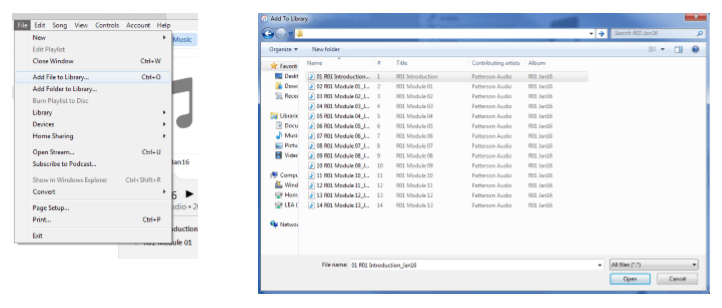
The first step in loading music on iTunes is to add existing files from your computer. Here’s how:
- Open Itunes: Launch iTunes on your computer by double-clicking its icon.
- Select The Menu: Click on “Music” in the top menu bar, then select “Add to Library…”
- Choose Your Files: Browse through your file explorer and select the music files you want to add (MP3, AAC, FLAC, or WMA).
- Drag & Drop: Drag the selected files into the iTunes window.
- Confirm Import: Click on “Yes” in the pop-up window that appears.
Loading Music From Apple Music
If you’re an Apple Music subscriber, you can load music directly from the Apple Music store using these steps:
- Open Itunes: Launch iTunes as described above.
- Search For Your Song: Use the search bar at the top of the iTunes window to find the song or album you want to add.
- Select Apple Music: Make sure “Apple Music” is selected in the dropdown menu next to the search bar.
- Click on Add to Library: Click on the song or album you’ve searched for, then click the “+” icon next to it.
- Confirm Import: Confirm that you want to add the song or album to your library.
Loading Music From Itunes Store
If you prefer to purchase music directly from the iTunes store, follow these steps:
- Open Itunes: Launch iTunes as described above.
- Go to Itunes Store: Click on “Store” in the top menu bar and select “iTunes Store.”
- Search For Your Song: Use the search bar at the top of the iTunes window to find the song or album you want to purchase.
- Select Buy: Choose the song or album you want to buy, then click the “Buy Song” button.
- Confirm Purchase: Confirm your purchase by following the prompts.
Loading Music From CD Audio
Want to load music from a CD? Here’s how:
- Insert Your CD: Insert the CD into your computer’s CD drive.
- Launch Itunes: Launch iTunes as described above.
- Select Import CD: Click on “File” in the top menu bar, then select “Import CD…”
- Choose Your Settings: Select the format you want to use (AAC, AIFF, MP3, WAV, or Apple Lossless).
- Confirm Import: Confirm that you want to import the music from your CD.
Tips And Tricks
Here are some additional tips and tricks to help you load music on iTunes like a pro:
- Make sure your computer is connected to the internet for smooth importing.
- Use the “Organize” feature in iTunes to keep your library tidy.
- Consider using the “iTunes Match” service to sync your music across all your devices.
Conclusion
Loading music on iTunes doesn’t have to be a hassle. With these simple steps, you can add existing files, acquire new ones directly from Apple Music or the iTunes store, and even load music from CDs. Remember to stay organized with iTunes’ built-in features, and don’t hesitate to reach out if you need more help.
Frequently Asked Questions
Here are some frequently asked questions to help clarify any doubts:
- Q: What is The Best Format For Importing Music?
A: AAC (Advanced Audio Coding) is a popular choice, but you can also use MP3 or other formats depending on your needs. - Q: Can I Import Music From my Phone or Tablet?
A: Yes! You can connect your device to your computer and transfer music directly into iTunes. - Q: What if I Already Have Itunes Installed? Do I Need to Update It?
A: It’s always a good idea to keep your software up-to-date for optimal performance.


