
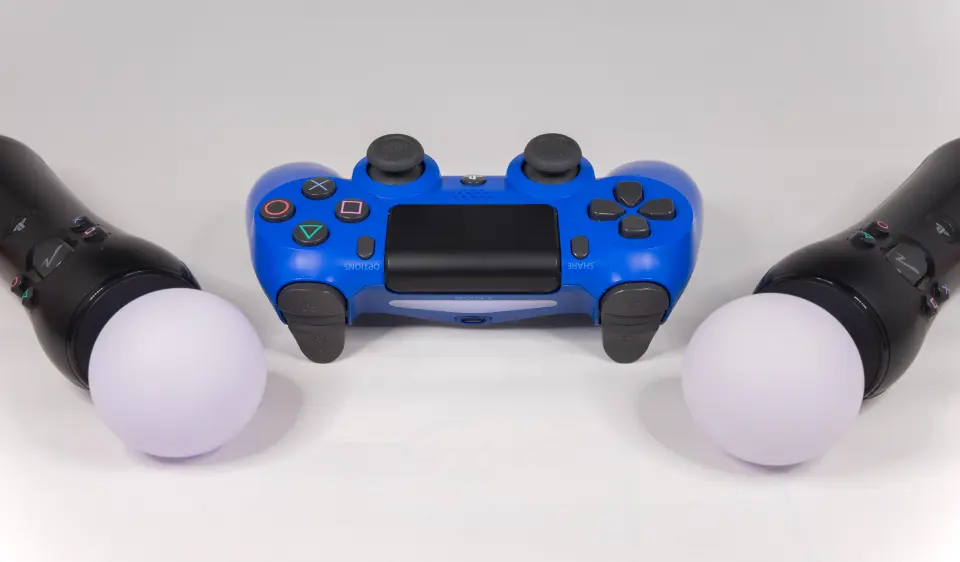
How to Reset a Ps4 Controller: A Step-by-step Guide
Are you experiencing problems with your PS4 controller? Do you find it difficult to connect it to your console? Don’t worry, this is a common issue that can be easily resolved. In this article, we will guide you through the process of resetting a PS4 controller in just a few simple steps.
Why Reset Your Ps4 Controller?
Resetting your PS4 controller is essential when it stops functioning correctly or refuses to connect to your console. This operation restores the device’s settings to their factory defaults, allowing you to start fresh and resolve software-related issues.
Preliminary Information
Before diving into the step-by-step guide, let’s cover some preliminary information. Resetting a PS4 controller is not the same as repairing or replacing it. If your controller has hardware defects, you may need to contact Sony for assistance.
How to Reset Your Ps4 Controller: A Step-by-step Guide
Method 1: Resetting Using The Console’s Settings
- Access The Settings Menu: Navigate to the PlayStation console and press the X button on your controller.
- Select Devices: Choose the “Devices” option from the menu.
- Select Bluetooth Devices: Select the “Bluetooth Devices” option.
- Remove The Controller: Select the controller that is not functioning correctly, then select the “Cancel Device” option.
This should reset your PS4 controller’s settings to their factory defaults.
Method 2: Hard Resetting Your Ps4 Controller
- Locate The Reset Button: Find the small pinhole on the back of your controller.
- Insert a Paper Clip or Pin: Insert the paper clip or pin into the reset button.
- Turn Off Your Console And Connect The Controller Via Usb: Power off your console, connect the controller using a USB cable, then turn it back on.
This will initiate a hard reset of your PS4 controller’s settings.
In Case of Further Problems
If you’ve tried these methods and still experience issues with your PS4 controller, it may be time to contact Sony for assistance. You can visit their official support website or call the designated phone number for more information.
Conclusion
Resetting a PS4 controller is a simple process that can resolve software-related issues. By following the steps outlined in this article, you should be able to successfully reset your controller and enjoy seamless gaming experiences once again.
Frequently Asked Questions (FAQs)
- Q: Why Does my Ps4 Controller Keep Disconnecting?
A: This could be due to a software issue or hardware defect. Try resetting the controller first. - Q: How do I Reset my Ps4 Controller if It’s Not Functioning at All?
A: Use Method 2: Hard Resetting Your PS4 Controller. - Q: What Should I do if The Reset Doesn’t Work?
A: Contact Sony for further assistance or visit their official support website. - Q: Can I Replace my Ps4 Controller Myself?
A: If you’re not comfortable doing so, it’s recommended to contact Sony for professional assistance.
Additional Resources
For more information on resetting a PS4 controller or troubleshooting other issues, please visit:


