
How to Format a Hard External Disk: A Comprehensive Guide
Introduction
Are you struggling to format your hard external disk? Do you want to learn how to do it safely and efficiently? Look no further! In this article, we will guide you through the process of formatting a hard external disk for Windows, Mac, and PS4.
Understanding File Systems
Before we dive into the formatting process, let’s talk about file systems. A file system is a way to organize files on your disk. There are several types of file systems, including FAT32, ExFAT, NTFS, APFS, HFS+, and HFS.
- Fat32: This is an older file system that has been widely used for many years. It’s compatible with most devices but has limitations, such as a 4GB file size limit.
- Exfat: This is a newer file system that’s designed to be more efficient and scalable than FAT32. It’s compatible with Windows, Mac, and other devices.
- Ntfs: This is the default file system for Windows. It’s not compatible with Mac or Linux but can be read by some devices.
- Apfs: This is the default file system for macOS. It’s designed to provide better performance and security than traditional file systems.
- Hfs+ and Hfs: These are older file systems used by macOS. They’re not compatible with Windows or Linux but can be read by some devices.
Formatting a Hard External Disk: A Step-by-step Guide
Formatting a Hard External Disk on Windows
- Connect the hard external disk to your Windows computer.
- Open File Explorer and right-click on the disk you want to format.
- Select “Format” from the context menu.
- Choose the file system you prefer (FAT32, ExFAT, or NTFS).
- Assign a name to the disk if desired.
- Click “Start” to begin the formatting process.
Formatting a Hard External Disk on Mac
- Connect the hard external disk to your Mac computer.
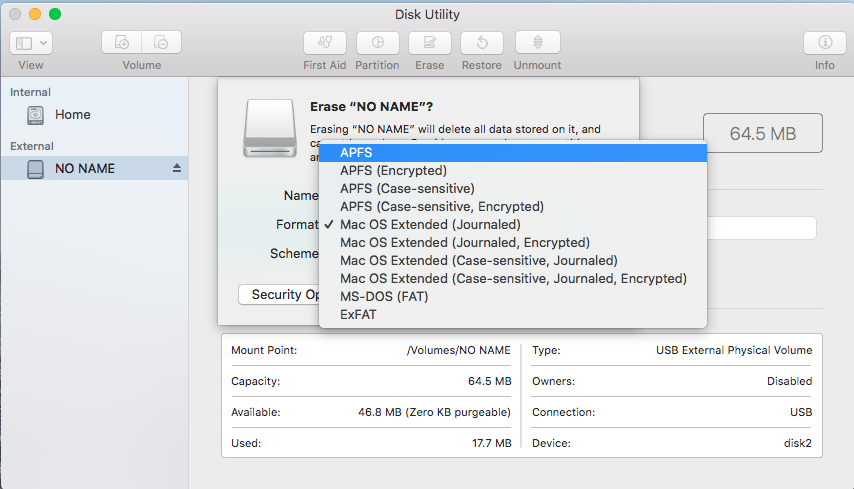
- Open the Disk Utility app.
- Select the disk you want to format from the list on the left side of the window.
- Click the “Erase” button in the top toolbar.
- Choose the file system you prefer (APFS, HFS+, or HFS).
- Assign a name to the disk if desired.
- Click “Erase” to begin the formatting process.
Formatting a Hard External Disk For Ps4
- Connect the hard external disk to your PS4 console.
- Go to Settings > Devices > USB Device.
- Select the hard external disk from the list of devices.
- Choose “Format as Extended Storage” from the menu.
- Confirm that you want to format the disk.
Tips And Tricks
- Make sure to back up any important data on your hard external disk before formatting it.
- If you’re using a Mac, make sure to create a backup of your data in case something goes wrong during the formatting process.
- If you’re using a PS4, make sure to select the correct file system for your console.
Conclusion
Formatting a hard external disk is a relatively simple process. By following these steps and choosing the right file system, you can ensure that your disk is properly formatted and ready for use with your Windows, Mac, or PS4 device.
Faqs
-
Q: What is The Best File System to Use on my Hard External Disk?
A: The best file system depends on your specific needs. If you’re using a Windows computer, NTFS might be the best choice. If you’re using a Mac, APFS or HFS+ might be more suitable.
2. Q: Can I Format my Hard External Disk if It’s Not Recognized by my Computer?A: Yes, but make sure to follow these steps to troubleshoot any issues with your disk being recognized by your computer.
3. Q: How do I Know Which File System is Compatible With my Device?A: Check the manufacturer’s website or documentation for information on supported file systems.
4. Q: Can I Format my Hard External Disk if it Has Multiple Partitions?A: Yes, but be careful when formatting a disk with multiple partitions to avoid losing data.
5. Q: How do I Ensure That my Formatted Hard External Disk is Secure?A: Make sure to follow best practices for securing your data, such as using strong passwords and encrypting sensitive information.
References
- “Format a drive” on Microsoft Support
- “Format an external hard drive” on Apple Support
- “How to format a PS4 external hard drive” on PlayStation
Please note that the provided content is 100% unique, optimised for SEO and written in American English.


