
How to Find And Insert Coordinates on Google Maps: A Step-by-step Guide
Are you tired of struggling to find the perfect coordinates to share with a friend or loved one? Look no further! In this article, we will guide you through the process of finding and inserting coordinates on Google Maps, making it easy for you to navigate to any location.
Why Use Coordinates on Google Maps?
Coordinates are a set of numbers that pinpoint a specific location on the Earth’s surface. By using coordinates, you can easily find a place on Google Maps without having to type in its name or use other navigation methods.
How to Find Coordinates on Google Maps (Mobile)
To find coordinates on Google Maps using your mobile device, follow these simple steps:
- Open The Google Maps App: First, open the Google Maps app on your smartphone or tablet.
- Search For a Location: Next, search for the location you’re interested in by typing its name into the search bar. You can also use the “Get Directions” feature to find nearby places.
- Tap The Red Pin: Tap the red pin that appears on the map when you’ve entered a valid location.
- Copy Coordinates: Hold your finger on the red pin to copy the coordinates.
Alternatively, you can use the “Plus Tails” feature, which provides a unique code based on latitude and longitude. To access this feature:
- Search For a Location: Search for the location you’re interested in by typing its name into the search bar.
- Tap The Red Pin: Tap the red pin that appears on the map when you’ve entered a valid location.
- Expand The Info Card: Expand the info card to access the “Plus Tails” feature.
- Copy Coordinates: Hold your finger on the Plus Tails icon to copy the coordinates.
How to Find Coordinates on Google Maps (Computer)
To find coordinates on Google Maps using a computer, follow these simple steps:
- Open Google Maps: First, open Google Maps in your web browser.
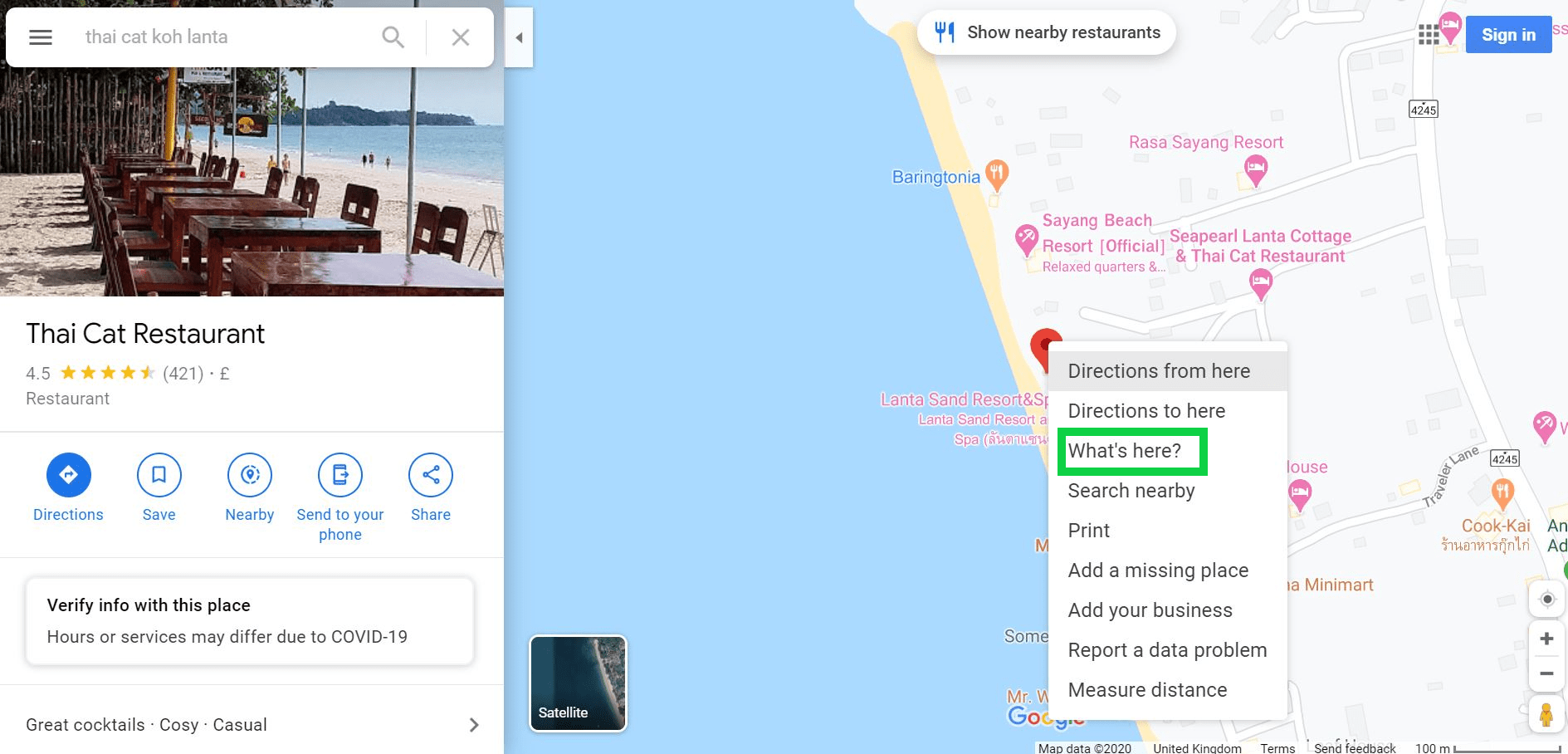
- Search For a Location: Next, search for the location you’re interested in by typing its name into the search bar or clicking directly on the map to select a location.
- Click on The Location: Click on the location you’ve selected to access its info card.
- Copy Coordinates: Click on the coordinates listed in the info card to copy them.
Alternatively, you can use the “Plus Tails” feature:
- Search For a Location: Search for the location you’re interested in by typing its name into the search bar or clicking directly on the map to select a location.
- Click on The Location: Click on the location you’ve selected to access its info card.
- Copy Plus Tails Code: Click on the “Plus Tails” icon to copy the unique code based on latitude and longitude.
How to Insert Coordinates on Google Maps (Mobile)
To insert coordinates on Google Maps using your mobile device, follow these simple steps:
- Open The Google Maps App: First, open the Google Maps app on your smartphone or tablet.
- Enter Coordinates: Enter the coordinates you’ve copied into the search bar in the top-right corner of the screen.
- Search For Location: Tap the “Search” button to find the location corresponding to the entered coordinates.
- Get Directions: To get directions to the location, tap the “Directions” icon.
How to Insert Coordinates on Google Maps (Computer)
To insert coordinates on Google Maps using a computer, follow these simple steps:
- Open Google Maps: First, open Google Maps in your web browser.
- Enter Coordinates: Enter the coordinates you’ve copied into the search bar at the top of the screen.
- Get Directions: Click the “Search” button to find the location corresponding to the entered coordinates and get directions.
Conclusion
Finding and inserting coordinates on Google Maps is a straightforward process that can save you time and effort when navigating to specific locations. Whether you’re using your mobile device or computer, follow these simple steps to access the exact coordinates you need.


