
How to Uninstall Applications on Mac: A Step-by-step Guide
Are you tired of cluttered apps on your Mac? Do you want to free up space on your hard drive? Look no further! In this article, we will guide you through the process of uninstalling applications on Mac, including those downloaded from the App Store and other external websites.
Why Uninstall Applications on Mac?
Uninstalling unnecessary applications can help:
- Free up disk space
- Improve system performance
- Reduce clutter on your Launchpad
- Prevent security risks associated with outdated or malicious software
How to Uninstall Apps From The App Store
- Access The Launchpad: Click on the Launchpad icon in the Dock.
- Find The App You Want to Uninstall: Search for the app you want to delete in the Launchpad.
- Click And Hold on The App: Click on the app’s icon with your mouse or trackpad, then hold down the button until a minus (-) sign appears next to the app’s name.
- Confirm Deletion: Click on the minus (-) sign to confirm that you want to delete the app.
How to Uninstall Apps Not From The App Store
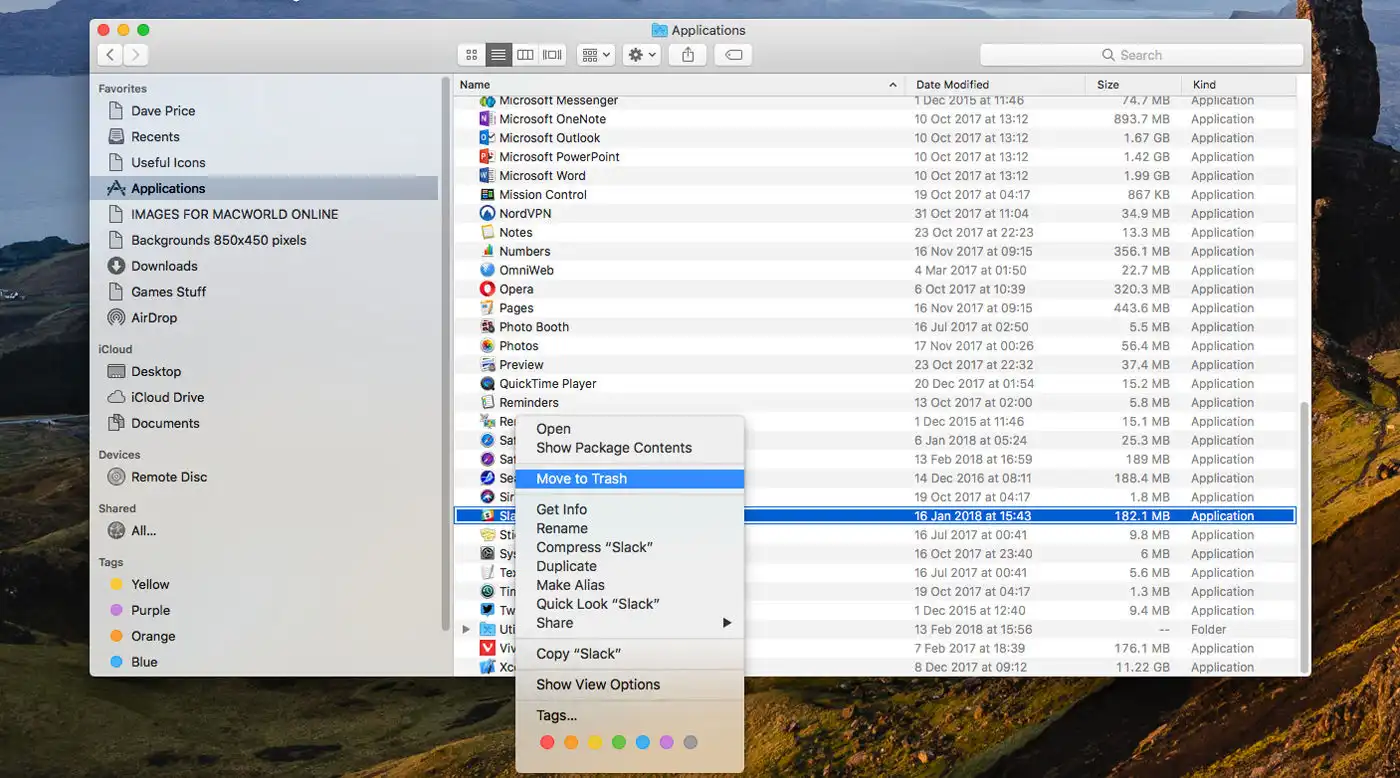
- Access The Applications Folder: Go to Finder > Applications, or use the keyboard shortcut ⌘ + Shift + T.
- Find The App You Want to Uninstall: Search for the app’s icon in the Applications folder.
- Drag The App to Trash: Drag the app’s icon from the Applications folder to the Trash icon in the Dock.
- Empty The Trash: Right-click on the Trash icon and select “Empty” to delete the app permanently.
Using Uninstaller Tools
Some apps, like Adobe Creative Cloud or Parallels Desktop, require a separate uninstaller tool to remove them completely. You can find these tools within the app’s folder or in its .Dmg package.
- Access The App’s Folder: Open the app’s folder and look for an “Uninstaller” or “Remove” tool.
- Run The Uninstaller: Double-click on the uninstaller to launch it.
- Follow The Instructions: Follow the prompts to remove the app completely.
Alternative Uninstaller Tools
If you need more advanced features, consider using tools like:
- Cleanmymac X: A powerful cleaning tool that can remove apps, delete cache and logs, and optimize your Mac’s performance.
- Appcleaner: A free alternative to CleanMyMac X that allows you to uninstall apps without leaving any residue.
Conclusion
Uninstalling unnecessary applications on Mac is a simple process that can help improve system performance, free up disk space, and reduce clutter. By following these steps, you can easily remove apps from the App Store or other external websites, and even use specialized tools to ensure a complete removal. Happy uninstalling!
Frequently Asked Questions (FAQs)
- Q: Can I Undo an App Uninstallation?
A: Unfortunately, no. Once an app is deleted, it cannot be restored. - Q: Will Uninstalling Apps Affect my Mac’s Performance?
A: No, uninstalling apps should not negatively impact your Mac’s performance. - Q: How do I Remove an App That Won’t Delete Normally?
A: Try using the “Uninstaller” tool provided by the app or a third-party cleaning tool like CleanMyMac X. - Q: Can I Use Appcleaner to Uninstall Apps Not From The App Store?
A: Yes, you can use AppCleaner to remove apps that are not from the App Store. - Q: How do I Know if an App is a “rogue” App And Needs Special Removal?
A: Rogue apps often require a separate uninstaller or have complex installation procedures. Look for signs like multiple icons, unusual file sizes, or security warnings to identify potential issues. - Q: Can I Use Cleanmymac X to Remove All my Apps at Once?
A: Yes, you can use CleanMyMac X’s “Select All” feature to quickly uninstall multiple apps. - Q: What if I’m Not Comfortable Using a Third-party Tool Like Cleanmymac X or Appcleaner?
A: Stick with the built-in app removal methods described above for added peace of mind.


