
How to Connect Your Ipad to Tv: A Step-by-step Guide
Are you tired of watching videos on your small iPad screen? Do you want to enjoy a larger-than-life viewing experience with crystal-clear audio and video quality? Look no further! In this article, we’ll show you how to connect your iPad to TV using various methods, including cables and wireless streaming.
Method 1: Connecting Your Ipad to TV Using Hdmi Cable
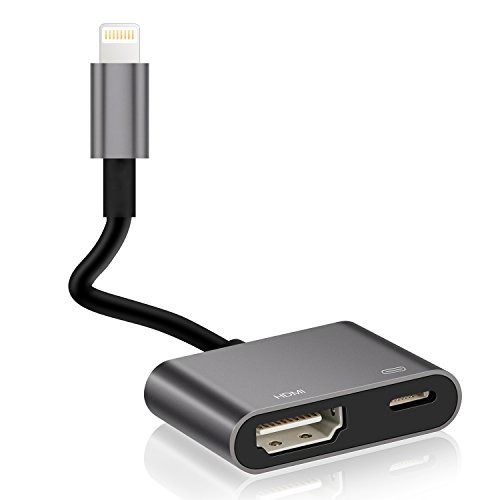
Connecting your iPad to TV using an HDMI cable is the most straightforward method. Here’s what you need:
- An iPad with a Lightning port
- A HDMI-to-Lightning adapter (available on Amazon)
- A TV with an HDMI input
To connect your iPad to TV, follow these steps:
- Connect one end of the HDMI-to-Lightning adapter to your iPad’s Lightning port.
- Connect the other end of the adapter to your TV’s HDMI input.
- Turn on your TV and select the correct HDMI input.
- Your iPad’s screen should now be displayed on your TV.
Method 2: Connecting Your Ipad to TV Using Airplay
If you have a Smart TV or Apple TV, you can use AirPlay to stream content from your iPad to your TV wirelessly. Here’s what you need:
- An iPad with iOS 10 or later
- A Smart TV or Apple TV with AirPlay capabilities
To connect your iPad to TV using AirPlay, follow these steps:
- Make sure both your iPad and TV are connected to the same Wi-Fi network.
- Swipe up from the bottom of your iPad’s screen to access Control Center.
- Tap on “AirPlay” and select your TV or Apple TV from the list.
- Choose what you want to share: A video, photo, or audio file.
Method 3: Connecting Your Ipad to TV Using Chromecast
If you don’t have a Smart TV or Apple TV, you can use Google Chromecast to stream content from your iPad to your TV wirelessly. Here’s what you need:
- An iPad with iOS 10 or later
- A Google Chromecast device
To connect your iPad to TV using Chromecast, follow these steps:
- Connect your Chromecast device to your TV’s HDMI input.
- Open the Google Home app on your iPad and select your Chromecast device.
- Choose what you want to share: A video, photo, or audio file.
Method 4: Connecting Your Ipad to TV Without Cable
If you don’t have a cable or prefer not to use one, there are still ways to connect your iPad to TV wirelessly. Here’s how:
- Use Apple’s AirPlay technology (as described in Method 2).
- Use Google Chromecast (as described in Method 3).
- Use third-party apps that support streaming content from your iPad to your TV.
Tips And Tricks
Before you start, make sure you have the following:
- A compatible cable or adapter for your iPad’s port.
- A Smart TV or Apple TV with AirPlay capabilities.
- Google Chromecast device.
To avoid any potential issues, check online reviews and comments before purchasing a product. Also, be aware of any compatibility issues with certain apps or services.
Conclusion
Connecting your iPad to TV is easier than you think! Whether you use an HDMI cable, AirPlay, or Chromecast, there are plenty of options available. Remember to follow the steps carefully, and don’t hesitate to reach out if you need further assistance.
Frequently Asked Questions (FAQs)
- What Kind of Cable do I Need?
You’ll need a Lightning-to-HDMI adapter for your iPad. - Do I Need a Smart TV or Apple Tv?
Yes, but only if you want to use AirPlay technology. - Can I Use Chromecast With my Ipad?
Yes, make sure you have a Google Chromecast device and the Google Home app on your iPad. - Will I Need an Adapter For my Ipad’s Port?
Maybe, depending on the type of cable or adapter you choose. - How do I Know if my TV is Compatible With Airplay?
Check online reviews and comments before purchasing a product. Look for TVs with the label “Works with Apple AirPlay.” - Can I Use Third-party Apps to Stream Content From my Ipad to my Tv?
Yes, many apps support streaming content wirelessly. - What if I Have an Older Ipad or Tv?
Check compatibility with your device and consider upgrading to a newer model.
We hope this guide has been helpful!


