
How to Reboot Your Mac: A Step-by-step Guide
Are you tired of dealing with a slow or frozen Mac? Do you want to know how to reboot your device quickly and easily? Look no further! In this article, we’ll show you the simplest ways to restart your Mac using various methods.
Why Reboot Your Mac?
Rebooting your Mac can solve many problems, such as:
- A frozen or unresponsive computer
- A slow system due to resource-intensive applications
- A failed update or installation process
- A black screen or blue screen of death
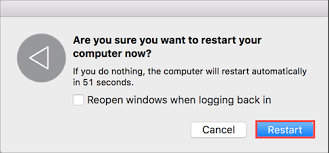
Method 1: Restarting From The Apple Menu
The easiest way to reboot your Mac is by using the Apple menu. Here’s how:
- Click on the Apple logo in the top-left corner of your screen.
- Select “Restart” from the dropdown menu.
- Wait for a few seconds until your Mac shuts down and restarts.
Method 2: Using Keyboard Shortcuts
If you’re in a hurry or prefer using keyboard shortcuts, follow these steps:
- Magic Keyboard: Press Ctrl + Eject (or Ctrl + T on some keyboards) to open the Restart menu.
- Other Keyboards: Press Ctrl + Alt + Eject (or Ctrl + Alt + T on some keyboards).
- Choose “Restart” from the dropdown menu.
Method 3: Creating a Custom Keyboard Shortcut
If you want to create a custom keyboard shortcut for restarting your Mac, follow these steps:
- Open System Preferences.
- Click on the “Keyboard” icon.
- Select “Keyboard Shortcuts.”
- Create a new shortcut by clicking the “+” button.
- Name it “Restart” and assign a combination of keys (e.G., Ctrl + Shift + R).
Method 4: Restarting From The Login Screen
If your Mac is stuck on the login screen, try restarting it using the following steps:
- Hold down the Power button until your Mac shuts off.
- Turn it back on and hold down the Command (⌘) key while booting up.
- Release the Power button when the login screen appears.
Method 5: Forcing a Restart With Terminal
If none of the above methods work, you can try forcing a restart using Terminal:
- Open Terminal by searching for it in Spotlight or using the keyboard shortcut ⌘ + Shift + T.
- Type
sudo shutdown -r nowand press Enter.
Method 6: Creating a Usb Startup Disk
If you have a USB drive with macOS installation files, follow these steps to create a startup disk:
- Plug in the USB drive.
- Turn off your Mac.
- Hold down the Power button while booting up.
- Select the USB drive as the startup device.
Conclusion
Rebooting your Mac is easier than you think! With these methods, you can quickly restart your device and get back to work. Remember to always save any unsaved work before rebooting. If you’re experiencing persistent issues or freezes, feel free to reach out for further assistance.
Faqs:
- Q: Why won’t my Mac turn off?
A: Try restarting your Mac using one of the methods above. - Q: How do I reset my Mac if it’s frozen?
A: Try forcing a restart with Terminal or creating a custom keyboard shortcut. - Q: Can I create a USB startup disk for other operating systems?
A: Yes, but you’ll need to ensure compatibility with the intended OS. - Q: How often should I reboot my Mac?
A: Reboot your Mac when experiencing freezes, crashes, or other system-related issues. - Q: Can I schedule a restart using Terminal?
A: Yes, use theshutdowncommand to schedule a restart at a specific time. - Q: What if I’m having trouble creating a USB startup disk?
A: Try restarting your Mac with the USB drive plugged in and selecting it as the startup device. - Q: Can I reboot my Mac remotely using Terminal?
A: Yes, use thesshcommand to connect to your Mac’s Terminal remotely. - Q: What if I’m experiencing issues with my keyboard shortcuts?
A: Try resetting your System Management Controller (SMC) or creating new keyboard shortcuts.
Hope this helps!


