
How to Download Youtube Videos on Android: A Step-by-step Guide
Are you tired of watching videos on YouTube only to have them disappear when your internet connection drops? Do you want to download your favorite YouTube videos and watch them offline? Look no further! In this article, we’ll show you how to download YouTube videos on Android using various methods.
Method 1: Using The Youtube Premium App
If you’re looking for a hassle-free way to download YouTube videos, consider subscribing to YouTube Premium. This app allows you to download videos for offline viewing and access them whenever you want. Here’s how to do it:
- Subscribe to Youtube Premium: If you haven’t already, sign up for a free trial or subscription to YouTube Premium.
- Download The Youtube App: Ensure that you have the latest version of the YouTube app installed on your Android device.
- Find The Video: Search for the video you want to download and open it in the YouTube app.
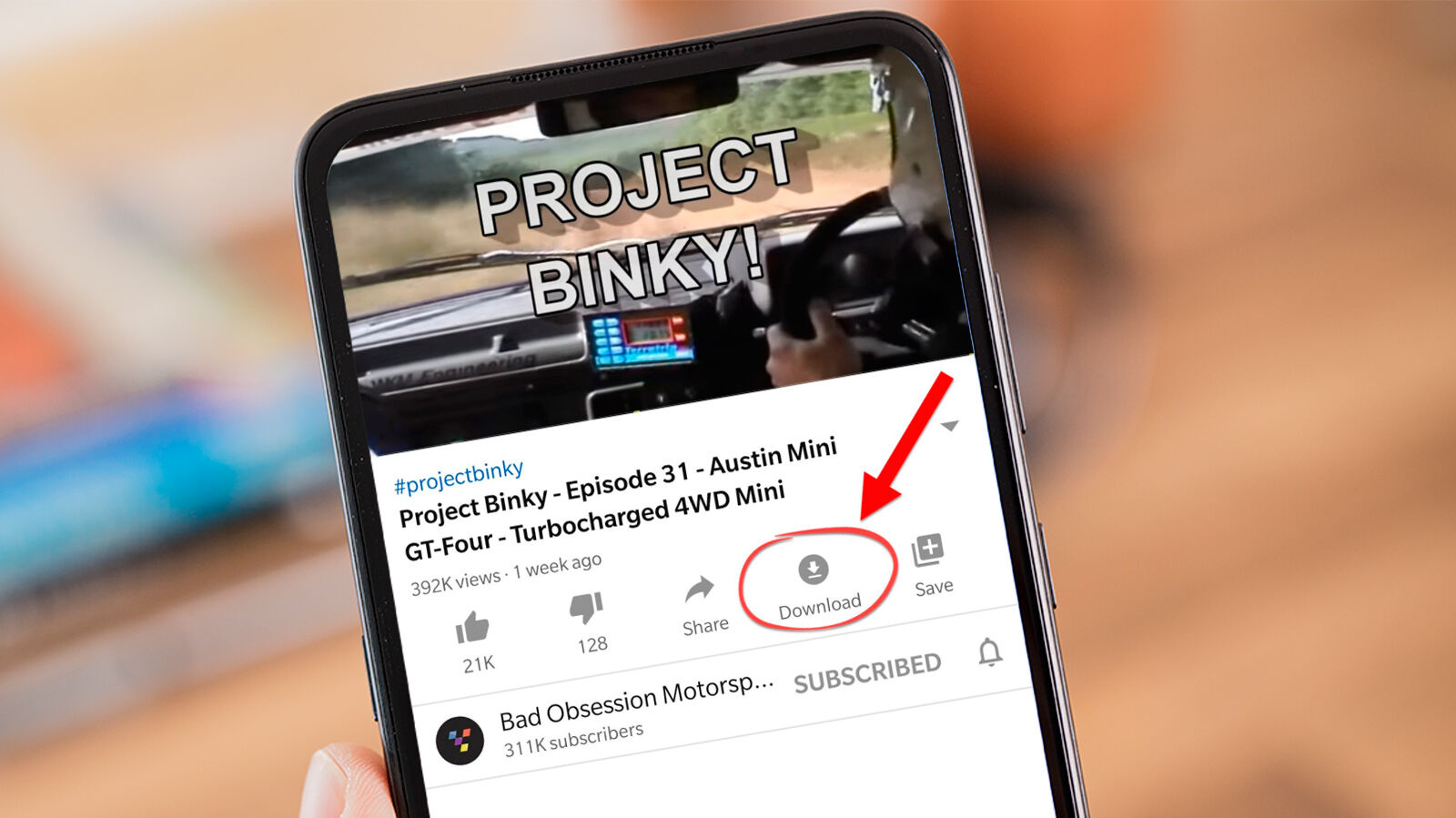
- Tap The Download Button: You’ll find a “Download” button below the video’s title. Tap this button to initiate the download process.
- Choose Your Resolution: Select the resolution at which you want to download the video.
Method 2: Using Savefrom Un
SaveFrom Un is another popular method for downloading YouTube videos on Android. This app works by allowing you to copy the video URL and then providing a link to download it. Here’s how to use it:
- Copy The Video Url: Open the YouTube video you want to download in your browser or the YouTube app.
- Open Savefrom Un: Download and install the SaveFrom Un app from the Google Play Store.
- Paste The Url: Open SaveFrom Un and paste the YouTube video URL into the input field.
- Choose Your Format: Select the format in which you want to download the video (e.G., MP4, 3GP, etc.).
- Tap The Download Button: Tap the “Download” button to initiate the download process.
Method 3: Using Tubemate
TubeMate is another popular app for downloading YouTube videos on Android. This app allows you to search and download videos directly from the app. Here’s how to use it:
- Download Tubemate: Download and install the TubeMate app from the Google Play Store.
- Search For The Video: Open TubeMate and search for the video you want to download.
- Tap The Download Button: Tap the “Download” button to initiate the download process.
- Choose Your Format: Select the format in which you want to download the video (e.G., MP4, 3GP, etc.).
Method 4: Using Youtube Downloader
YouTube Downloader is another app that allows you to download YouTube videos on Android. Here’s how to use it:
- Download Youtube Downloader: Download and install the YouTube Downloader app from the Google Play Store.
- Search For The Video: Open YouTube Downloader and search for the video you want to download.
- Tap The Download Button: Tap the “Download” button to initiate the download process.
Common Issues And Solutions
- Google Play Protect Blocking Apk Files: If you’re having trouble installing APK files from unknown sources, try disabling Google Play Protect by going to Settings > Security > Unknown Sources.
- App Not Working Properly: Try restarting your device or reinstalling the app if it’s not working properly.
Conclusion
Downloading YouTube videos on Android can be a convenient way to watch your favorite content offline. Whether you choose to use the YouTube Premium app, SaveFrom Un, TubeMate, or YouTube Downloader, each method has its advantages and disadvantages. Remember to always follow safety guidelines when downloading apps from unknown sources.


