
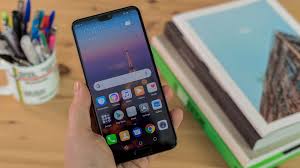
Burdening Music on Your Huawei Smartphone
As soon as you’ve acquired your prime smartphone, you might be excited to explore its features. However, if you’re not particularly shod in the technological domain, you might find yourself facing a problem that seems insurmountable: You can’t burden the music on the memory of the phone.
Connecting Your Huawei Smartphone to Your Computer
When you connect your smartphone to your computer, Windows might seem to not acknowledge it. Additionally, when opening Windows Media Player, the device might not result connected to the PC. Don’t worry; this is almost surely a problem with the driver or configuration of the phone.
Step-by-step Solution For Burdening Music on Huawei
If you want to resolve the question, take five minutes off and follow these instructions:
- Take a Few Minutes to Read Through This Tutorial. The steps are easy to follow, but it’s essential to understand what each step entails.
- Download The Correct Drivers For Your Huawei Smartphone. You can find the official website of Huawei on which you can download the necessary drivers.
- Install The Drivers on Your Computer. Follow the instructions provided by the software to install the drivers correctly.
- Connect Your Huawei Smartphone to Your Computer Using a Usb Cable. Make sure that the cable is securely plugged into both the phone and the computer.
- Open Windows Media Player on Your Computer. This should now be able to recognize your Huawei smartphone.
Burdening Music on Your Huawei Smartphone Using Windows
If you’re using a PC with Windows, follow these steps:
- Take The Cable Provided in The Envelope With Your Phone And Use it to Connect Your Smartphone to Your Computer.
- You Should Receive a Notification on Your Monitor Asking Which Operation to Accomplish With The Device as Soon as Connected to The Pc. Choose the option that allows you to access your smartphone’s memory.
- On Your Smartphone, go to Settings > Developer Options And Enable Usb Debugging.
Burdening Music on Your Huawei Smartphone Using Macos
If you’re using a Mac, follow these steps:
- Download Cession Rows Android From The Official Website of Huawei.
- Install Cession Rows Android on Your Mac by Following The Instructions Provided in The Software.
- Connect Your Huawei Smartphone to Your Mac Using a Usb Cable. Make sure that the cable is securely plugged into both the phone and the computer.
- Open Cession Rows Android on Your Mac And Select The Option to Access Your Smartphone’s Memory.
Burdening Music on Your Huawei Smartphone Using Services of Streaming
If you’re already subscribed to a service like Spotify, YouTube Music, Apple Music, or Amazon Music, you can copy music directly from your computer to your Huawei smartphone.
- For Example, if You’re Using Spotify, Select The Playlist or Album You Want to Download And Click on The “Download” Button. The music will be copied to your smartphone.
- If You’re Using Apple Music, go to The App Store And Select The Option to Download Music. This will copy the music from your computer to your iPhone.
Other Solutions For Burdening Music on Huawei
In case you’ve tried all of the above solutions and still can’t burden music on your Huawei smartphone, here are a few more options:
- Use Cloudplayer: A player that allows you to listen to music stored in cloud storage services like Dropbox, Google Drive, or OneDrive.
- Airdroid: An app that enables wireless transfer of files between your computer and smartphone.


