
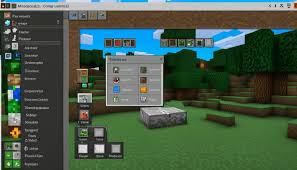
How to Create a Texture Pack For Minecraft: A Step-by-step Guide
Are you tired of playing Minecraft with the same old default textures? Do you want to add some personal touch to your gameplay experience? Look no further! In this article, we will guide you through the process of creating a custom texture pack for Minecraft.
Why Create a Texture Pack?
Before we dive into the steps, let’s talk about why creating a texture pack is a great idea. With a texture pack, you can personalize your Minecraft experience by modifying the textures of various objects and environments in the game. This can include changing the color or design of buildings, adding new textures to items, or even customizing the appearance of characters.
Step 1: Find The Texture Pack Folder
The first step is to locate the folder where Minecraft stores its texture packs. The location may vary depending on your operating system:
- On Windows, navigate to
C:\Users\[username]\AppData\Roaming\.Minecraft\versions\[version] - On macOS, go to
~/Library/Application Support/minecraft/versions/[version]
Step 2: Extract The Texture Pack Files
Once you’ve located the texture pack folder, extract the files from the .Jar file using a program like 7-Zip or WinRAR. This will give you access to the underlying assets and textures.
Step 3: Create a New Folder For Your Texture Pack
Create a new folder in the texture pack directory and name it something descriptive (e.G., “MyTexturePack”). This is where you’ll store your custom textures.
Step 4: Modify The Textures
Now it’s time to get creative! Open an image editing program like Paint or Photoshop, and edit the textures as desired. You can change colors, add designs, or even use images from other sources (just be sure to give credit where due).
Step 5: Create a .Mcmeta File
In the folder you created in Step 3, create a new file called pack.Mcmeta. This file contains metadata about your texture pack, including its name and description. Use an editor like Notepad or TextEdit to write the necessary code.
Step 6: Package Your Texture Pack
Once you’ve modified all the textures and created the .Mcmeta file, it’s time to package your texture pack into a single file (.Zip). This will make it easy to share with others.
Step 7: Load Your Texture Pack in Minecraft
To load your custom texture pack in Minecraft, navigate to Options > Resource Packs, and select your newly created texture pack. Voilà! You should now see the modified textures in-game.
Tips For Mobile Devices
If you’re playing Minecraft on a mobile device, things work slightly differently:
- To create a texture pack for Bedrock Edition (the mobile version), follow the same steps as above.
- However, instead of extracting the files from the
.Jarfile, download the Vanilla Resource Pack and extract its contents.
Step 8: Load Your Texture Pack on Mobile
To load your custom texture pack on a mobile device, open Minecraft, navigate to Settings > Global Options, and select your texture pack. Then, create a new world in Creative mode and enjoy your customized textures!
Conclusion
Creating a texture pack for Minecraft is an exciting way to personalize your gameplay experience. By following these simple steps, you can add unique touches to the game without needing any extensive programming knowledge.
Frequently Asked Questions (FAQs)
- Q: What is a Texture Pack?
A: A texture pack is a collection of custom textures that can be used in Minecraft to personalize your gameplay experience. - Q: Can I Use my Own Images For The Textures?
A: Yes, you can use your own images as long as you give credit where due. - Q: How do I Share my Texture Pack With Others?
A: Simply package your texture pack into a.Zipfile and share it online or through social media. - Q: Can I Create a Texture Pack For Mobile Devices Only?
A: Yes, the steps above can be adapted for mobile devices (Bedrock Edition). - Q: Will my Custom Textures Affect Gameplay Performance?
A: Generally speaking, no. However, if you’re creating complex or high-resolution textures, it’s possible they might impact performance. - Q: Can I Use Texture Packs From Other Creators?
A: Yes, feel free to download and use texture packs created by others. - Q: How do I Report Bugs or Issues With my Texture Pack?
A: Contact the Minecraft community forums or support team for assistance. - Q: Are There Any Limitations to Creating Texture Packs?
A: Currently, texture packs are limited in terms of customization and compatibility with certain game versions.
By following these steps and FAQs, you should now be well-equipped to create your own custom texture pack for Minecraft!


