
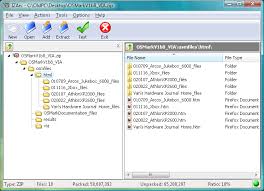
Are you looking for ways to compress files in Italian free? Look no further! In this article, we will guide you through the process of compressing files using various programs available for Windows and macOS.
Why Compress Files?
Compressing files is an essential skill to have in today’s digital age. With the increasing amount of data being generated every day, it’s crucial to find ways to reduce file sizes without compromising their quality. Compressed files take up less space on your computer or mobile device, making them easier to store and transfer.
Pre-defined Solutions For Windows And Macos
Before diving into third-party programs, let’s explore the pre-defined solutions available in Windows and macOS.
Windows
If you’re using a Windows operating system, you can use the built-in tool called “Compress to ZIP” to compress files. To do this:
- Right-click on the file or folder you want to compress.
- Select “Compress to ZIP” from the context menu.
- Choose the desired compression level and password (if needed).
- Click OK to create a compressed ZIP file.
Macos
On macOS, you can use the built-in tool called “Utility Compression” to compress files. To do this:
- Select the file or folder you want to compress.
- Right-click on it and select “Compress [name of file/folder]” from the context menu.
- Choose the desired compression level and password (if needed).
- Click OK to create a compressed ZIP file.
Third-party Programs For Compressing Files
Now that we’ve explored the pre-defined solutions, let’s dive into third-party programs available for Windows and macOS.
7-Zip For Windows
7-Zip is a popular program for compressing files on Windows. It supports various formats like 7Z, XZ, BZIP2, GZIP, TAR, and ZIP.
- Download the 7-Zip installer from the official website.
- Run the installer and follow the prompts to install the software.
- Launch 7-Zip and select the file or folder you want to compress.
- Choose the desired compression format and level.
- Click OK to create a compressed file.
Keka For Macos
Keka is a popular program for compressing files on macOS. It supports various formats like ZIP, RAR, GZIP, and more.
- Download the Keka installer from the official website.
- Run the installer and follow the prompts to install the software.
- Launch Keka and select the file or folder you want to compress.
- Choose the desired compression format and level.
- Click OK to create a compressed file.
Other Programs For Compressing Files
If the above programs don’t meet your needs, there are other options available for Windows and macOS.
Zipgenius For Windows
ZipGenius is another popular program for compressing files on Windows. It supports various formats like 7Z, RAR, ARJ, ISO, and more.
- Download the ZipGenius installer from the official website.
- Run the installer and follow the prompts to install the software.
- Launch ZipGenius and select the file or folder you want to compress.
- Choose the desired compression format and level.
- Click OK to create a compressed file.
Izip Archiver For Macos
IZip Archiver is a popular program for compressing files on macOS. It supports various formats like ZIP, RAR, GZIP, and more.
- Download the iZip Archiver installer from the official website.
- Run the installer and follow the prompts to install the software.
- Launch iZip Archiver and select the file or folder you want to compress.
- Choose the desired compression format and level.
- Click OK to create a compressed file.
Compressing Photos And Videos
If you’re looking to compress photos and videos, there are specific programs available for Windows and macOS.
Xnconvert For Windows And Macos
XnConvert is a popular program for compressing images on Windows and macOS. It supports various formats like JPEG, PNG, GIF, and more.
- Download the XnConvert installer from the official website.
- Run the installer and follow the prompts to install the software.
- Launch XnConvert and select the image you want to compress.
- Choose the desired compression format and level.
- Click OK to create a compressed file.
Clipchamp For Windows
Clipchamp is a popular program for editing and compressing videos on Windows.
- Download the Clipchamp installer from the official website.
- Run the installer and follow the prompts to install the software.
- Launch Clipchamp and select the video you want to compress.
- Choose the desired compression format and level.
- Click OK to create a compressed file.
Imovie For Macos
IMovie is a popular program for editing and compressing videos on macOS.
- Download the iMovie installer from the official website.
- Run the installer and follow the prompts to install the software.
- Launch iMovie and select the video you want to compress.
- Choose the desired compression format and level.
- Click OK to create a compressed file.
Conclusion
Compressing files is an essential skill to have in today’s digital age. Whether you’re using pre-defined solutions or third-party programs, there are various options available for Windows and macOS. By following these step-by-step guides, you’ll be able to compress files with ease and reduce their size without compromising their quality.
Faqs
- What is The Best Program For Compressing Files?
The best program for compressing files depends on your specific needs. If you’re looking for a pre-defined solution, Windows and macOS have built-in tools. For third-party programs, 7-Zip and Keka are popular options. - How do I Compress Photos And Videos?
To compress photos and videos, use XnConvert or iMovie, depending on your operating system. - What is The Difference Between Compressing Files And Reducing File Size?
Compressing files reduces their size by removing unnecessary data, while reducing file size involves changing the format of the file to make it smaller. - Can I Compress Files Without Generating a Zip File?
Yes, you can use programs like XnConvert or iMovie to compress files without generating a ZIP file. - What is The Best Program For Editing And Compressing Videos?
Clipchamp and iMovie are popular options for editing and compressing videos on Windows and macOS respectively. - Can I Use These Programs For Professional Purposes?
Some of these programs have free versions or trials, while others require a purchase for commercial use.
By following this guide and exploring the FAQs, you’ll be able to find the best program for your needs and start compressing files like a pro!


