
The Ultimate Guide to Creating Calendars: A Step-by-step Guide
Are you tired of using the same old calendars every year? Do you want to create a calendar that reflects your personal style and interests? Look no further! In this article, we’ll show you how to create calendars using various programs, both free and paid.
Why Create Your Own Calendar?
Creating your own calendar allows you to personalize it according to your preferences. You can choose the design, layout, and content that suits your taste. With a custom-made calendar, you can also include important dates, events, or holidays that are significant to you.
Programs to Create Calendars For Free
If you’re looking for free programs to create calendars, we’ve got you covered!
Canva (Windows/MacOS)
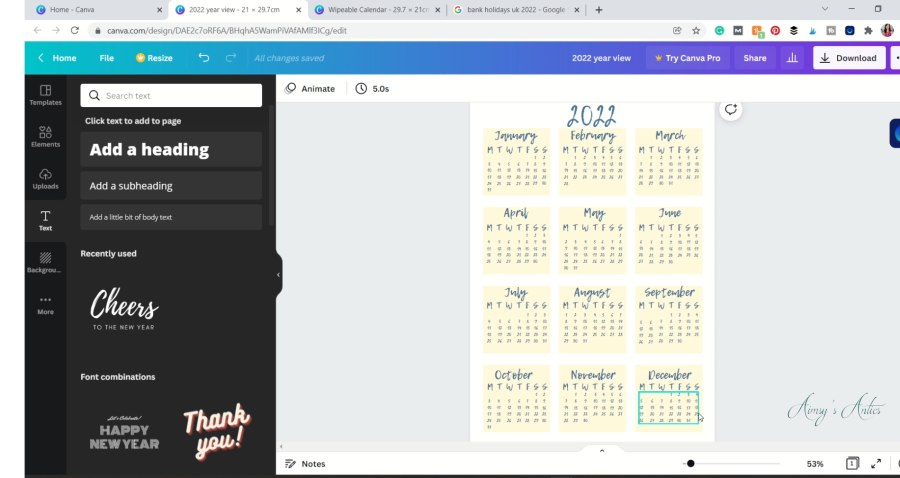
Canva is a popular graphic design platform that’s accessible online and offline. You can use it to create custom calendars with ease. Simply download the Canva app on your Windows or MacOS device, sign up for a free account, and start designing your calendar.
To get started:
- Open Canva and click on “Create a new project.”
- Select “Calendar” as the project type.
- Choose from various templates or create your own design.
- Customize the layout, font, and colors to suit your taste.
- Add images, text, or other elements to make it more engaging.
Photo (MacOS)
If you’re using a MacOS device, you can utilize the built-in Photo app to create calendars. This app offers various templates and design options that are easy to use.
To get started:
- Open Photos and select “My Albums” or “Memories.”
- Click on “Create a new album” and choose “Calendar” as the album type.
- Select a template or create your own design from scratch.
- Add photos, text, or other elements to personalize it.
Other Programs to Create Calendars
If you’re looking for more options, here are some additional programs you can use:
Adobe Express (Online)
Adobe Express is an online graphic design platform that allows you to create custom calendars with ease. You can choose from various templates, customize the layout, and add images or text.
To get started:
- Sign up for a free Adobe account.
- Choose “Calendar” as the project type.
- Select a template or create your own design.
- Customize the layout, font, and colors to suit your taste.
Excel (Windows/MacOS/Online)
If you’re familiar with Microsoft Excel, you can use it to create calendars. Simply download the Excel app on your Windows or MacOS device, sign up for a Microsoft 365 subscription, or access it online.
To get started:
- Open Excel and select “New” to start a new project.
- Choose “Calendar” as the project type.
- Select a template or create your own design from scratch.
- Customize the layout, font, and colors to suit your taste.
Programs to Create Calendars For Tournaments
If you’re looking for programs specifically designed for creating calendars for tournaments, here are some options:
Challonge (Online)
Challonge is an online platform that allows you to create custom tournament calendars. You can choose from various templates and customize the layout to suit your needs.
To get started:
- Sign up for a free Challonge account.
- Click on “Create a new tournament.”
- Select the type of competition (e.G., Sports, esports).
- Choose a template or create your own design from scratch.
- Customize the layout and add teams, schedules, and other details.
Conclusion
Creating calendars can be a fun and creative process. With these programs, you can customize your calendar to suit your personal style and interests. Whether you’re looking for free options or paid software, we’ve got you covered!
Frequently Asked Questions (FAQs)
- What Are The Benefits of Creating my Own Calendar?
Creating your own calendar allows you to personalize it according to your preferences, making it more engaging and meaningful. - Can I Use Canva on Multiple Devices?
Yes, you can access Canva online or download the app on multiple devices (Windows/MacOS). - How do I Add Images to my Calendar Using Photo (MacOS)?
To add images, open Photos, select “My Albums” or “Memories,” click on “Create a new album,” and choose “Calendar.” Select an image from your library or take a new one. - Can I Use Adobe Express For Free?
Yes, you can sign up for a free Adobe account and access the basic features of Adobe Express without paying. - What Are Some Popular Programs to Create Calendars For Tournaments?
Some popular options include Challonge, Tournament Scheduler, Bracket Fights, Sport Team, and LeagueApps.
Hope this guide has been helpful!


