
How to Save Contacts From Android on Your PC
Are you tired of switching between your Android smartphone and your PC every time you need to access your contacts? Do you want to transfer your phone’s address book to your computer, but don’t know how? You’re not alone! In this article, we’ll show you three easy ways to save contacts from Android on your PC.
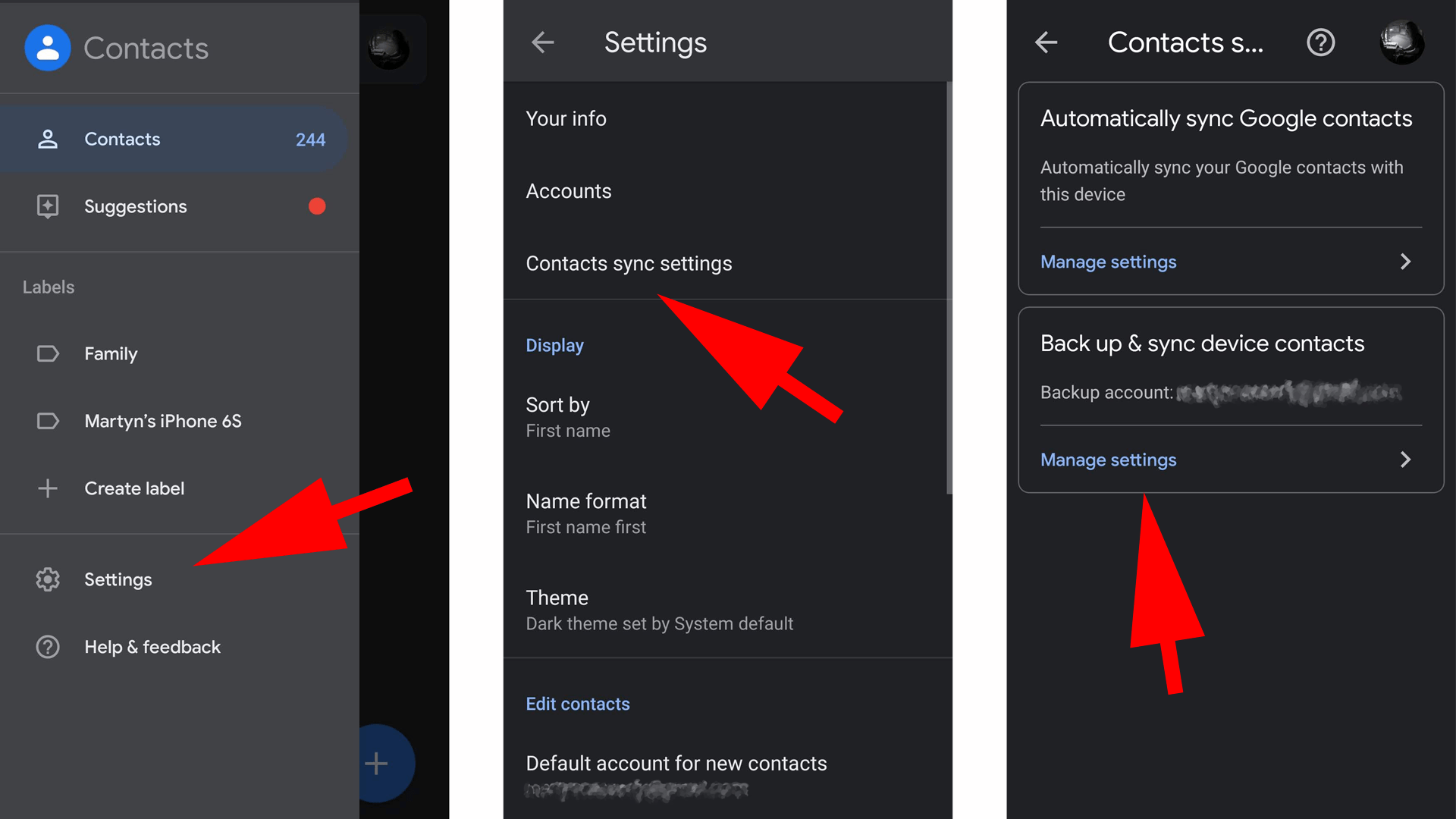
Method 1: Exporting Contacts as a Vcf File
The first method is the most straightforward. You can export your phone’s contacts as a VCF (Virtual Contact File) file using the built-in Contacts app. Here’s how:
- Open the Contacts app on your Android smartphone.
- Tap on the three-dot menu icon in the top-right corner and select “Settings.”
- Scroll down to the “Export” section and tap on it.
- Choose the format of the exported file (VCF or CSV).
- Select the folder where you want to save the file.
- Wait for the export process to complete.
Method 2: Synchronizing Contacts With Gmail
If you have a Google account, you can synchronize your contacts across all devices. Here’s how:
- Open the Settings app on your Android smartphone.
- Scroll down and select “Account.”
- Tap on “Google” and ensure that the contact synchronization is enabled.
- Go to the Gmail website on your PC or Mac and sign in with your Google account.
- Click on the three-dot menu icon in the top-right corner and select “Settings.”
- Scroll down to the “Contacts” section and click on it.
- Ensure that the contact synchronization is enabled.
Method 3: Using a File Manager App
If you don’t have a Google account or prefer not to use Gmail, you can use a file manager app to transfer your contacts. Here’s how:
- Download and install a file manager app like ES File Explorer.
- Open the app and navigate to the folder where your VCF file is saved (usually in the “Contacts” section).
- Tap on the VCF file and select “Share.”
- Choose the email client you want to use (e.G., Gmail, Outlook).
Saving Contacts From Android on a Sim
If you want to save contacts from your Android phone on a SIM card, you can use an app called Copy to SIM Card. Here’s how:
- Download and install the Copy to SIM Card app.
- Open the app and select the contact(s) you want to copy to the SIM card.
- Tap on the “Copy” button and choose the SIM card as the destination.
Conclusion
Saving contacts from Android on your PC is a straightforward process that can be done using one of three methods: Exporting them as a VCF file, synchronizing them with Gmail, or using a file manager app. If you want to save contacts on a SIM card, you can use an app like Copy to SIM Card. By following these steps, you’ll have your contact list easily accessible across all devices.
Faqs
Q: How do I export my Android phone’s contacts as a VCF file?
A: Open the Contacts app, tap on the three-dot menu icon, and select “Settings.” Scroll down to the “Export” section and follow the instructions.
Q: Can I synchronize my Android phone’s contacts with Gmail?
A: Yes, you can. Go to the Settings app, scroll down and select “Account,” and ensure that contact synchronization is enabled.
Q: How do I transfer my Android phone’s contacts to a SIM card?
A: You can use an app like Copy to SIM Card. Download and install the app, open it, select the contact(s) you want to copy, and choose the SIM card as the destination.
Q: Can I save my Android phone’s contacts on my PC using a file manager app?
A: Yes, you can. Use a file manager app like ES File Explorer, navigate to the folder where your VCF file is saved, tap on it, select “Share,” and choose the email client you want to use.
Q: Do I need a Google account to synchronize my Android phone’s contacts with Gmail?
A: Yes, you do. Ensure that contact synchronization is enabled in the Settings app and sign in with your Google account on your PC or Mac.


