
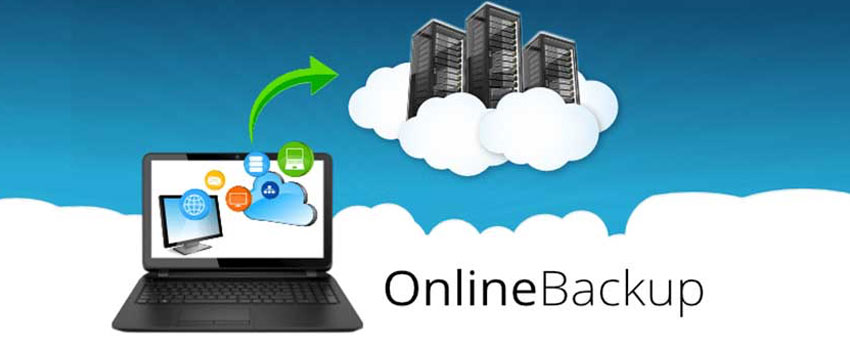
Backup Online: The Ultimate Guide to Safeguarding Your Data
As technology advances, our reliance on digital data grows exponentially. From photos and videos to important documents and emails, our digital lives are a treasure trove of memories, information, and sensitive data. However, with this increased dependence comes the risk of data loss due to hardware failure, software corruption, theft, or even human error.
In this comprehensive guide, we’ll explore the world of backup online, highlighting the best solutions for safeguarding your digital assets. We’ll delve into the differences between online and offline backups, examine popular services like OneDrive, iCloud, Google Drive, and WhatsApp, and provide you with practical tips on how to create a robust backup strategy.
The Importance of Backup
Before we dive into the specifics, let’s emphasize why backup is crucial:
- Data Protection: A backup ensures that your data remains safe in case of hardware failure, software corruption, or theft.
- Peace of Mind: With a reliable backup system, you’ll have peace of mind knowing that your important files are secure.
- Business Continuity: For businesses, backups are essential for maintaining operations and minimizing downtime.
Online Vs. Offline Backup
While both online and offline backups have their advantages, they differ in fundamental ways:
- Offline Backup: This involves storing data on an external device, such as a hard drive or USB stick, which can be accessed locally.
- Advantages: Local access, no dependence on internet connectivity.
- Disadvantages: Physical storage required, potential for data loss due to hardware failure.
- Online Backup: This involves storing data in the cloud, accessible via an internet connection.
- Advantages: Convenience, automatic backups, and scalability.
- Disadvantages: Dependence on internet connectivity, security concerns.
Backup Solutions
Let’s explore some of the most popular online backup solutions:
Onedrive (Windows)
As a Windows user, you can leverage OneDrive for cloud storage. Here’s how to set it up:
- Sign in to your Microsoft account.
- Go to Settings > Account > Backup.
- Enable “Backup Windows settings.”
- Choose which folders to synchronize with the cloud.
Icloud (macOS)
If you’re a Mac user, iCloud is an excellent option for backup and storage:
- Sign in to your Apple ID.
- Go to System Settings > Your Name > iCloud.
- Ensure all desired services are enabled (e.G., Backup, Photos).
Google Drive
To set up Google Drive on Windows or macOS:
- Download the Google Drive client from the official website.
- Follow the setup process to create a new account or sign in with an existing one.
For WhatsApp users, backup options are available:
- Open WhatsApp and go to Settings > Chats > Chat Backup.
- Choose which data to backup (e.G., Conversations, media).
Outlook Email
To back up your Outlook emails on Windows or macOS:
- Open Outlook and click on the “File” tab.
- Select “Options” > “Save” and choose where to save the backup file.
Other Online Backup Services
There are many more online backup services available, including Dropbox, MEGA, BlackBlaze, and SugarSync. These platforms offer varying levels of storage capacity, security features, and pricing plans.
Tips For Effective Backup
To ensure a successful backup strategy:
- Regularly Update Your Backups: Schedule automated backups to prevent data loss.
- Use a Combination of Online And Offline Backups: Protect against hardware failure and internet connectivity issues.
- Test Your Backups Regularly: Verify that your backups are complete, accurate, and easily recoverable.
Conclusion
In today’s digital age, safeguarding your data is more crucial than ever. By understanding the importance of backup and exploring popular online backup solutions like OneDrive, iCloud, Google Drive, WhatsApp, and Outlook Email, you’ll be well-equipped to protect your valuable information. Remember to regularly update your backups, use a combination of online and offline backups, and test your backups regularly.
Frequently Asked Questions (FAQs)
- Q: What is The Best Backup Solution For Me?
A: The best solution depends on your specific needs, preferences, and operating system. - Q: How do I Ensure my Data is Secure in The Cloud?
A: Choose a reputable cloud storage provider with robust security features, such as encryption and two-factor authentication. - Q: Can I Use Multiple Backup Solutions at Once?
A: Yes, you can use multiple backup solutions to create a robust backup strategy. - Q: How Often Should I Update my Backups?
A: Regularly schedule automated backups to prevent data loss. - Q: What Happens if I Lose Access to The Internet or Experience Hardware Failure?
A: In such cases, having an offline backup will ensure your data remains safe.


