
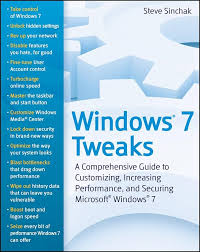
Optimizing Windows 7: A Step-by-step Guide
Are you tired of your old portable computer running slow? Do you want to enhance the performance of your Windows 7 system without breaking the bank? Look no further! In this article, we will guide you through a series of simple and effective tips to optimize your Windows 7 system.
I. Reducing Startup Programs
One of the main causes of slow startup times is the number of programs that automatically run in the background. To fix this issue, follow these steps:
- Press the Windows key + R to open the Run dialog box.
- Type “msconfig” and press Enter.
- In the System Configuration window, click on the Startup tab.
- Disable any unnecessary startup programs by unchecking their boxes.
Ii. Using a Lightweight Antivirus
A heavy antivirus program can slow down your system significantly. Consider switching to a lightweight antivirus like Avast or Microsoft Security Client.
Iii. Optimizing Disk Performance
Your hard drive’s performance can affect the speed of your system. To optimize disk performance, follow these steps:
- Open the Start menu and type “disk cleanup” in the search bar.
- Click on the Disk Cleanup icon to launch the tool.
- Select the drive you want to clean up and click OK.
- The tool will calculate the amount of free space available.
Iv. Disabling File Indexing
File indexing can consume a significant amount of system resources. To disable file indexing, follow these steps:
- Open the Start menu and type “services.Msc” in the search bar.
- Press Enter to open the Services window.
- Scroll down to the Windows Search service and right-click on it.
- Select Stop to disable the service.
V. Defragmenting Your Hard Drive
Defragmenting your hard drive can improve system performance by consolidating fragmented files. To defragment your hard drive, follow these steps:
- Open the Start menu and type “defrag” in the search bar.
- Click on the Disk Defragmenter icon to launch the tool.
- Select the drive you want to defragment and click OK.
Vi. Using Bleachbit
BleachBit is a free, open-source program that can help clean up unnecessary files and system logs. To use BleachBit, follow these steps:
- Download and install BleachBit from their official website.
- Launch the program and select the drive you want to clean up.
- Choose the type of cleaning you want to perform and click OK.
Vii. Upgrading to a Solid-state Drive (SSD)
If your system is still slow after trying the above tips, consider upgrading to a solid-state drive (SSD). SSDs are much faster than traditional hard drives and can significantly improve system performance.
Viii. Disabling Graphic Effects
Disabling graphic effects like animations and transparencies can help improve system performance. To disable these effects, follow these steps:
- Open the Start menu and type “sysdm.Cpl” in the search bar.
- Press Enter to open the System Properties window.
- Click on the Advanced tab and select the Settings button.
- Uncheck the boxes for animations and transparencies.
Ix. Using Diagnostic Tools
Windows 7 includes diagnostic tools that can help identify performance issues. To use these tools, follow these steps:
- Open the Start menu and type “msinfo32” in the search bar.
- Press Enter to open the System Information window.
- Click on the File menu and select Check for problems.
X. Reducing Software Bloat
Consider reducing software bloat by uninstalling unnecessary programs and disabling startup programs. This can help improve system performance by freeing up resources.
Xi. Running a Malware Scan
Running a malware scan can help identify and remove any malicious software that may be slowing down your system. Use a reputable antivirus program to run a full scan of your system.
Xii. Disabling Unnecessary Services
Disabling unnecessary services can help improve system performance by freeing up resources. To disable unnecessary services, follow these steps:
- Open the Start menu and type “services.Msc” in the search bar.
- Press Enter to open the Services window.
- Scroll down to the services you want to disable and right-click on them.
- Select Stop to disable the service.
Xiii. Using a System Cleaner
A system cleaner like CCleaner can help remove temporary files, system logs, and other unnecessary data that may be slowing down your system.
Xiv. Updating Your Drivers
Outdated drivers can slow down your system. To update your drivers, follow these steps:
- Open the Start menu and type “device manager” in the search bar.
- Press Enter to open the Device Manager window.
- Expand the list of devices and look for any outdated drivers.
- Right-click on the driver and select Update Driver.
Xv. Conclusion
Optimizing your Windows 7 system can be a straightforward process if you follow these tips. By reducing startup programs, using a lightweight antivirus, optimizing disk performance, defragmenting your hard drive, and disabling unnecessary services, you can improve system performance and get the most out of your computer.
Frequently Asked Questions
- Q: How Often Should I Clean up my Hard Drive?
A: It’s recommended to clean up your hard drive every 3-6 months to maintain optimal performance. - Q: Can I Disable File Indexing on a Windows 10 System?
A: Yes, you can disable file indexing on a Windows 10 system by following the same steps as above. - Q: What is The Best Antivirus Program For my System?
A: The best antivirus program for your system depends on your specific needs and preferences. Consider using a lightweight antivirus like Avast or Microsoft Security Client. - Q: Can I Use Bleachbit to Clean up my Registry?
A: No, it’s not recommended to use BleachBit to clean up your registry. Instead, use the built-in Windows Registry Editor or a reputable third-party tool. - Q: How do I Disable Startup Programs in Windows 10?
A: To disable startup programs in Windows 10, follow the same steps as above for disabling startup programs in Windows 7.
Conclusion
Optimizing your Windows 7 system can be a straightforward process if you follow these tips. By reducing startup programs, using a lightweight antivirus, optimizing disk performance, defragmenting your hard drive, and disabling unnecessary services, you can improve system performance and get the most out of your computer.


