
How to Extract Audio From Youtube Videos: A Comprehensive Guide
Are you looking for a way to extract audio from your favorite YouTube videos? Do you want to save the music or sound effects from a video without having to download the entire file? Look no further! In this article, we will explore various methods to extract audio from YouTube videos using different devices and software.
Why Extract Audio From Youtube Videos?
Extracting audio from YouTube videos can be useful in several scenarios:
- You want to save the music or sound effects from a video for personal use.
- You need to edit out distracting background noise from an interview or lecture.
- You want to create a playlist of favorite songs from different videos.
Method 1: Using Youtube Music
One of the easiest ways to extract audio from YouTube videos is by using the YouTube Music app. This service allows you to download and save music and videos from YouTube directly to your device, without having to install any additional software.
- Install the YouTube Music app on your device.
- Open the app and search for the video you want to extract audio from.
- Tap on the three dots next to the video title and select “Download.”
- Choose the quality and format of the download (e.G., MP3, M4A).
- Once the download is complete, go to your device’s music library or file manager to access the extracted audio.
Method 2: Using PC And Mac
If you prefer to use a computer, there are several software options available that can help you extract audio from YouTube videos.
- 4K Video Downloader: This free software is compatible with both Windows and macOS operating systems. It allows you to download video and audio files from YouTube in high quality, without any additional costs.
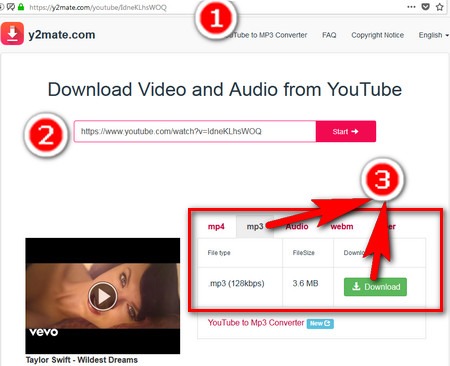
- Youtube Audio Converter: This online tool enables you to convert YouTube videos into MP3 or M4A format, which can be saved on your computer or device.
Method 3: Using Android Devices
If you own an Android device, there are several apps available that can help you extract audio from YouTube videos.
- Tubemate: This free app allows you to download and save YouTube videos in various formats, including MP3 and M4A. You can also use it to convert video files into audio format.
- Youtube Video & Audio Converter: This app enables you to convert YouTube videos into MP3 or M4A format, which can be saved on your device.
Method 4: Using Iphone And Ipad
If you own an iPhone or iPad, there are several methods available that can help you extract audio from YouTube videos.
- Command Line Tool: This tool allows you to execute various commands using the Command prompt. You can use it to convert video files into audio format.
- Youtube Video & Audio Converter: This app enables you to convert YouTube videos into MP3 or M4A format, which can be saved on your device.
Conclusion
Extracting audio from YouTube videos is a straightforward process that can be accomplished using various devices and software. Whether you’re looking to save music, sound effects, or other audio content from a video, there’s an option available for you. By following the methods outlined in this article, you can enjoy your favorite YouTube videos without having to download the entire file.
Frequently Asked Questions (FAQs)
- Q: How do I Extract Audio From a Youtube Video?
A: You can use various methods such as YouTube Music, 4K Video Downloader, TubeMate, or Command Line Tool, depending on your device and software preferences. - Q: Can I Download Audio Files Directly to my Device?
A: Yes, you can download audio files directly to your device using apps like TubeMate or YouTube Audio Converter. - Q: How do I Convert Video Files Into Audio Format?
A: You can use software like 4K Video Downloader or online tools like YouTube Audio Converter to convert video files into MP3 or M4A format.
Important Notes
- Always ensure that you have the necessary permissions and rights to download and save audio content from YouTube videos.
- Be aware of copyright laws and regulations when extracting audio from copyrighted material.


