
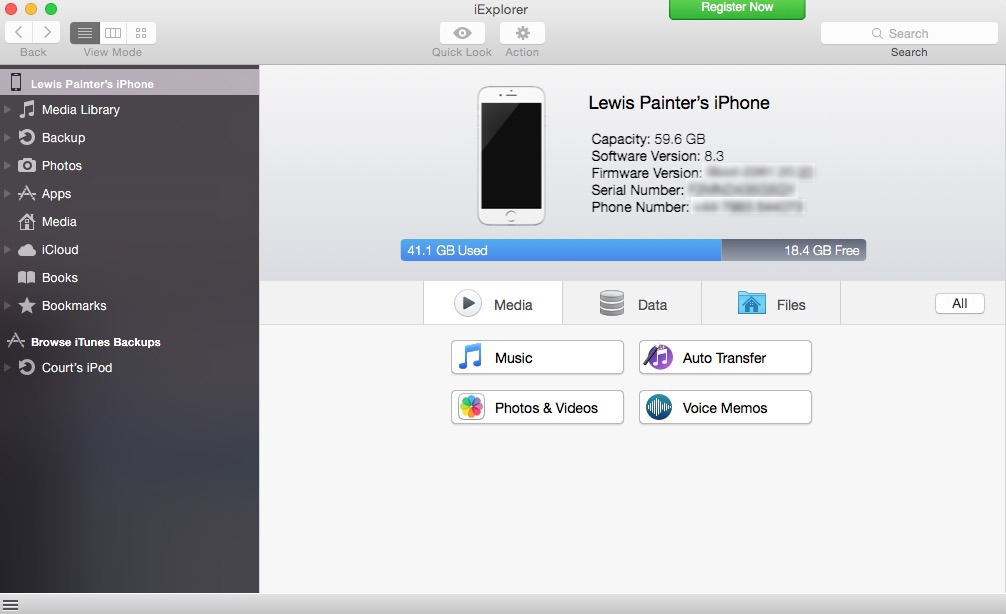
Burdening Films on Ipad: A Comprehensive Guide
Are you tired of struggling to transfer films from your computer to your iPad? Look no further! This guide will walk you through the process of burdening (transferring) films onto your iPad using various official and unofficial methods.
Understanding The Problem
Transferring films from a computer to an iPad can be a daunting task, especially if you’re not familiar with the technical aspects. The problem lies in the compatibility issues between different operating systems and file formats. However, fear not, for we have solutions that will make the process as smooth as possible.
Method 1: Using Devices Apple (Official Software)
One of the official methods is by using the Devices Apple app on your computer. This app allows you to connect your iPad to your computer via a USB cable and transfer files wirelessly. To do this:
- Download and install the Devices Apple app on your Windows 10 or later computer.
- Install the Apple TV app from the Microsoft Store.
- Open the Devices Apple app, accept the terms, and click Start.
- Connect your iPad to the computer using a USB cable.
- Select the film you want to transfer and choose whether to sync all films or select individual ones.
Method 2: Using Itunes (Official Software)
Another official method is by using iTunes on your Windows computer. To do this:
- Download and install iTunes on your Windows computer.
- Connect your iPad to the computer using a USB cable.
- Authorize the iPad and enter the code to unlock it.
- Open iTunes on the computer and click Continue, then again on Continuous, and finally on Start.
- Select the film you want to transfer and choose whether to sync all films or select individual ones.
Method 3: Using Finder (Official Software For Mac)
If you’re using a Mac with macOS Catalina or later, you can use the Finder app to transfer files. To do this:
- Connect your iPad to the computer using a USB cable.
- Open the Finder app and click on the name of your iPad in the sidebar.
- Click Authorize and wait for the authorization code.
- Select the film you want to transfer and choose whether to sync all films or select individual ones.
Method 4: Using Icloud (Cloud Storage)
You can also use iCloud to store files online and access them from your iPad. To do this:
- Open the Finder app on your Mac and click on iCloud Drive.
- Select the file you want to transfer and choose whether to sync all files or select individual ones.
- Connect your iPad to the same account Apple.
- Go to the iCloud Drive folder on your iPad and find the transferred file.
Method 5: Using Vlc (Media Player)
VLC is an excellent media player that can play various file formats. To transfer a film using VLC:
- Download and install the VLC app on your iPad.
- Connect your computer to the same network as your iPad.
- Open the Devices Apple app on your computer, go to the Rows section, click on VLC, and drag the film you want to transfer to the right panel.
- Take the iPad, open the folder Rows, go to the iPad section, and find the transferred file in the VLC folder.
Alternative Methods
There are other alternative methods available, such as:
- Infuse (iOS/iPadOS): A media player app that can play various file formats.
- AirDrop: A technology by Apple that allows transferring files wirelessly between devices using Bluetooth and Wi-Fi Direct.
- Snapdrop: An online service that can transfer files wirelessly between devices connected to the same network.
Conclusion
Transferring films from your computer to your iPad can be a straightforward process with the right methods. Whether you choose to use official software like Devices Apple, iTunes, or Finder, or alternative solutions like VLC, Infuse, AirDrop, or Snapdrop, there’s an option for everyone.


