
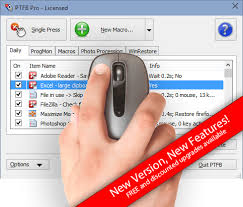
Creating Macros on a Mouse: A Guide For Beginners
Are you tired of repetitive tasks on your computer? Do you wish there was a way to automate certain actions without having to remember complex combinations of keys or mouse movements? Look no further than macros! In this article, we will explore the world of macros and show you how to create them on your mouse using various software programs.
What Are Macros?
Macros are pre-programmed sequences of actions that can be executed with a single key press or mouse click. They can save you time and effort by automating repetitive tasks such as typing, clicking, or moving the mouse. Think of macros like shortcuts for your computer activities.
Programs to Create Macros on a Mouse
There are several software programs available that allow you to create macros on a mouse. Here are some popular options:
- Microsoft Intellipoint: If you’re using a Microsoft mouse, this program is a great place to start. It allows you to record and save macros directly from the mouse settings.
- Pulover’s Macro Creator: This advanced software program offers a wide range of features for creating complex macros, including support for keyboard and mouse input.
- Autohotkey: Another powerful tool for automating tasks on your computer, AutoHotkey allows you to create custom scripts using various programming languages.
Step-by-step Guide: Creating Macros With Pulover’s Macro Creator
Let’s take a closer look at how to create macros using Pulover’s Macro Creator:
- Download And Install: Download the program from the official website and follow the installation instructions.
- Launch The Program: Launch the program and choose the layout, language, and other settings as desired.
- Create a New Macro: Go to “New” > “File” and create a new macro file.
- Record The Macro: Use the mouse or keyboard to record the sequence of actions you want to automate.
- Assign The Macro: Assign the recorded macro to a specific key or button on your mouse.
Tips And Tricks
Here are some additional tips and tricks to keep in mind when creating macros:
- Always use responsible behavior when using macros, especially in competitive gaming environments.
- Make sure to analyze the rules of the game or activity before using macros.
- Experiment with different software programs to find what works best for you.
Conclusion
Macros can be a powerful tool for automating repetitive tasks on your computer. By following the step-by-step guide provided above, you can create macros on your mouse using various software programs. Remember to always use responsible behavior and experiment with different options to find what works best for you.
Frequently Asked Questions (FAQs)
Here are some additional FAQs to help you get started:
- Q: What is The Difference Between a Macro And a Script?
A: A macro is a pre-recorded sequence of actions, while a script is a custom-written code that can be executed by your computer. - Q: Can I Use Macros in Competitive Gaming Environments?
A: Yes, but always make sure to analyze the rules of the game or activity before using macros. - Q: How do I Assign a Macro to a Specific Key or Button on my Mouse?
A: This depends on the software program you’re using. Consult the user manual for instructions. - Q: Can I Use Macros in Non-competitive Gaming Environments, Such as Online Games or Simulations?
A: Yes, macros can be used in various types of games and simulations to automate repetitive tasks.
Bonus Tips
Here are some additional tips to keep in mind:
- Always follow the user manual for your chosen software program.
- Experiment with different options and settings to find what works best for you.
- Use responsible behavior when using macros, especially in competitive environments.


