
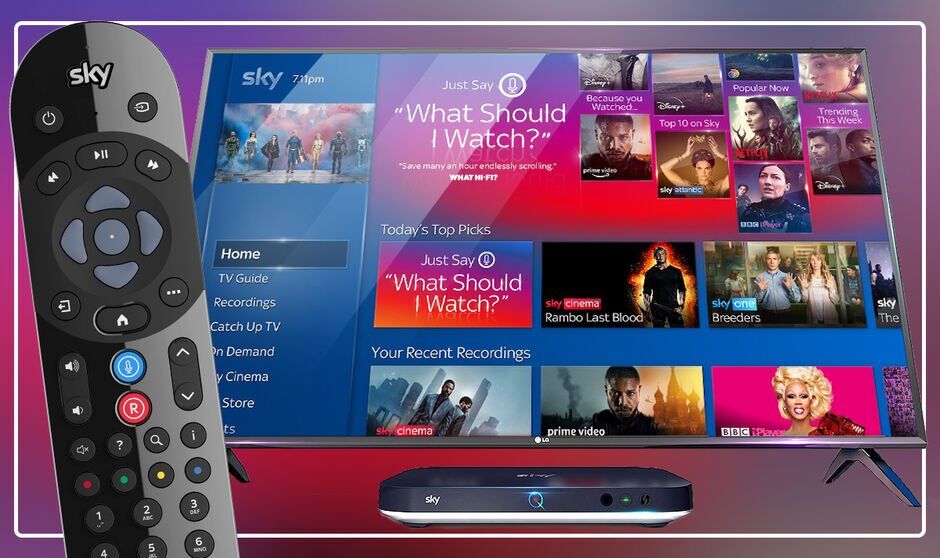
How to Watch Prime Video on Sky Q: A Step-by-step Guide
Are you a Sky Q subscriber looking to access Prime Video directly on your decoder? Look no further! This article will walk you through the process of accessing Prime Video on Sky Q, including how to download and install the app, associate your device with an Amazon Prime account, and start streaming your favorite shows.
Preliminary Information
Before we dive into the details, let’s cover some essential information about Prime Video. Prime Video is a popular streaming service that offers a vast library of movies, TV shows, and original content, including exclusive titles from Amazon Studios. To access Prime Video on Sky Q, you’ll need to have an active Amazon Prime subscription.
How to Watch Prime Video on Sky Q
Now that we’ve covered the basics, let’s move on to the step-by-step guide. Here’s how you can watch Prime Video on Sky Q:
Step 1: Download And Install The Prime Video App
The first step is to ensure that your Sky Q decoder has the latest software update installed.
- Press the Home button on your Sky Q remote control.
- Select Settings from the menu.
- Go to Info > Software.
- Check if you have the latest version of the software installed.
- If not, select Update and wait for the update process to complete. Once the update is finished, restart your Sky Q decoder.
Step 2: Access Prime Video on Sky Q
Now that you have the latest software update installed, it’s time to access Prime Video on your Sky Q decoder.
- Press the Home button on your Sky Q remote control.
- Select App from the menu.
- Scroll down and select Prime Video.
Step 3: Associate Your Device With an Amazon Prime Account
Before you can start streaming Prime Video content, you’ll need to associate your device (Sky Q decoder) with an Amazon Prime account.
- Select Start on the Prime Video app screen.
- You will be redirected to a new page that offers two options for association: Using a PC or smartphone. Select the first option and enter a 6-character code displayed on your Sky Q decoder. Alternatively, you can use the second option by scanning a QR code using your smartphone.
Step 4: Start Streaming Prime Video Content
Once you’ve associated your device with an Amazon Prime account, it’s time to start streaming your favorite shows!
- Select one of the categories (e.G., Movies or TV Shows) from the Prime Video app screen.
- Scroll down and select a title that interests you.
- Press OK on your Sky Q remote control to access the title details page.
- From this page, you can start streaming the content directly or save it for later viewing.
How Prime Video Works on Sky Q
Now that we’ve covered the basics of accessing and using Prime Video on Sky Q, let’s explore some additional features and functionality. Once you’ve associated your device with an Amazon Prime account, you can access Prime Video content directly from the app. From here, you can browse through various categories (e.G., Movies or TV Shows) and select titles that interest you.
Frequently Asked Questions
Here are some frequently asked questions about watching Prime Video on Sky Q:
- What do I need to access Prime Video on Sky Q?
To access Prime Video on Sky Q, you’ll need an active Amazon Prime subscription and a Sky Q decoder with the latest software update installed. - How do I associate my device with an Amazon Prime account?
You can associate your device (Sky Q decoder) with an Amazon Prime account using either a 6-character code or by scanning a QR code using your smartphone. - Can I search for specific content on Prime Video?
Yes, you can use the magnifying glass icon on the top right corner of the app screen to search for specific titles. - How do I save titles for later viewing?
You can add titles to the Watchlist by selecting the “+” symbol next to each title’s details page.
I hope this article has been informative and helpful in answering your questions about watching Prime Video on Sky Q!


