
Navigating Incognito With Google Chrome: A Comprehensive Guide
Are you tired of leaving a digital footprint on your computer or mobile device? Do you want to browse the internet without saving your browsing history, cookies, or other data? Look no further than navigating incognito with Google Chrome!
In this article, we’ll delve into the world of incognito navigation and show you how to use it on your computer, smartphone, tablet, Android, iPhone, and iPad. We’ll also explore the benefits of using a VPN (Virtual Private Network) for anonymous browsing.
What is Incognito Navigation?
Incognito navigation, also known as private browsing, is a feature that allows you to browse the internet without saving any data, including browsing history, cookies, or other temporary files. This means that your device will not store any information about your online activities, providing an added layer of anonymity and security.
Benefits of Incognito Navigation
- Anonymity: Browse the internet without leaving a digital footprint on your device.
- Security: Protect yourself from malicious websites and online threats by avoiding cookies and other temporary files.
- Privacy: Keep your browsing habits private, even when using public Wi-Fi networks.
How to Navigate Incognito With Google Chrome
On Computer
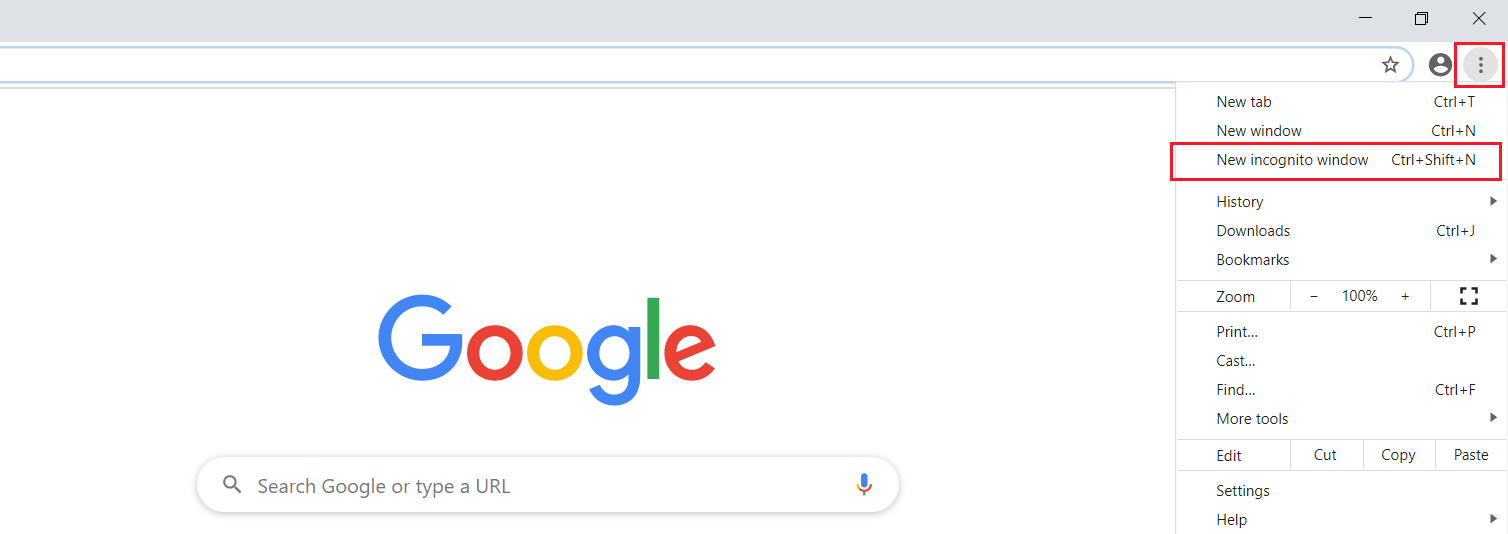
- Open Google Chrome and click on the three vertical dots in the upper right corner.
- Select “New incognito window” from the dropdown menu.
- A new window will open, displaying a blank page with an incognito icon in the address bar.
On Smartphone (Android or Ios)
- Open Google Chrome and tap on the three dots in the lower right corner.
- Select “New incognito tab” from the dropdown menu.
- A new tab will open, displaying a blank page with an incognito icon in the address bar.
On Tablet
The process is similar to navigating incognito on a smartphone.
How to Keep Extensions Active During Incognito Navigation
- Open Google Chrome and click on the three vertical dots in the upper right corner.
- Select “More tools” > “Extensions.”
- Find the extension you want to keep active during incognito navigation and toggle the switch next to it to enable it.
Using a Vpn For Anonymous Browsing
A VPN provides an additional layer of anonymity and security by encrypting your internet traffic and masking your IP address. This means that even if someone intercepts your data, they won’t be able to determine where you’re browsing from or what websites you’ve visited.
Some popular VPN services include:
- Nordvpn: Offers high-speed connections, robust security features, and a user-friendly interface.
- Surfshark: Provides fast and reliable connections, advanced security features, and a 30-day money-back guarantee.
Conclusion
Navigating incognito with Google Chrome is a simple and effective way to browse the internet without leaving a digital footprint on your device. By using this feature, you can protect yourself from online threats, maintain your anonymity, and enjoy a more secure browsing experience. Additionally, using a VPN provides an extra layer of protection for anonymous browsing.
Frequently Asked Questions
- What is Incognito Navigation?
Incognito navigation is a feature that allows you to browse the internet without saving any data, including browsing history, cookies, or other temporary files. - How do I Navigate Incognito With Google Chrome?
To navigate incognito with Google Chrome on your computer, smartphone, tablet, Android, iPhone, or iPad, follow the steps outlined in this article. - Can I Use Extensions During Incognito Navigation?
Yes, you can keep extensions active during incognito navigation by following the steps outlined in this article. - What is a Vpn, And How Does it Work?
A VPN (Virtual Private Network) provides an additional layer of anonymity and security by encrypting your internet traffic and masking your IP address. - How do I Choose a Good Vpn Service?
Look for a VPN service that offers high-speed connections, robust security features, and a user-friendly interface. - Can I Use a Vpn on my Smartphone or Tablet?
Yes, you can install and use a VPN app on your smartphone or tablet to protect your online activities. - How do I Enable Incognito Navigation on my Mobile Device?
To enable incognito navigation on your smartphone or tablet, follow the steps outlined in this article. - Can I Keep Multiple Tabs Open During Incognito Navigation?
Yes, you can keep multiple tabs open during incognito navigation by following the steps outlined in this article.
Resources
- Google Chrome official website
- VPN (Virtual Private Network) Wikipedia page


