
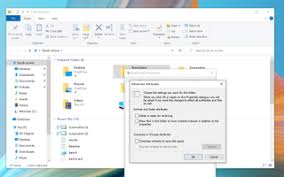
How to Protect Your Folders With Password: A Step-by-step Guide
Are you tired of worrying about others accessing your sensitive files on your computer? Do you want to protect your personal folders from prying eyes? Look no further! In this article, we’ll show you how to easily protect your folders with a password using various operating systems and devices.
Why Protect Your Folders?
Protecting your folders is essential in today’s digital age. With the rise of cybercrime and data breaches, it’s more crucial than ever to safeguard your sensitive information. By protecting your folders with a password, you can ensure that only authorized individuals have access to them.
Protecting Your Folders on Windows 10
If you’re using Windows 10, you might be wondering how to protect your folders with a password. Unfortunately, Windows 10 doesn’t have an in-built feature to do so. However, there’s a simple workaround using a free program called 7-Zip.
Step-by-step Guide: Protecting Folders on Windows 10
- Download and install 7-Zip on your computer.
- Right-click on the folder you want to protect and select “Add to archive” from the context menu.
- In the 7-Zip window, select the archive format (e.G., ZIP or 7Z) and click “OK”.
- Enter a password in the “Archive properties” window and confirm it.
- Click “OK” to create the encrypted folder.
Protecting Your Folders on Mac
If you’re using a Mac, protecting your folders with a password is relatively easy. You can use the built-in Disk Utility app to encrypt your folders.
Step-by-step Guide: Protecting Folders on Mac
- Open the Disk Utility app and select “New Image” from the top menu.
- Select the folder you want to protect and click “Next”.
- Choose a password and confirm it in the “Encrypt” window.
- Click “OK” to create the encrypted folder.
Protecting Your Folders on Android
If you’re using an Android device, protecting your folders with a password is also easy. You can use the Google Files app to encrypt your folders.
Step-by-step Guide: Protecting Folders on Android
- Open the Google Files app and select “Folder” from the top menu.
- Tap on the folder you want to protect and select “Settings”.
- Choose a password and confirm it in the “Encryption” window.
- Tap “OK” to create the encrypted folder.
Protecting Your Folders on Iphone
If you’re using an iPhone or iPad, protecting your folders with a password is not possible natively. However, you can use third-party apps like Deprive Photo Vault to create virtual safes for storing sensitive files.
Conclusion
Protecting your folders with a password is essential in today’s digital age. With the rise of cybercrime and data breaches, it’s crucial to safeguard your sensitive information. Whether you’re using Windows 10, Mac, Android, or iPhone, we’ve shown you how to easily protect your folders with a password.
Frequently Asked Questions (FAQs)
- What Operating Systems Can I Use to Protect my Folders?
You can use various operating systems, including Windows 10, Mac, Android, and iPhone.
- Do I Need Any Special Software or Apps to Protect my Folders?
Yes, you may need to download and install free software like 7-Zip (Windows) or Disk Utility (Mac), or third-party apps like Deprive Photo Vault (iPhone).
- How do I Create a Password For my Encrypted Folder?
You can create a strong password using a mix of uppercase letters, lowercase letters, numbers, and special characters.
- Can I Access my Encrypted Folders on Different Devices?
Yes, you can access your encrypted folders on multiple devices as long as you remember the password.
- What if I Forget my Password to an Encrypted Folder?
Unfortunately, if you forget your password, there’s no way to recover it. However, you can try resetting your password using a password manager or recovery tool.
- Can I Encrypt Multiple Folders at Once?
Yes, you can encrypt multiple folders simultaneously using the same password and encryption method.
- How do I Delete an Encrypted Folder?
You can delete an encrypted folder by right-clicking on it and selecting “Delete” from the context menu.
- Are my Encrypted Folders Secure?
While there’s no such thing as 100% security, encrypting your folders with a strong password and using reputable software or apps will significantly reduce the risk of unauthorized access.


