
How to Create a Cluster on Gmail: A Step-by-step Guide
Are you tired of manually typing out email addresses to forward messages to multiple clients? Look no further! In this article, we’ll show you how to create a cluster on Gmail using labels and email collective, making it easier to manage your email communications.
What is a Cluster on Gmail?
A cluster on Gmail refers to a group of email addresses that can be managed together. By creating a cluster, you can forward emails to multiple recipients at once, saving time and effort.
Method 1: Creating a Cluster Using Labels
The most convenient way to create a cluster on Gmail is by utilizing labels. This feature allows you to create a mailing list in just a few clicks.
Step-by-step Guide:
- Log in to Your Google Account: Access the Gmail page and log in with your Google credentials.
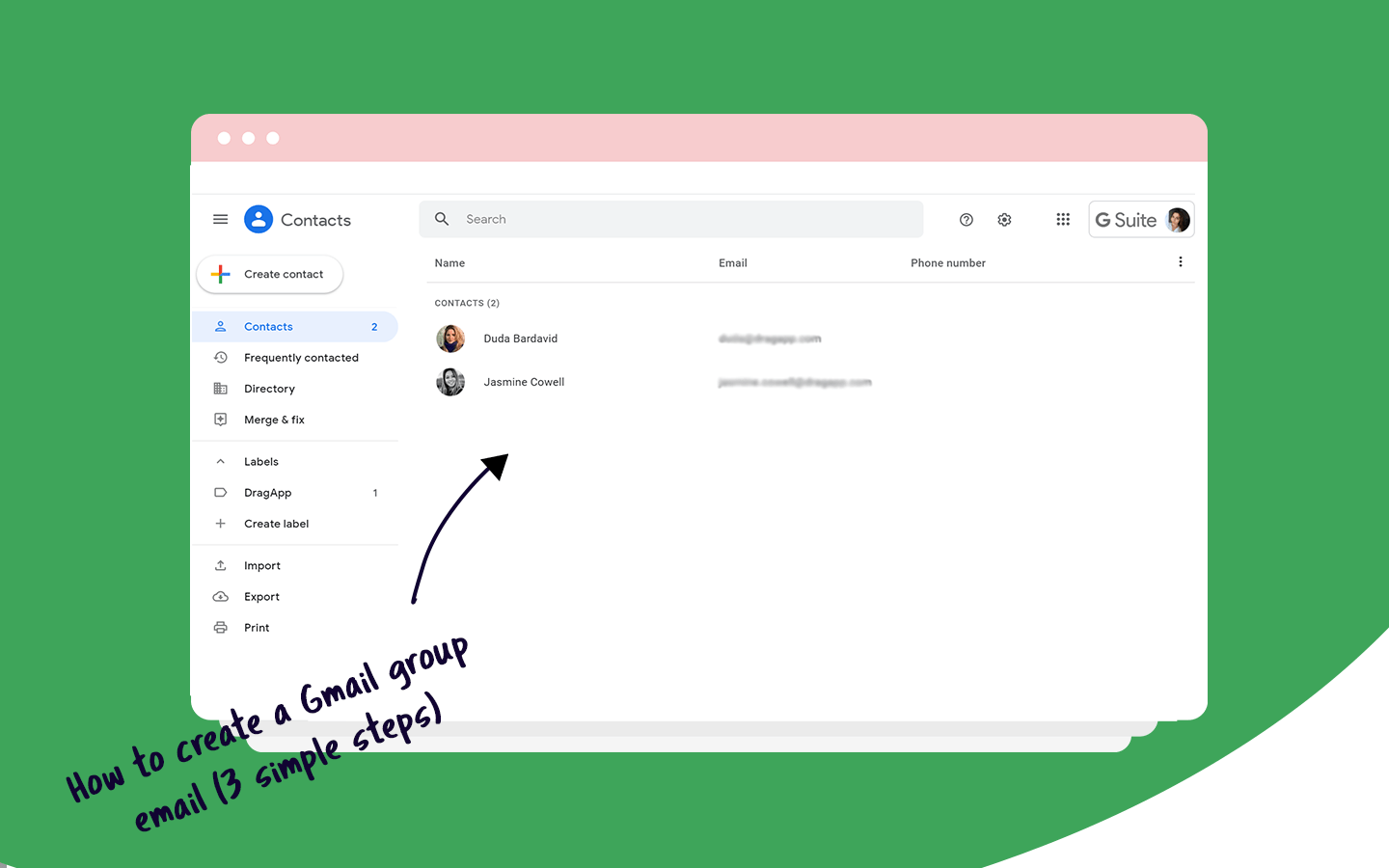
- Go to The Contacts Tab: Click on the icon of the white omino on blue background, located at the top right corner of the screen.
- Select The Contacts You Want to Add to The Cluster: Choose the users you want to include in the mailing list by clicking on their profile pictures or names.
- Create a New Label: Click on the “Manage labels” button and select the “+” icon to create a new label.
- Name Your Label: Type in a name for your label, which will be used to identify the cluster.
- Save The Label: Click on the “Save” button to save the label.
How to Forward Emails Using Labels
To forward emails using labels:
- Compose a New Message: Click on the “Type” icon and compose a new email.
- Add The Label Name: Type in the name of your label in the “To,” “CC,” or “Ccn” field.
- Click on The Label Name: Select the label name from the dropdown menu.
- Send The Email: Click on the “Forward” button to send the email to all members of the cluster.
Method 2: Creating a Cluster Using Email Collective
Another way to create a cluster on Gmail is by manually typing out email addresses and separating them with commas.
Step-by-step Guide:
- Log in to Your Google Account: Access the Gmail page and log in with your Google credentials.
- Compose a New Message: Click on the “Type” icon and compose a new email.
- Add Email Addresses: Type in the email addresses of the users you want to include in the cluster, separating them with commas.
- Send The Email: Click on the “Forward” button to send the email to all members of the cluster.
Creating a Cluster Using Gmail Apps
If you’re using the Gmail app on your smartphone or tablet, follow these steps:
- Open The Gmail App: Access the Gmail app and log in with your Google credentials.
- Compose a New Message: Tap on the “Type” icon to compose a new email.
- Add Email Addresses: Type in the email addresses of the users you want to include in the cluster, separating them with commas.
- Send The Email: Tap on the send button to forward the email to all members of the cluster.
Tips And Variations
- If you’re using a client email app (e.G., Apple Mail), follow the same steps as above to create a cluster.
- If you have trouble composing or forwarding emails, refer to our in-depth guide on how to do so.
In conclusion, creating a cluster on Gmail is a straightforward process that can save you time and effort. By using labels or email collective, you can easily manage your email communications and forward messages to multiple recipients at once.
Frequently Asked Questions (FAQs)
- What is a Cluster on Gmail?
A cluster on Gmail refers to a group of email addresses that can be managed together. - How do I Create a Cluster on Gmail Using Labels?
Follow the step-by-step guide above to create a cluster using labels. - Can I Forward Emails Using Labels?
Yes, you can forward emails using labels by typing in the label name and clicking on it from the dropdown menu. - How do I Create a Cluster on Gmail Using Email Collective?
Type in the email addresses of the users you want to include in the cluster, separating them with commas, and click on the “Forward” button. - Can I Use a Client Email App to Create a Cluster?
Yes, follow the same steps as above to create a cluster using a client email app.
By following these simple steps and tips, you can efficiently manage your email communications and save time by creating clusters on Gmail.


