
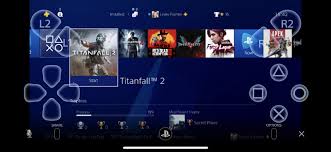
How to Play Ps4 on Iphone: A Step-by-step Guide
Are you a gamer who wants to experience the world of PlayStation 4 (PS4) on your iPhone? Well, you’re in luck! With the PS4 Remote Play feature, you can now play PS4 games on your iPhone. In this article, we’ll guide you through the process of setting up and playing PS4 games on your iPhone.
What is Ps4 Remote Play?
PS4 Remote Play is a free service offered by Sony that allows you to stream PS4 games from your console to your iPhone or iPad. This means you can play PS4 games on your phone, using either the touch screen controls or the DualShock 4 controller.
Requirements For Playing Ps4 on Iphone
Before we dive into the step-by-step guide, here are the requirements you need to meet:
- An iPhone with iOS 12.1 Or later
- A PS4 console
- A stable internet connection (at least 5 Mbps in download and upload)
- The PS4 Remote Play app
Step 1: Configure Your Ps4
To start playing PS4 games on your iPhone, you need to configure your PS4 first.
- Connect your PS4 to the internet.
- Go to Settings > System > Remote Play Settings
- Enable Remote Play and save changes.
- Make sure your PS4 is set as the primary console.
Step 2: Match Your Dualshock 4 Controller With Iphone
If you want to use the DualShock 4 controller with your iPhone, follow these steps:
- Put your DualShock 4 controller in pairing mode (press and hold the PS button until the LED lights flash).
- Open Settings on your iPhone > Bluetooth.
- Select “DualShock 4 Wireless Controller” from the list of available devices.
- Tap “Pair” to connect the controller to your iPhone.
Step 3: Download And Install Ps4 Remote Play
Now it’s time to download and install the PS4 Remote Play app on your iPhone:
- Open the App Store and search for “PS4 Remote Play”.
- Select the app from the search results.
- Tap “Get” to download and install the app.
- Wait for the app to install.
Step 4: Launch Ps4 Remote Play
Once the app is installed, follow these steps:
- Open the PS4 Remote Play app on your iPhone.
- Log in with your PlayStation Network account credentials.
- Select “Start” to begin playing PS4 games on your iPhone.
How to Play Ps4 Games on Iphone
Now that you’ve set up your PS4 and downloaded the Remote Play app, it’s time to start playing! Here are a few things to keep in mind:
- You can play any game available on your PS4 using the touch screen controls or DualShock 4 controller.
- The command menu is available at all times by tapping the “Controller” icon on the bottom left corner of the screen.
- You can switch between games and manage settings from within the app.
Tips And Tricks
Here are a few tips to get you started:
- Use the DualShock 4 controller for an immersive gaming experience.
- Take advantage of the high-quality video streaming feature (up to 1080p at 60fps).
- Switch between games quickly using the “Home” button on your iPhone.
Conclusion
Playing PS4 games on your iPhone is now a reality, thanks to the PS4 Remote Play feature. With this step-by-step guide, you should be able to set up and play PS4 games on your iPhone in no time. Happy gaming!
Frequently Asked Questions (FAQs)
Here are some frequently asked questions to help you get started:
- Q: Can I Play Any Ps4 Game on my Iphone?
A: Yes, you can play any PS4 game available on your console using the Remote Play app. - Q: Do I Need a Stable Internet Connection?
A: Yes, you need a stable internet connection with at least 5 Mbps in download and upload to stream games from your PS4 to your iPhone. - Q: Can I Use The Dualshock 4 Controller?
A: Yes, you can pair your DualShock 4 controller with your iPhone and use it for gaming. - Q: How do I Switch Between Games?
A: You can switch between games quickly using the “Home” button on your iPhone or by selecting a game from the menu within the Remote Play app. - Q: Can I Play Games in Landscape Mode?
A: Yes, you can play games in landscape mode by rotating your iPhone to its side.
We hope this guide has been helpful! If you have any further questions, feel free to ask.


