
How to Take a Screenshot on Iphone 8: A Step-by-step Guide
Are you an iPhone 8 user looking for ways to capture your screen? Look no further! In this article, we’ll show you how to take a screenshot on iPhone 8 using various methods.
Method 1: Using The Home And Sleep/wake Buttons
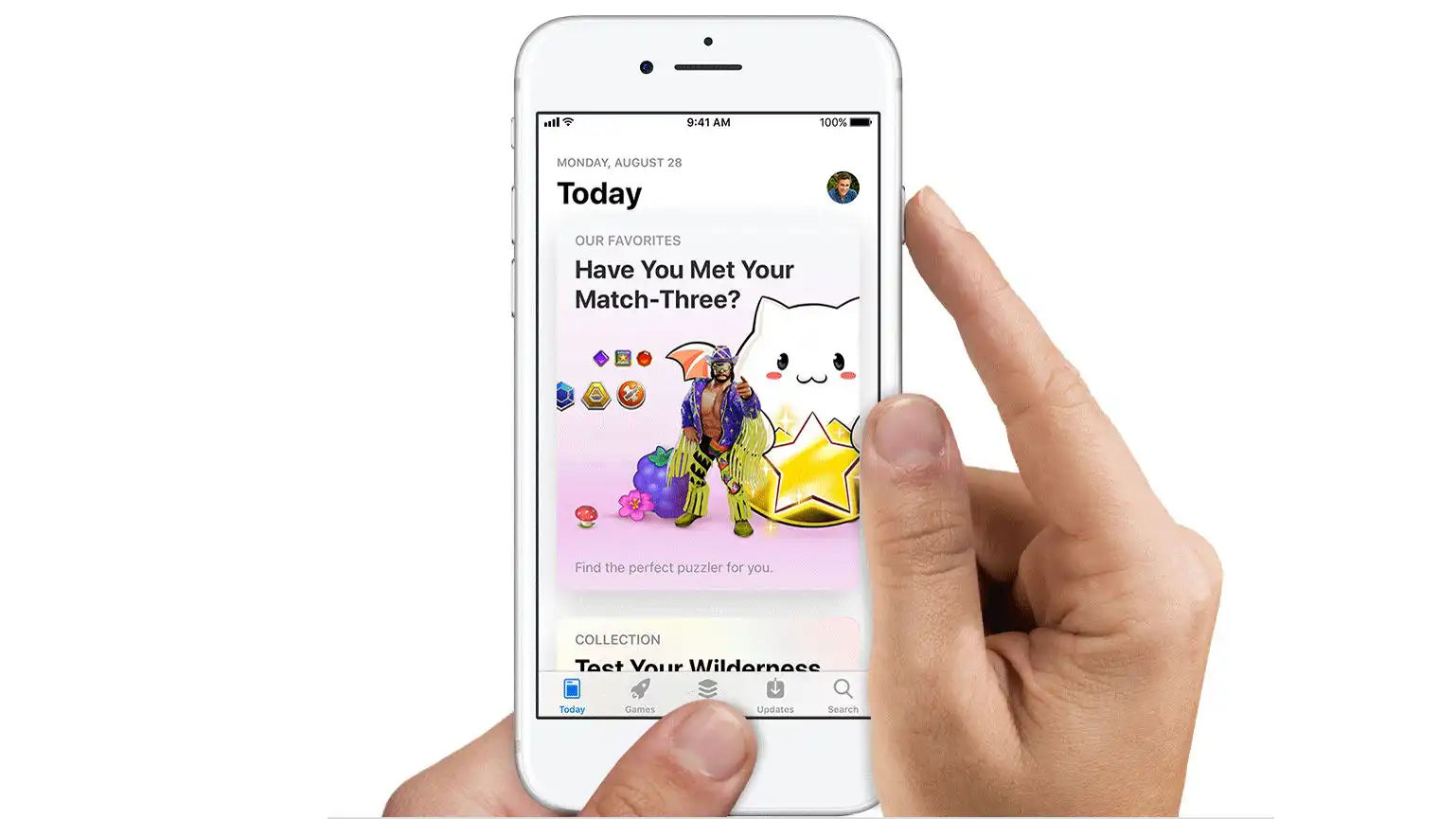
The simplest way to take a screenshot on iPhone 8 is by pressing the Home button and the Sleep/Wake button simultaneously. This method works for all iPhone 8 models, including the iPhone 8 Plus.
To do this:
- Go to the screen you want to capture.
- Press the Home button and the Sleep/Wake button at the same time.
- Hold them down until you see a flash on the screen.
- Release both buttons, and your screenshot will be saved in the Photos app.
Method 2: Using Assistivetouch
If your iPhone’s physical buttons aren’t working properly, don’t worry! You can still take a screenshot using AssistiveTouch.
To enable AssistiveTouch:
- Go to Settings > Accessibility.
- Tap on Touch.
- Scroll down and tap on “AssistiveTouch.”
- Tap on “Customize Top Level Menu” and select the actions you want to add, including “Screenshot.”
- Once enabled, double-tap on the AssistiveTouch icon to take a screenshot.
Method 3: Using The Back Tap Feature
If you have an iPhone 8 running iOS 14 or later, you can use the back tap feature to take a screenshot by triple-clicking the back of your phone.
To enable back tap:
- Go to Settings > Accessibility.
- Tap on Touch.
- Scroll down and tap on “Back Tap.”
- Choose the actions you want to add, including “Screenshot.”
Method 4: Taking a Screenshot of an Entire Web Page
If you want to take a screenshot of an entire web page, not just what’s visible on your screen, you can use the built-in feature in Safari.
To do this:
- Go to the webpage you want to capture.
- Take a screenshot using one of the methods above.
- Tap on the screenshot preview at the bottom left corner of the screen.
- Select “Full Page” from the menu that appears.
- Choose how you want to save your screenshot.
Method 5: Taking a Screenshot on Iphone 8 Plus
The steps for taking a screenshot on an iPhone 8 Plus are the same as those for the regular iPhone 8 model.
To do this:
- Go to the screen you want to capture.
- Press the Home button and the Sleep/Wake button simultaneously.
- Hold them down until you see a flash on the screen.
- Release both buttons, and your screenshot will be saved in the Photos app.
Conclusion
Taking a screenshot on iPhone 8 is easy and can be done using various methods. Whether you prefer using the Home and Sleep/Wake buttons or AssistiveTouch, there’s an option for everyone. If you have any questions or need further assistance, don’t hesitate to ask!
Faqs
- How do I Take a Screenshot on Iphone 8?
To take a screenshot on iPhone 8, press the Home button and the Sleep/Wake button simultaneously. - What if my Iphone’s Physical Buttons Aren’t Working Properly?
If your iPhone’s physical buttons aren’t working properly, you can use AssistiveTouch to take a screenshot. - How do I Enable Back Tap on my Iphone 8?
To enable back tap on your iPhone 8, go to Settings > Accessibility > Touch > Back Tap and choose the actions you want to add, including “Screenshot.” - Can I Take a Screenshot of an Entire Web Page?
Yes, you can take a screenshot of an entire web page using the built-in feature in Safari. - How do I Save my Screenshot on Iphone 8?
To save your screenshot on iPhone 8, tap on the screenshot preview at the bottom left corner of the screen and choose how you want to save it. - What if I Have an Iphone 8 Plus?
The steps for taking a screenshot on an iPhone 8 Plus are the same as those for the regular iPhone 8 model. - Can I Take a Screenshot Using Assistivetouch?
Yes, you can take a screenshot using AssistiveTouch by double-tapping on the AssistiveTouch icon. - How do I Enable Assistivetouch on my Iphone 8?
To enable AssistiveTouch on your iPhone 8, go to Settings > Accessibility > Touch and tap on “AssistiveTouch.”


