
Here’s the formatted version:
How to Change Your Tiktok Profile Picture: A Step-by-step Guide
Are you tired of using the same profile picture on TikTok? Do you want to give your account a fresh new look? Look no further! In this article, we will guide you through the process of changing your TikTok profile picture on both mobile and computer.
Why Change Your Profile Picture?
Changing your profile picture is a great way to refresh your online presence and make your account stand out. Whether you’re looking to update your look or simply want to try something new, changing your profile picture is a quick and easy process.
How to Change Your Tiktok Profile Picture on Mobile
If you want to change your TikTok profile picture using your mobile device, follow these steps:
Step 1: Open The Tiktok App
First, open the TikTok app on your mobile device. If you haven’t already, download and install the app from the App Store (for iOS devices) or Google Play Store (for Android devices).
Step 2: Access Your Profile
Next, tap on the Me tab at the bottom of the screen to access your profile.
Step 3: Tap on “Edit Profile”
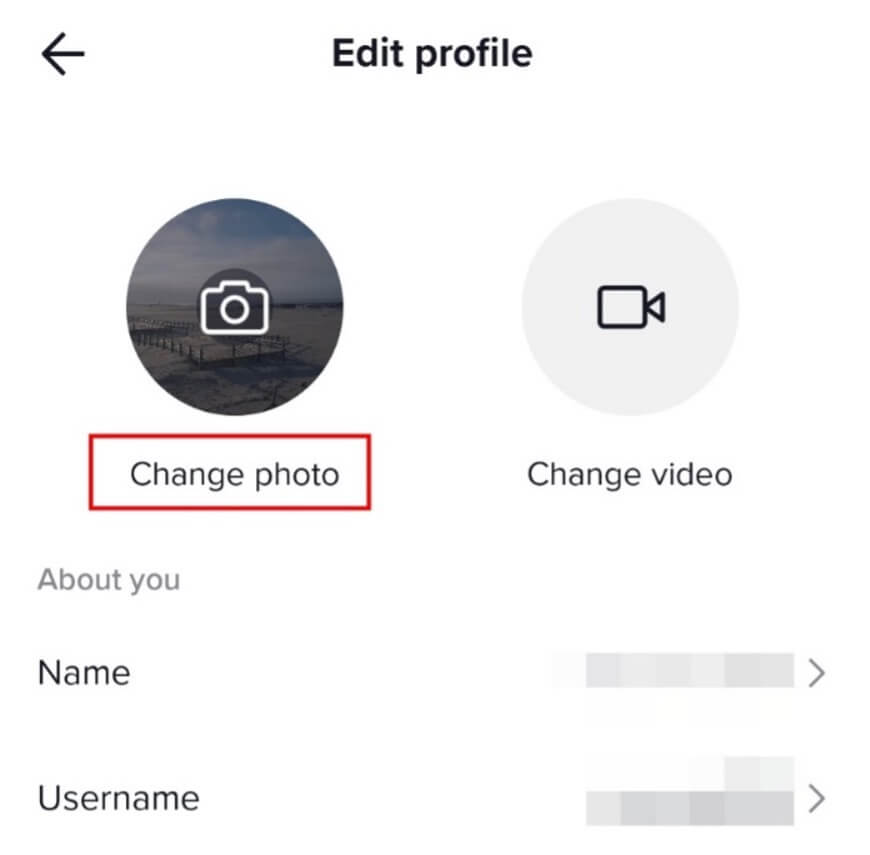
Tap on the Edit Profile button at the top right corner of the screen.
Step 4: Select a New Photo
Select a new photo from your gallery or take a new one using the camera. You can choose between taking a new photo and selecting one from your gallery.
Step 5: Crop And Save Your Photo
If you’ve taken a new photo, crop it to the desired size by pinching or spreading your fingers on the screen. Then, tap on the Save button to save your changes.
How to Change Your Tiktok Profile Picture on Computer
If you want to change your TikTok profile picture using your computer, follow these steps:
Step 1: Log in to Your Account
First, log in to your TikTok account using a web browser. If you haven’t already, create an account or log in if you’re already a user.
Step 2: Access Your Profile
Next, click on the Profile icon at the top right corner of the screen.
Step 3: Click on “Edit Profile”
Click on the Edit Profile button to access your profile settings.
Step 4: Select a New Photo
Select a new photo from your computer or take a new one using the camera. You can choose between taking a new photo and selecting one from your gallery.
Step 5: Crop And Save Your Photo
If you’ve taken a new photo, crop it to the desired size by adjusting the zoom settings at the bottom right corner of the screen. Then, click on the Apply button to save your changes.
Tips And Variations
Here are some additional tips and variations to keep in mind:
- Use a Video Profile Picture: TikTok also allows you to use a video profile picture up to 6 seconds long. To do this, access your profile settings and select the option for a video profile picture.
- Go Back on Your Paces: If you’re not satisfied with your new profile picture, go back on your paces by selecting the previous image that was set as your profile picture.
Conclusion
Changing your TikTok profile picture is a simple process that can be done in just a few steps. Whether you want to update your look or simply try something new, this guide has shown you how to change your profile picture on both mobile and computer. So go ahead and give your account a fresh new look!
Frequently Asked Questions
- How do I Delete my Tiktok Account?
- To delete your TikTok account, log in to your account, click on the Profile icon at the top right corner of the screen, and select the option for deleting your account.
- Can I Change my Tiktok Profile Picture Multiple Times?
- Yes, you can change your TikTok profile picture as many times as you want. Simply follow the steps outlined above to update your profile picture.
- How do I Report a Problem With my Tiktok Account?
- To report a problem with your TikTok account, click on the Me tab at the bottom of the screen, tap on the three dots at the top right corner of the screen, and select the option for reporting a problem.


