
How to Create a Customized Gif on Your Iphone
Are you tired of using generic GIFs on your social media platforms? Do you want to create personalized GIFs that reflect your personality or humor? Look no further! In this article, we will guide you through the process of creating customized GIFs on your iPhone.
Why Create Customized Gifs?
Creating customized GIFs is a great way to add some personal touch to your social media posts. With just a few taps on your iPhone screen, you can create hilarious, entertaining, or even informative GIFs that showcase your creativity and personality. Plus, they make for amazing conversation starters!
How to Create Customized Gifs on Your Iphone
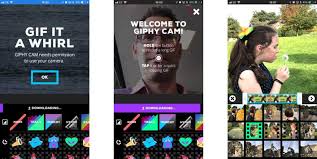
To get started, we’ll be using the GIPHY app, which is available for free download from the App Store.
Step 1: Download And Install Giphy
- Open the App Store on your iPhone.
- Search for “GIPHY” in the search bar.
- Tap on the “Get” button to download the app.
- Wait for the app to install, then tap on the “Open” button.
Step 2: Choose Your Gif Template
Once you’ve opened the GIPHY app, you’ll see a variety of templates and options to choose from. Browse through them, and select one that catches your eye!
Step 3: Add Images or Record a Video
You can either add existing images or record a new video to create your customized GIF.
- To add an image, tap on the “Gallery” icon.
- Select the image you want to use from your photo library.
- To record a video, tap on the red circle button.
- Hold down on the button to start recording, then release it when you’re done.
Step 4: Edit And Customize Your Gif
Now that you have your images or video selected, it’s time to edit and customize your GIF!
- Tap on the “Edit” icon to add filters, text, stickers, or other effects.
- Use the trimming tool to adjust the length of your GIF.
- Experiment with different animation speeds and styles.
Step 5: Save Your Customized Gif
Once you’ve edited and customized your GIF, it’s time to save it!
- Tap on the “Save” icon to save your GIF to your iPhone’s photo library.
- Share it directly to social media platforms like WhatsApp, Instagram, or Facebook.
Alternative Apps For Creating Customized Gifs
While GIPHY is an excellent app for creating customized GIFs, there are other options available as well. Here are a few alternatives:
- Gif Me! Chamber Creator: This app offers a range of templates and editing tools to create stunning GIFs.
- Imgplay: With this app, you can create and share GIFs using video and photo sequences from your iPhone’s gallery or record new ones on the spot.
- Motion Stills: This Google-developed app allows you to create GIFs by recording videos or using live photos and filmed clips from your iPhone’s gallery.
Creating a Gif From a Live Photo
If you’ve taken a stunning Live Photo with your iPhone, you can convert it into a GIF using the Command app. Here’s how:
- Download and install the Command app on your iPhone.
- Add the “Live Photo to GIF” shortcut to your Home screen by tapping on the “Add Command+Shortcut” icon in the top-right corner of the app.
- Select the Live Photo you want to convert, then tap on the “Convert” button.
Creating a Gif on Whatsapp
Did you know that WhatsApp allows you to create and share GIFs directly within the app? Here’s how:
- Open WhatsApp on your iPhone.
- Tap on the conversation you want to add a GIF to.
- Tap on the “+” icon, then select “Camera” or “Media Library” to upload an existing image or video.
- Choose the part of the video that you want to transform into a GIF using the timeline, then tap on the “GIF” option.
Conclusion
Creating customized GIFs on your iPhone is easier than ever! With just a few taps on your screen, you can create hilarious, entertaining, or informative GIFs that showcase your creativity and personality. Remember to experiment with different templates, editing tools, and styles to make your GIF stand out from the rest!
Frequently Asked Questions
-
What’s The Best App For Creating Customized Gifs?
GIPHY is a great starting point, but you can also try Gif Me! Chamber Creator, ImgPlay, or Motion Stills. -
How do I Create a Gif From a Live Photo?
Use the Command app to add the “Live Photo to GIF” shortcut, then select your Live Photo and tap on the “Convert” button. -
Can I Create a Gif on Whatsapp?
Yes! Open WhatsApp, tap on the conversation you want to add a GIF to, and follow the prompts to upload an existing image or video. -
How do I Edit And Customize my Gif?
Use the editing tools within your chosen app to trim, filter, and add effects to your GIF. -
Can I Share my Customized Gif Directly From my Iphone’s Photo Library?
Yes! Save your GIF to your photo library, then share it directly to social media platforms like WhatsApp, Instagram, or Facebook.
Happy creating, and don’t forget to have fun with it!


