
How to Ask a Refund on Steam: A Step-by-step Guide
Are you dissatisfied with your recent purchase on Steam? Do you want to know how to ask for a refund? Look no further! In this article, we’ll guide you through the process of requesting a refund on Steam, whether you’re using a computer or mobile device.
Understanding The Refund Policy on Steam
Before we dive into the step-by-step guide, it’s essential to understand the refund policy on Steam. The platform allows refunds for various types of purchases, including games, DLCs, and hardware. However, there are specific requirements that must be met before a refund can be processed.
- Games And Applications: Refunds can be requested within 14 days of purchase, provided the game has been used for at least 2 hours.
- Early Access Games: Refunds can be requested if the game has not been played for more than 2 hours. The 14-day refund window starts from the official release date of the game.
- Dlcs (Downloadable Content): Refunds can be requested within 14 days of purchase, provided the DLC has been used in conjunction with a base game that has been played for at least 2 hours.
- Hardware: Refunds for hardware purchases must be requested within 14 days of delivery. The item must also be returned within 14 days of the refund request.
Step-by-step Guide to Asking a Refund on Steam (Computer)
To ask for a refund on Steam using your computer, follow these steps:
- Launch Steam: Open Steam and log in with your account credentials.
- Access The Steam Store: Click on the “Store” tab at the top of the screen to access the Steam store.
- Find The Game or Product: Search for the game or product you want to request a refund for. You can do this by using the search bar at the top right corner of the page.
- Select The Game or Product: Once you’ve found the game or product, click on it to access its store page.
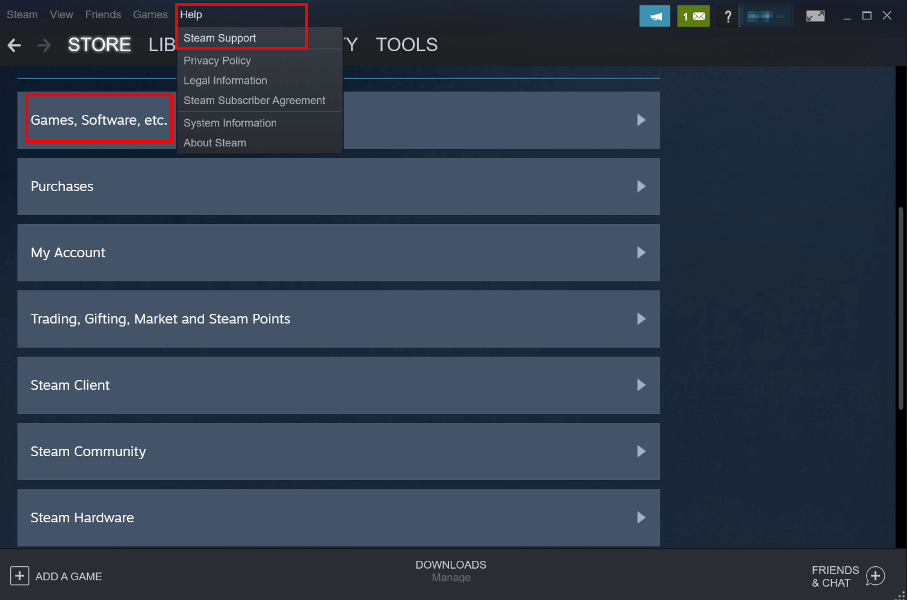
- Access The Game’s Help Page: Click on the “Help” tab at the bottom left corner of the screen to access the game’s help page.
- Report a Technical Issue or Request a Refund: On the help page, click on the “Technical Problem or with the Game” button and select the reason for your request (e.G., “The game doesn’t work,” “I don’t like the game”).
- Submit Your Request: Fill out the required information and submit your request.
Step-by-step Guide to Asking a Refund on Steam (Mobile)
To ask for a refund on Steam using your mobile device, follow these steps:
- Download And Install Steam: Download and install Steam from the App Store or Google Play Store.
- Launch Steam: Open Steam and log in with your account credentials.
- Access The Steam Menu: Tap on the menu icon (☰) at the bottom right corner of the screen to access the Steam menu.
- Select “Help”: Tap on the “Help” tab to access the help section.
- Report a Technical Issue or Request a Refund: On the help page, tap on the “Technical Problem or with the Game” button and select the reason for your request (e.G., “The game doesn’t work,” “I don’t like the game”).
- Submit Your Request: Fill out the required information and submit your request.
Frequently Asked Questions
Here are some frequently asked questions about asking a refund on Steam:
- Q: What types of purchases can I request a refund for?
A: You can request refunds for games, DLCs, hardware, and other digital products. - Q: How long do I have to request a refund?
A: The refund window varies depending on the type of purchase. For games and applications, you have 14 days. For early access games, you have until the official release date. For DLCs, you have 14 days. For hardware, you have 14 days from delivery. - Q: How long will it take to process my refund?
A: Refunds are typically processed within a week of receiving your request.
Conclusion
Requesting a refund on Steam is a straightforward process that can be completed using either your computer or mobile device. By understanding the refund policy and following the step-by-step guide, you can successfully ask for a refund and get the matter sorted out with ease.


