
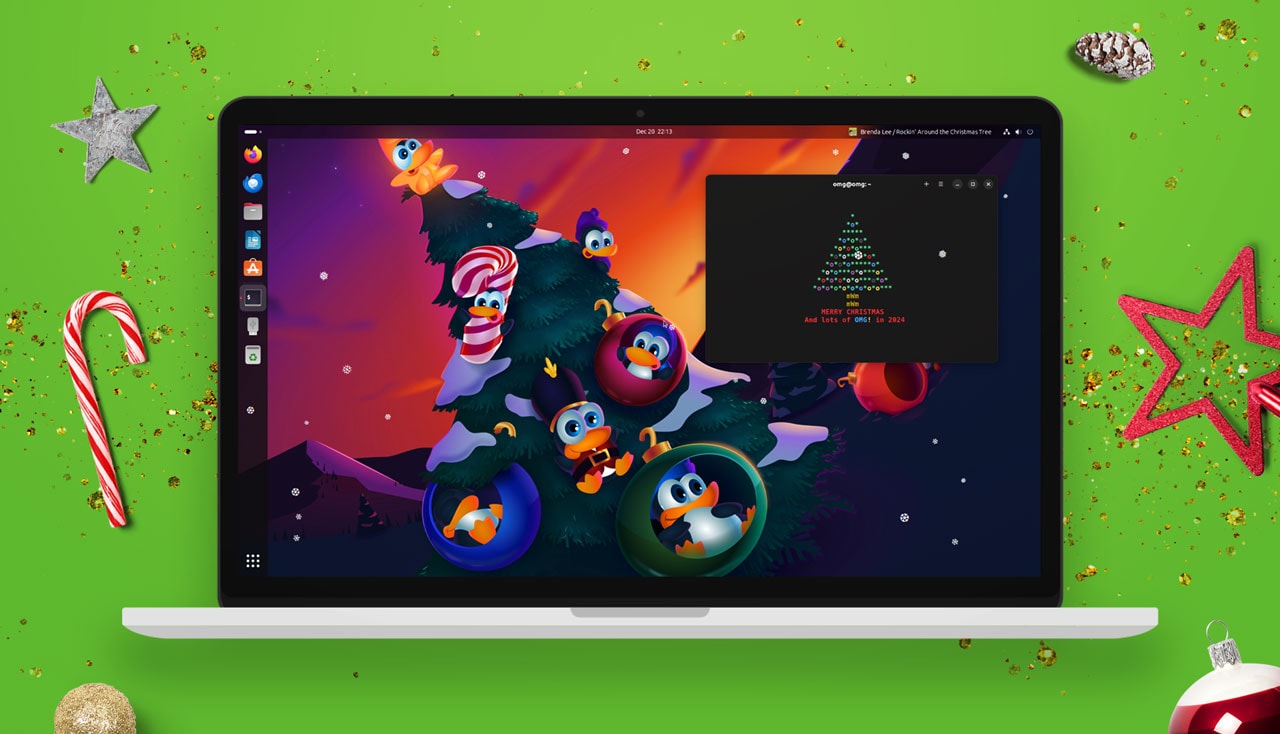
Adorn Your PC For Christmas: A Guide to Christmas-themed Wallpapers And Icons
As the holiday season approaches, it’s time to get into the festive spirit! While decorating your home with lights, garlands, and a beautifully decorated Christmas tree is a must, why not take it to the next level by adorning your computer with some merry-themed wallpapers and icons? In this article, we’ll show you how to do just that.
Why Adorn Your PC For Christmas?
Adorning your PC with Christmas-themed wallpapers and icons can add an extra layer of festivity to your digital life. Not only will it get you in the holiday mood, but it’s also a fun way to personalize your computer and make it stand out from the crowd.
Where to Find Christmas-themed Wallpapers And Icons
There are plenty of websites that offer high-quality Christmas-themed wallpapers and icons that you can use to decorate your PC. Here are some of our favorites:
- Vladstudio: This website offers a vast collection of high-resolution wallpapers in various dimensions, including 4K. You can download up to seven images for free before needing to make a payment.
- Deviantart: As one of the most popular online platforms for digital art, DeviantART has an entire section dedicated to Christmas-themed wallpapers and icons. You can search using keywords like “Christmas” or “Holiday” to find relevant results.
- Wallpaperswide: This website is a treasure trove of high-quality wallpapers, including some fantastic Christmas-themed options. All the content on this site is free to download.
- Unsplash: Unsplash is another popular platform that showcases high-resolution images taken by professional photographers. Their Christmas section has plenty of beautiful and inspiring photos.
- Freepik: Freepik is a comprehensive platform that offers a wide range of digital resources, including wallpapers, icons, and graphics. They have an entire section dedicated to Christmas-themed content.
How to Apply Wallpapers And Icons
Once you’ve found the perfect wallpaper or icon, it’s time to apply it to your PC. Here’s how:
- For Windows 10 And Successive: Right-click on a blank area of the desktop, select “Personalize,” then click on “Background” (or “Wallpaper”). From there, you can browse through your downloaded wallpapers and choose one.
- For Windows 8/8.X, Vista, And 7: Right-click on a blank area of the desktop, select “Personalize,” then click on “Desktop Background.” You’ll find this option under the section labeled “My Pictures.”
- For Macos: Go to System Preferences, click on “Desktops & Screen Saver,” then select the wallpaper you’d like to use from your downloads folder.
How to Apply Icons
Applying icons is just as easy:
- For Windows 10 And Successive: Right-click on a blank area of the desktop, select “Personalize,” then click on “Themes.” From there, you can choose an icon set or select individual icons.
- For Macos: Go to System Preferences, click on “Dock & Menu Bar,” then select the icon set you’d like to use.
Tips And Tricks
- **Use a combination of wallpapers and icons to create a cohesive look for your desktop.
- **Experiment with different sizes and resolutions to ensure optimal display quality.
- **Don’t be afraid to get creative and mix-and-match different styles and themes.


