
The Ultimate Guide to Dual Monitor Programs: Boost Your Productivity
Are you tired of working on a single monitor? Do you wish you had more screen real estate to multitask and boost your productivity? Look no further! In this comprehensive guide, we’ll explore the best dual monitor programs for Windows and macOS, helping you unlock your full potential.
What Are Dual Monitor Programs?
Dual monitor programs allow you to extend your desktop across two monitors, giving you more space to work on multiple tasks simultaneously. These programs can help you stay organized, increase your productivity, and reduce eye strain.
Top Dual Monitor Programs For Windows:
- Displayfusion: This program is a powerhouse when it comes to dual monitor management. It offers advanced features like wallpaper extension, resolution management, and color calibration across both monitors.
- Actual Multiple Monitors: Another popular choice, Actual Multiple Monitors allows you to extend your taskbar, switch between windows on multiple monitors, and manage wallpapers with ease.
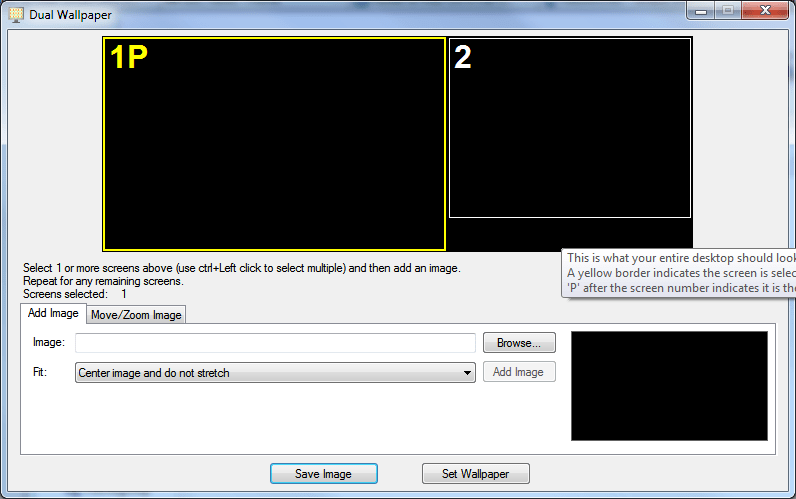
- Multiwall: A free and lightweight application, MultiWall enables you to set different wallpapers on each monitor or use a single image across both desktops.
Dual Monitor Programs For Macos:
- Switchresx: This paid program offers advanced resolution management, mirroring, and color calibration options for your Mac’s monitors.
- Displays: A user-friendly app that simplifies the management of multiple displays on your Mac, allowing you to set different resolutions, colors, and orientations for each monitor.
- Menueverywhere: Commercial software (14.95 Dollars) which is available in a free trial version. This application allows to visualize and use the menu bar of the Mac on all monitors connected to the computer.
Other Notable Dual Monitor Programs:
- Dual Monitor Tools: A collection of free programs that enable you to manage your dual monitor setup with ease, including window switching, program execution, and wallpaper management.
- Multimon Taskbar: An application (35 dollars) that allows you to have the Windows taskbar on both monitors, making it easy to switch between windows and applications.
Getting Started:
Before you begin, make sure you have:
- A dual monitor setup
- A computer running either Windows or macOS
- One of the above-mentioned programs installed
Step-by-step Guide:
- Install your chosen program from its official website.
- Launch the program and follow the on-screen instructions to configure it for your dual monitor setup.
- Experiment with different settings, such as wallpaper extension, resolution management, and color calibration.
Tips And Tricks:
- Use a separate keyboard and mouse for each monitor to increase productivity.
- Set up multiple desktops or workspaces to organize your tasks more efficiently.
- Experiment with different window management techniques, like tiling or tabbing, to find what works best for you.
Conclusion:
Dual monitor programs are an excellent way to boost your productivity, stay organized, and reduce eye strain. By following this comprehensive guide, you’ll be able to unlock the full potential of your dual monitor setup and achieve more in less time.
Frequently Asked Questions (FAQs):
- What is The Best Dual Monitor Program For Windows?
The best dual monitor program for Windows depends on your specific needs and preferences. However, DisplayFusion and Actual Multiple Monitors are highly recommended. - Can I Use a Single Program to Manage Multiple Monitors on Macos?
Yes, you can use programs like SwitchResX or Displays to manage multiple monitors on macOS. - Are Dual Monitor Programs Compatible With Older Operating Systems?
Some dual monitor programs may not be compatible with older operating systems. Be sure to check the system requirements before installing a program. - Can I Customize The Look And Feel of my Dual Monitor Setup?
Yes, most dual monitor programs allow you to customize the appearance of your desktop, including wallpaper extension, resolution management, and color calibration. - Do Dual Monitor Programs Require Additional Hardware?
No, dual monitor programs typically do not require additional hardware. However, you may need a separate keyboard and mouse for each monitor to increase productivity. - Can I Use a Single Program to Manage Multiple Monitors on Different Operating Systems (e.G., Windows And Macos)?
No, most dual monitor programs are designed for specific operating systems. You’ll need to install separate programs for each OS. - Are Dual Monitor Programs Free or Paid?
Some dual monitor programs are free, while others require a one-time payment or subscription. - Can I Use a Dual Monitor Program to Extend my Desktop Across Multiple Devices (e.G., Monitors And Tablets)?
Yes, some dual monitor programs allow you to extend your desktop across multiple devices. However, this may require additional hardware and software configurations.


