
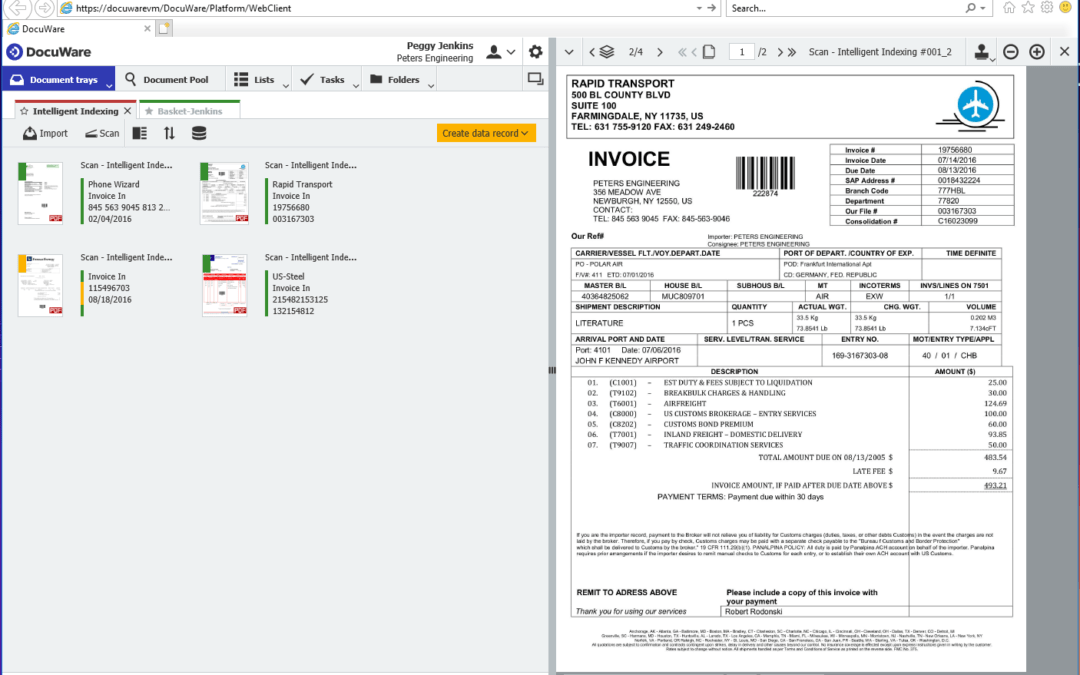
How to Scan a Document Into Pdf on Windows, Mac, Android, And Iphone
In today’s digital age, scanning documents into PDF format is an essential skill for both personal and professional use. Whether you need to scan receipts, contracts, or other important papers, knowing how to do so can save you time and hassle.
In this article, we will guide you through the process of scanning a document into PDF on Windows, Mac, Android, and iPhone. We’ll cover the steps for each operating system, including the use of built-in apps and third-party software.
Why Scan Documents in Pdf Format?
Scanning documents into PDF format offers several benefits:
- Convenience: PDFs are easy to share and store, making them perfect for online collaboration or archiving.
- Security: PDFs can be password-protected, ensuring that sensitive information remains confidential.
- Accessibility: PDFs can be viewed on any device with a PDF viewer, eliminating compatibility issues.
Scanning Documents in Pdf Format on Windows
To scan documents into PDF format on Windows, follow these steps:
Using The Built-in Scan App (Windows 11, 10, And 8)
- Download And Install The Scan App: Get the Scan app from the Microsoft Store.
- Launch The Scan App: Double-click on the icon to open it.
- Configure Your Scanner: Ensure your scanner is connected and properly configured.
- Scan Your Document: Place your document in the scanner bed and follow the on-screen instructions.
- Save as Pdf: Choose to save the scanned document as a PDF file.
Alternative Methods (Windows)
If you prefer not to use the built-in Scan app, there are other options:
- Naps2: A free program for scanning documents in PDF format with OCR support.
- Pdf24 Creator: A software that integrates a scanner and allows editing before saving as PDF.
- Abbyy Finereader: A paid program with advanced OCR capabilities.
Scanning Documents in Pdf Format on Mac
To scan documents into PDF format on Mac, follow these steps:
Using The Built-in Preview App (macOS)
- Launch Preview: Double-click on the icon to open it.
- Open The Scanner App: Click on “Scanner” from the top menu bar.
- Configure Your Scanner: Ensure your scanner is connected and properly configured.
- Scan Your Document: Place your document in the scanner bed and follow the on-screen instructions.
- Save as Pdf: Choose to save the scanned document as a PDF file.
Alternative Methods (Mac)
If you prefer not to use the built-in Preview app, there are other options:
- Trailer: A free application for scanning documents in PDF format with OCR support.
- Acquisition Image: A program that allows saving images and documents in PDF format.
- Prizmo: A paid application with advanced OCR capabilities.
Scanning Documents in Pdf Format on Android
To scan documents into PDF format on Android, follow these steps:
Using The Built-in Scanner App (Android)
- Launch The Scanner App: Go to your device’s scanner app.
- Configure Your Scanner: Ensure your printer/scanner is connected and properly configured.
- Scan Your Document: Place your document in the scanner bed and follow the on-screen instructions.
- Save as Pdf: Choose to save the scanned document as a PDF file.
Alternative Methods (Android)
If you prefer not to use the built-in scanner app, there are other options:
- Genius Scan: A free application for scanning documents in PDF format with OCR support.
- Office Lens: A Microsoft Office app that allows scanning documents and saving them as PDFs.
Scanning Documents in Pdf Format on Iphone
To scan documents into PDF format on iPhone, follow these steps:
Using The Built-in Scanner App (iOS/iPadOS)
- Launch The Scanner App: Go to your device’s scanner app.
- Configure Your Scanner: Ensure your printer/scanner is connected and properly configured.
- Scan Your Document: Place your document in the scanner bed and follow the on-screen instructions.
- Save as Pdf: Choose to save the scanned document as a PDF file.
Alternative Methods (iPhone)
If you prefer not to use the built-in scanner app, there are other options:
- Grades: A free application for scanning documents in PDF format with OCR support.
- Scan Documents: An Apple-built app that allows saving images and documents in PDF format.
Conclusion
In conclusion, scanning documents into PDF format on Windows, Mac, Android, and iPhone is a straightforward process. By following these steps and using the built-in apps or third-party software, you can easily convert your physical documents into digital files for sharing, storing, and collaborating with others.
Remember to always configure your scanner properly before scanning, and choose the best method according to your needs.
Frequently Asked Questions (FAQs)
Here are some frequently asked questions about scanning documents in PDF format:
Q: Why scan documents in PDF format?
A: Scanning documents in PDF format offers convenience, security, and accessibility.
Q: What is the best scanner app for Windows?
A: The built-in Scan app is recommended, but alternative options like NAPS2, PDF24 Creator, and ABBYY FineReader are also available.
Q: How do I scan a document on Mac?
A: Use the built-in Preview app or alternative options like Trailer, Acquisition Image, or Prizmo.
Q: Can I use an Android device to scan documents in PDF format?
A: Yes, use the built-in scanner app or alternative options like Genius Scan, Office Lens, or Adobe Scan.
Q: How do I scan a document on iPhone?
A: Use the built-in scanner app or alternative options like Grades, Scan Documents, or Adobe Scan.


