
Excel Mastery: Mastering Division Operations
Are you struggling to perform division operations on Excel? Do you find yourself stuck at a dead end, unsure of how to proceed with your calculations? Fear not! In this comprehensive guide, we will walk you through the process of performing division operations on Excel, including dividing decimals and finding remainders.
Understanding Division in Excel
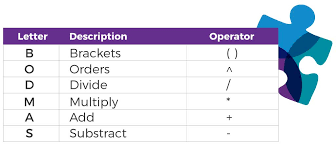
Before we dive into the nitty-gritty of division operations on Excel, it’s essential to understand the basics. Division is a mathematical operation that involves sharing a certain value (dividend) by another value (divisor) to get a result. In Excel, you can perform division using the “/” operator.
Performing Simple Division
To perform simple division on Excel, follow these steps:
- Enter The Dividend And Divisor: Type the values for which you want to divide in separate cells.
- Use The Formula Bar: Go to the formula bar (located above the worksheet) and type “=dividend/divisor” without quotes.
- Press Enter: Press the Enter key or click on another cell to execute the calculation.
That’s it! Excel will perform the division operation and display the result in the cell where you entered the formula.
Dividing Decimals
When performing division operations with decimal numbers, Excel may round the result to a certain number of decimal places. To change this behavior, follow these steps:
- Select The Cell: Choose the cell containing the result.
- Go to Home Tab: Click on the “Home” tab in the ribbon.
- Click on Number Group: In the “Number” group, click on “Increase Decimal” or “Decrease Decimal” to adjust the decimal places.
Finding Remainders
To find the remainder of a division operation, use the REMAINDER function. This function takes two arguments: The dividend and the divisor.
- Enter The Formula: Type “=REMAINDER(dividend, divisor)” without quotes in the cell where you want to display the remainder.
- Press Enter: Press the Enter key or click on another cell to execute the calculation.
Avoiding Division by Zero
When performing division operations, Excel will return an error message if the divisor is zero. To avoid this issue, use the IFERROR function in combination with the DIV/0! error message.
- Enter The Formula: Type “=IFERROR(dividend/divisor,”Error”)” without quotes in the cell where you want to display the result.
- Press Enter: Press the Enter key or click on another cell to execute the calculation.
Excel Formulas For Division
In addition to using the “/” operator and REMAINDER function, Excel provides several other formulas that can be used for division operations:
- Produced Function: This function allows you to perform division by treating the divisor as a fraction with numerator 1.
- IF Function: Use this function in combination with error messages to avoid errors.
By mastering these techniques, you’ll become proficient in performing division operations on Excel and unlock new possibilities for data analysis and calculations.
Conclusion
In conclusion, this comprehensive guide has walked you through the process of performing division operations on Excel, including dividing decimals and finding remainders. By understanding the basics of division and using the right formulas, you can master these operations and take your Excel skills to the next level.
Frequently Asked Questions (FAQs)
Here are some frequently asked questions related to division operations on Excel:
- Q: What is The Syntax For Performing Simple Division in Excel?
A: The syntax is “=dividend/divisor”. - Q: How do I Find The Remainder of a Division Operation in Excel?
A: Use the REMAINDER function by typing “=REMAINDER(dividend, divisor)”. - Q: What Happens if I Divide by Zero in Excel?
A: Excel will return an error message. Use the IFERROR function to avoid this issue.
Best Practices
To ensure accuracy and efficiency when performing division operations on Excel:
- Use The Correct Formula: Choose the right formula based on your specific requirements.
- Avoid Errors: Use functions like IFERROR to prevent errors from occurring.
- Keep it Simple: Break down complex calculations into simpler steps.
By following these best practices and mastering division operations, you’ll become a proficient Excel user capable of handling complex data analysis tasks with ease.


