
How to Use Hotspot on Iphone: A Step-by-step Guide
Are you tired of being stuck without internet access when you’re on the go? Do you wish there was a way to share your phone’s connection with other devices? Look no further! In this article, we’ll show you how to use hotspot on your iPhone and connect it to other devices.
What is Hotspot?
Hotspot is a feature that allows you to share your iPhone’s internet connection with other devices, such as laptops, tablets, or even your TV. It works by creating a Wi-Fi network that other devices can join, using your iPhone’s cellular data connection.
How to Use Hotspot on Iphone
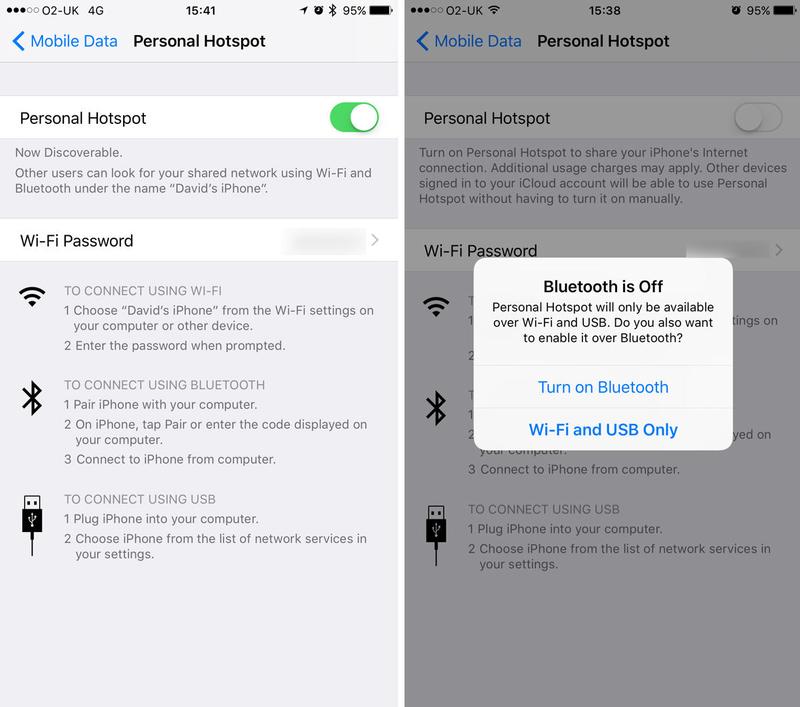
Using hotspot on your iPhone is relatively straightforward. Here’s how:
- Activate Cellular Data: First, make sure you have a cellular data connection active on your iPhone.
- Go to Settings: Open the Settings app and tap on “Cellular”.
- Toggle ON Hotspot: Turn on the “Hotspot” switch at the top of the screen.
- Choose Your Network Type: Select how you want to share your hotspot: Wi-Fi, Bluetooth, or USB.
- Set Up Your Password: If you choose Wi-Fi, set up a password for your network.
Using Hotspot on Other Devices
Once you’ve set up your hotspot, you can connect it to other devices using the following steps:
On Mac
- Go to System Preferences: Open the Apple menu and select “System Preferences”.
- Click Network: Select “Network” from the list.
- Select Wi-fi: Choose “Wi-Fi” as your network type.
- Select Your Iphone’s Hotspot: Choose your iPhone’s hotspot from the list of available networks.
- Enter Your Password: Enter the password you set up on your iPhone.
On Windows PC
- Go to Settings: Open the Start menu and select “Settings”.
- Click Network & Internet: Select “Network & Internet” from the list.
- Select Wi-fi: Choose “Wi-Fi” as your network type.
- Select Your Iphone’s Hotspot: Choose your iPhone’s hotspot from the list of available networks.
- Enter Your Password: Enter the password you set up on your iPhone.
On Android Device
- Go to Settings: Open the Settings app and tap on “Wi-Fi”.
- Toggle ON Wi-fi: Turn on Wi-Fi.
- Select Your Iphone’s Hotspot: Choose your iPhone’s hotspot from the list of available networks.
- Enter Your Password: Enter the password you set up on your iPhone.
Using Hotspot For Smart TV
Yes, you can even use hotspot on your iPhone to connect your smart TV to the internet! Here’s how:
- Activate Wi-fi: Go to Settings and select “Wi-Fi”.
- Select Your Iphone’s Hotspot: Choose your iPhone’s hotspot from the list of available networks.
- Enter Your Password: Enter the password you set up on your iPhone.
Tips And Tricks
- Make sure your iPhone has a stable cellular data connection before using hotspot.
- Keep an eye on your data usage to avoid unexpected charges.
- You can use hotspot with multiple devices at once, but be aware that it may affect your phone’s battery life.
Conclusion
Using hotspot on your iPhone is a convenient way to share your internet connection with other devices. By following these simple steps, you can connect your laptop, tablet, smart TV, or even your Android device to the internet using your iPhone’s cellular data connection. Remember to keep an eye on your data usage and battery life, and happy surfing!


