
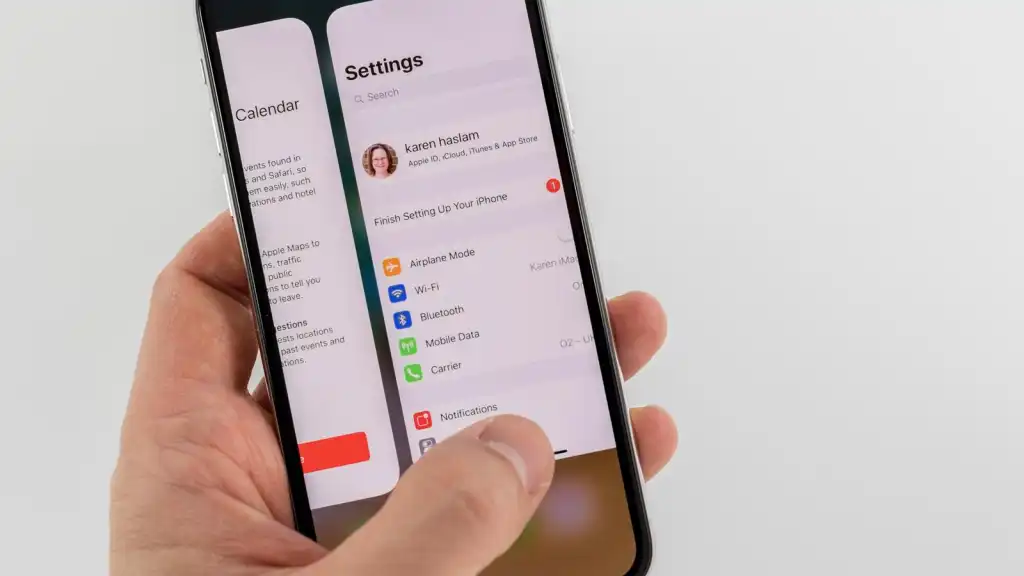
How to Close Apps on Iphone X: A Step-by-step Guide
Are you tired of feeling like your iPhone X is slow or using up too much battery life? Closing apps can be a great way to boost performance, but it can seem daunting if you’re not familiar with the process. In this article, we’ll show you how to close apps on your iPhone X in three different ways.
Why Close Apps on Iphone X?
Before we dive into the nitty-gritty of closing apps, let’s talk about why you might want to do so in the first place. Closing apps can help:
- Save Battery Life: When an app is running in the background, it can continue to consume battery power even if you’re not actively using it.
- Improve Performance: By closing unused apps, you can free up memory and processor resources, making your iPhone X feel snappier and more responsive.
- Prevent Crashes: In some cases, an app might become stuck or frozen, causing your iPhone X to crash. Closing the app can help prevent this from happening.
Method 1: Closing Apps With Assistivetouch
If you’re having trouble accessing the Home button or navigating the screen, you can use AssistiveTouch to close apps on your iPhone X. Here’s how:
- Turn on Assistivetouch: Go to Settings > General > Accessibility and toggle the switch next to “AssistiveTouch” to the On position.
- Access The Home Button: Tap on the icon that appears in the bottom right corner of the screen to access the Home button.
- Switch Between Apps: Swipe left or right to navigate through your open apps.
- Close an App: Tap and hold on an app’s icon until it starts to jiggle, then tap the “X” in the top left corner to close it.
Method 2: Closing Apps With Voiceover
If you’re familiar with VoiceOver, a screen reader that can help you navigate your iPhone X, you can use it to close apps. Here’s how:
- Turn on Voiceover: Go to Settings > General > Accessibility and toggle the switch next to “VoiceOver” to the On position.
- Access The Home Button: Tap on the icon that appears in the bottom right corner of the screen to access the Home button.
- Switch Between Apps: Swipe left or right to navigate through your open apps using VoiceOver’s audio cues.
- Close an App: Tap and hold on an app’s icon until it starts to jiggle, then tap the “X” in the top left corner to close it.
Method 3: Closing Apps With Siri
Unfortunately, you can’t use Siri to close apps directly. However, you can ask Siri to remind you to close an app, and she’ll provide you with instructions on how to do so.
- Ask Siri: Say something like “Hey Siri, remind me to close the [app name] app” and follow her instructions.
- Close The App: Use one of the methods above to close the app once Siri has reminded you to do so.
Troubleshooting: Common Issues With Closing Apps
If you’re experiencing issues closing apps on your iPhone X, here are some potential solutions:
- Apps Won’t Close: Try restarting your iPhone X or force-quitting an app by double-tapping the Home button and swiping up on the app’s icon.
- App Crashes: If an app is crashing frequently, try deleting and reinstalling it to see if that resolves the issue.
Conclusion
Closing apps on your iPhone X can be a simple yet effective way to improve performance and save battery life. Whether you’re using AssistiveTouch, VoiceOver, or Siri, there’s a method for you. Remember to always restart your device periodically to clear out any lingering processes and keep things running smoothly.
Frequently Asked Questions
- Q: How do I Close Apps on my Iphone X?
A: You can close apps using AssistiveTouch, VoiceOver, or by following the steps in this article. - Q: Why Should I Close Apps on my Iphone X?
A: Closing apps can help save battery life, improve performance, and prevent crashes. - Q: Can I Use Siri to Close Apps?
A: Unfortunately, no. However, you can ask Siri to remind you to close an app and follow her instructions. - Q: What if my Iphone X is Slow or Using up Too Much Battery Life?
A: Closing unused apps can help boost performance and save battery life.


