
Unlocking The Full Potential of Your Smart Home With Sonoff Devices
Are you tired of coming home to a dimly lit house or worrying about whether your appliances are turned off? Do you want to create a smart home that learns and adapts to your needs? Look no further than SONOFF devices, which can be controlled remotely using various apps. In this article, we’ll explore the world of SONOFF and show you how to get the most out of these intelligent devices.
What Are Sonoff Devices?
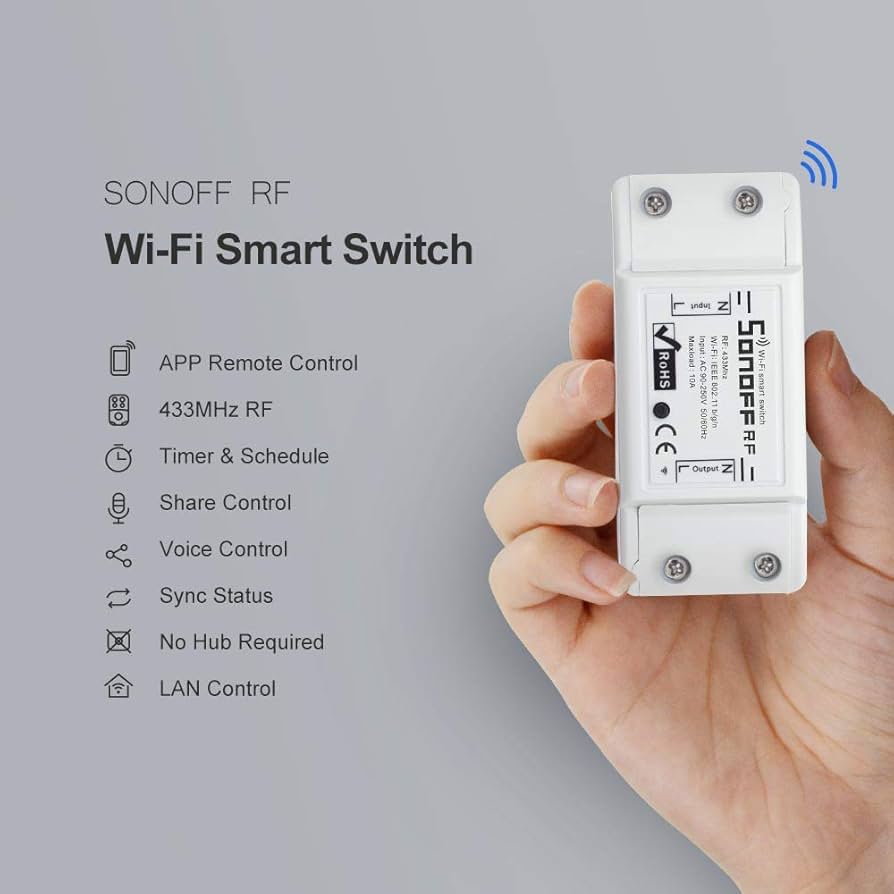
SONOFF devices are smart home products that allow you to control your lights, appliances, and other electronic devices from anywhere in the world using your smartphone or tablet. These devices use Wi-Fi connectivity and can be controlled using various apps, which we’ll explore in more detail later.
Why Choose Sonoff Devices?
There are many reasons why SONOFF devices are a popular choice among smart home enthusiasts. Here are just a few:
- Convenience: With SONOFF devices, you can control your home from anywhere, at any time.
- Energy Efficiency: By turning off lights and appliances when not in use, you can save energy and reduce your utility bills.
- Peace of Mind: With SONOFF devices, you can always be sure that your home is secure and that your appliances are turned off when not in use.
What Apps Can I Use to Control My Sonoff Devices?
There are several apps available that allow you to control your SONOFF devices. Here are some of the most popular ones:
- Ewelink: This is the official app for SONOFF devices and allows you to control your devices remotely, create scenes, and even integrate with other smart home systems.
- Smart Life: Another popular app for SONOFF devices, Smart Life allows you to control your devices, create scenarios, and even integrate with other smart home systems.
How Do I Set Up My Sonoff Devices?
Setting up your SONOFF devices is a straightforward process. Here’s a step-by-step guide:
- Download The App: Download the app of your choice (eWeLink or Smart Life) from the App Store or Google Play.
- Create an Account: Create an account with the app and follow the prompts to connect your device to your Wi-Fi network.
- Add Your Device: Add your SONOFF device to the app by following the on-screen instructions.
- Configure Your Device: Configure your device according to your preferences, such as setting up scenes or integrating with other smart home systems.
What Are Scenes And How Do I Create Them?
Scenes are pre-programmed settings that allow you to control multiple devices at once. For example, you can create a scene called “Goodnight” that turns off all the lights in your home when it gets dark. Here’s how to create scenes using eWeLink:
- Open The App: Open the eWeLink app and navigate to the Scenes section.
- Create a New Scene: Tap the “+” button to create a new scene.
- Add Devices: Add the devices you want to include in your scene, such as lights or appliances.
- Configure The Scene: Configure the scene according to your preferences, such as setting up triggers and actions.
What Are Some Alternative Apps For Sonoff Devices?
While eWeLink is the official app for SONOFF devices, there are several alternative apps available that offer similar functionality. Here are some of the most popular ones:
- Smartthings: This app allows you to control your smart home devices from a single interface and integrates with other smart home systems.
- Ifttt: This app allows you to create custom recipes for your smart home devices, such as turning on lights when you enter a room.
Can I Control My Sonoff Devices Using Voice Commands?
Yes, you can control your SONOFF devices using voice commands. Here’s how:
- Download The App: Download the eWeLink app and navigate to the Profile section.
- Connect Your Device: Connect your device to your Amazon Alexa or Google Assistant account.
- Configure Your Voice Commands: Configure your voice commands according to your preferences, such as setting up triggers and actions.
What Are Some Tips For Using Sonoff Devices?
Here are some tips for getting the most out of your SONOFF devices:
- Use Scenes: Use scenes to control multiple devices at once and create a more seamless smart home experience.
- Integrate With Other Smart Home Systems: Integrate your SONOFF devices with other smart home systems, such as Amazon Alexa or Google Assistant.
- Keep Your Devices Up-to-date: Keep your devices up-to-date by regularly updating the app and firmware.
Conclusion
SONOFF devices offer a convenient and energy-efficient way to control your smart home. With various apps available, you can customize your experience according to your preferences. By following these tips and using scenes, integrating with other smart home systems, and keeping your devices up-to-date, you can get the most out of your SONOFF devices.
Faqs
- Q: What Are Sonoff Devices?
A: SONOFF devices are smart home products that allow you to control your lights, appliances, and other electronic devices from anywhere in the world using your smartphone or tablet. - Q: How do I Set up my Sonoff Devices?
A: To set up your SONOFF devices, download the app of your choice (eWeLink or Smart Life), create an account, add your device, configure your device according to your preferences. - Q: What Are Scenes And How do I Create Them?
A: Scenes are pre-programmed settings that allow you to control multiple devices at once. To create a scene, open the eWeLink app, navigate to the Scenes section, tap the “+” button, add devices, configure the scene according to your preferences. - Q: Can I Control my Sonoff Devices Using Voice Commands?
A: Yes, you can control your SONOFF devices using voice commands by downloading the eWeLink app, connecting your device to your Amazon Alexa or Google Assistant account, and configuring your voice commands according to your preferences. - Q: What Are Some Alternative Apps For Sonoff Devices?
A: Some alternative apps for SONOFF devices include SmartThings, IFTTT, and Olisto. - Q: Can I Control my Sonoff Devices Using a Pc?
A: Yes, you can control your SONOFF devices using a PC by downloading the eWeLink Web app and navigating to the Device Management section. - Q: How do I Create a New Scene in Ewelink?
A: To create a new scene in eWeLink, open the app, navigate to the Scenes section, tap the “+” button, add devices, configure the scene according to your preferences. - Q: Can I Integrate my Sonoff Devices With Other Smart Home Systems?
A: Yes, you can integrate your SONOFF devices with other smart home systems by using apps such as SmartThings or IFTTT.


