
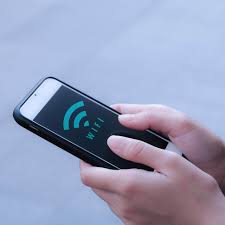
Actuating Hotspot Iliad: A Step-by-step Guide
As a user of the Iliad SIM, you may have already experienced the convenience of sharing your internet connection with other devices using the hotspot feature. However, if you’re new to this technology or need a refresher, this guide will walk you through the process of setting up and using the hotspot on both Android and iPhone devices.
Preliminary Information
Before we dive into the nitty-gritty, it’s essential to understand what hotspot is and how it works. Hotspot, also known as tethering, allows you to share your smartphone’s internet connection with other devices, such as laptops or tablets, using Wi-Fi or a physical connection.
Configuration Parameters For Hotspot Iliad
To configure the hotspot on your Android device, follow these steps:
- Access The Settings: Go to the home screen and select the settings app.
- Select Connections: Choose the option that says “Connections” or “Wireless & networks.”
- Tap Tethering & Hotspot: Select the tethering and hotspot option.
- Enable Mobile Hotspot: Flip the toggle switch to enable mobile hotspot.
On your iPhone, follow these steps:
- Access Settings: Go to the home screen and select the settings app.
- Select Cellular: Choose the cellular option.
- Tap on ‘Hotspot’: Select the hotspot option.
- Enable Hotspot: Flip the toggle switch to enable hotspot.
Actuating Hotspot Iliad on Android
After completing the preliminary steps, follow these specific instructions for configuring the hotspot on your Android device:
- Access the home screen and/or drawer of Android.
- Tap on the settings icon.
- Select the relative voice to connections.
- Displace on ON the levetta put beside Tethering or Hotspot portable.
If you desire it, you can personalize the name of the wireless network generated by the hotspot Iliad and its relative access key. To do this, select the Configure Wi-Fi option and enter your desired name and password.
Some devices also allow you to set a timer for automatically deactivating the hotspot. To activate this feature, find and select the voice Hold active Wi-Fi possibly present, then indicate the time of automatic deactivation of the network.
Actuating Hotspot Iliad on Iphone
To configure the hotspot on your iPhone or iPad, follow these steps:
- Access the home screen and/or Bookshop app.
- Tap on the settings icon.
- Select the Cellular voice.
- Choose Net given cellular.
- Check that the countrysides of the form proposed are compiled how followed reported.
If you need to modify the parameters, do so by tapping on the arrow behind positionated in the angle in tall to left of the monitor. Save the modifications carried out by selecting the voice #Save from the menu.
Hotspot Iliad Configuration For Usb And Bluetooth
To use the hotspot with Iliad via USB or Bluetooth, follow these steps:
- Access the settings app.
- Tap on Tethering & Hotspot.
- Select the option that says ‘USB’ or ‘Bluetooth’.
- Ensure your device is connected to a USB port or Bluetooth-enabled device.
Common Issues And Solutions
If you encounter problems while setting up the hotspot, refer to our detailed guides for specific solutions.


